

CapCut is a simple, easy-to-use, and popular video editing application that helps users easily create short videos, and one of its most useful features is the ability to adjust playback speed for better storytelling. With CapCut Velocity Edit, users can smoothly control how fast or slow a clip plays, making it easier to highlight key moments, add dramatic effects, or create engaging transitions. Speeding up video playback not only saves time but also adds energy and creativity to the final result, making videos more appealing and enjoyable to watch.
This guide will teach you step-by-step how to speed up video playback in CapCut and provide some tips to help you achieve better results.
Why Speed Up a Video?
Speeding up video playback is not just about shortening the duration; it also enhances the viewing experience.
One common reason is to save time. Long videos, such as travel clips or everyday life videos, may appear too slow when played normally. By speeding up playback, you can show the entire process in a shorter video.
Speeding up the playback can also help maintain viewer interest. Slow-motion visuals can easily distract viewers, especially on short video platforms. A faster pace makes the content more vivid and easier to understand.
Another reason is to create time-lapse effects. This effect is perfect for scenes such as sunsets, city traffic, painting, or gradual construction. Speeding up the playback of these clips can enhance their visual appeal.
You can also adjust the playback speed to match the background music. Many videos look better when the visuals and music are synchronized. A slightly faster playback speed can make transitions smoother and more natural.
Speeding up playback can also help highlight key moments. Instead of cutting out parts, it’s better to keep the whole story and quickly skip over the less important parts. This ensures the integrity of the video while saving time.
Adjusting video playback speed is a simple way to improve video smoothness and the overall viewing experience.
Step-by-Step Guide
Follow these simple steps to speed up your video in CapCut:
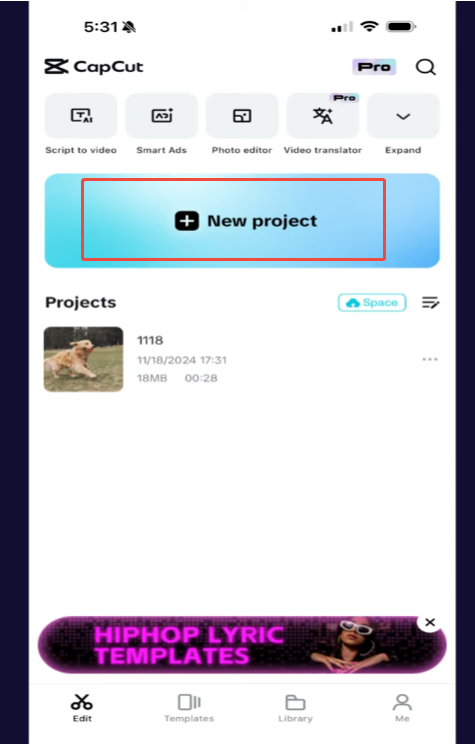
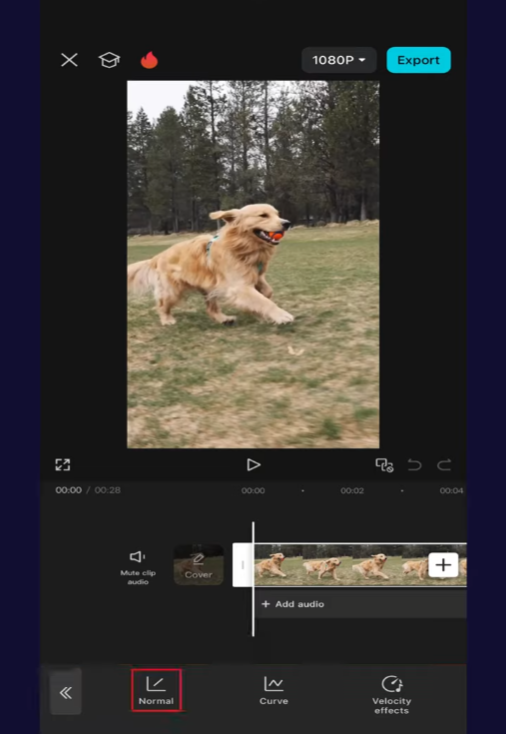
- Open CapCut and tap “New Project.”
- Select the video you want to edit
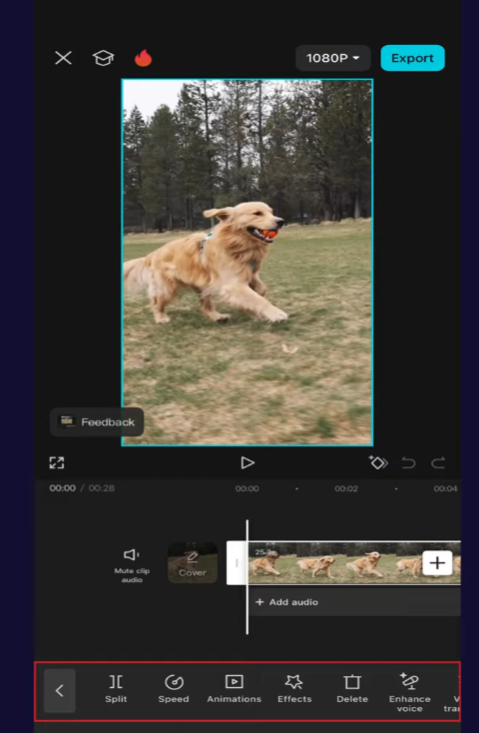
- Tap on the video clip in the timeline
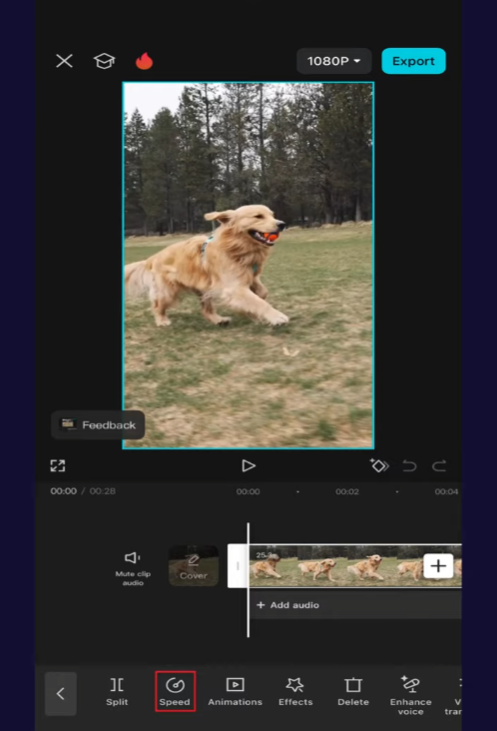
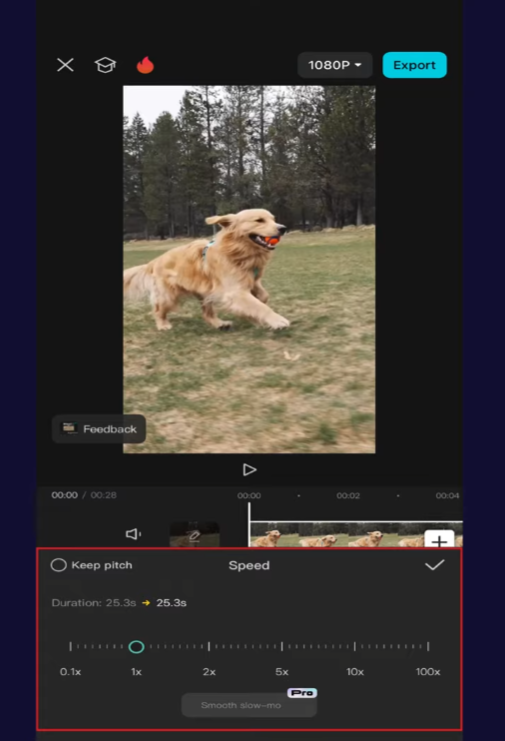
- Look for the “Speed” option at the bottom
- Choose “Normal” to adjust the speed evenly
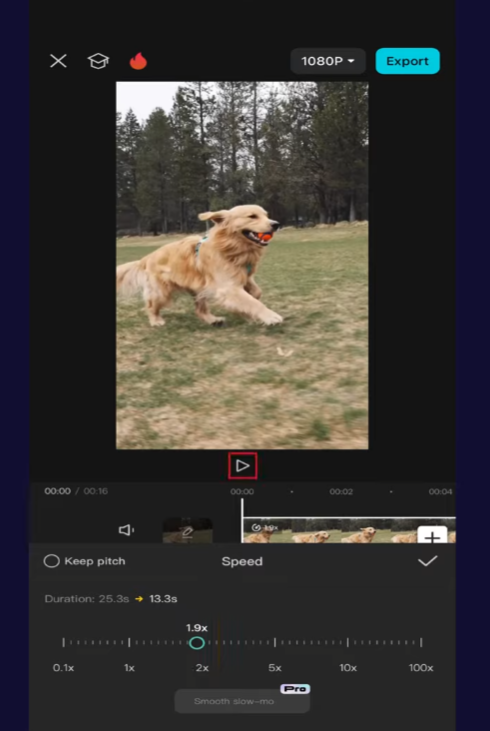
- Drag the slider to increase the speed
- Tap the check mark to confirm
After this, your video will play faster.
Using Curve Speed
CapCut also offers a feature called “Curve”, which allows you to change speed at different points in the video.
This is useful if you want:
- Slow motion at the start
- Fast motion in the middle
- Normal speed at the end
Steps:
- Tap “Speed”
- Select “Curve”
- Choose a preset or create your own pattern
- Adjust points on the graph to control speed
This gives you more creative control compared to normal speed.
Tips for Better Results
Speeding up video playback is easy, but making it look smooth and natural requires some skill. The following tips can help you achieve a smoother, more natural final result.
Keep It Smooth
Avoid setting the speed too high at the beginning. Videos that are too fast-paced will appear rushed and be difficult to watch. It is recommended to increase the speed slightly first, such as 1.5x or 2x, and then gradually adjust it until it feels comfortable.
Match With Music
If you plan to add music, try to keep the video speed and rhythm consistent. Videos played in sync with the beat sound more balanced and pleasant to the ear. You can test different speeds while playing background music.
Trim Before Speeding Up
Before adjusting the video speed, please delete any unnecessary parts. This keeps the video concise and prevents fast-moving sections from appearing cluttered. Short, clear video clips always look better.
Check Audio Carefully
The original sound will also change when the playback speed is increased. Human voices may sound too fast or unclear. In many cases, it is best to mute the original audio and add music or simple sound effects.
Use Curve for Better Flow
Don’t keep the entire video at the same speed; try using the curve tool. You can speed up certain parts while slowing down important moments. This creates a more natural and fluid visual effect.
Watch the Full Video Before Export
After editing, please play the video from beginning to end. This can help you spot minor issues, such as sudden changes in speed or timeline misalignment. Fixing these problems early can save time later.
Pay attention to these details, and your accelerated videos will not only be faster but also provide a better viewing experience.
Common Problems and Fixes
When using CapCut to speed up video, you may notice some minor issues. Most problems are easy to solve once you know what to check.
- Video looks choppy or not smooth
This usually happens when the playback speed is too high. Try slightly reducing the playback speed, for example, from 4x to 2x. You can also check the quality of the original video; low-quality videos tend to look worse when played at a faster speed. - Audio becomes too fast or unclear
When the video playback speed is increased, the original audio also speeds up, which can make human voices difficult to recognize. A simple solution is to mute the original audio and add background music. This method works for most short videos. - Timing does not match the music
If your video sounds out of sync, adjust the speed little by little instead of making drastic changes all at once. You can also edit video clips to match the key points of the music. - Important details are too quick to see
Videos sped up too quickly can make them difficult to watch. In this case, you can use the speed curve function to keep some segments playing normally and only speed up less important segments. - App lag or slow preview
Sometimes the preview may stutter, especially on older devices. Try closing other applications or exporting the video to see the final result clearly. Exported videos are usually smoother than the previews.
By carefully adjusting the speed and checking these small details, you can avoid most common problems and create smoother, easier-to-watch videos.
When to Use Speed Effects
Speed effects are useful in many situations, but they are even more effective when used at the right time.
For example, in everyday life videos, speeding up actions such as walking, cleaning, or preparing items can skip lengthy segments and shorten the video length. This makes the content easier to view, especially suitable for social media.
In travel videos, speed effects are perfect for scenes such as road trips, train journeys, or navigating busy streets. It helps to showcase more locations in less time while maintaining a dynamic feel.
For tutorial videos, speeding up repetitive steps can save time and keep viewers engaged. In a CapCut Speed Ramp Tutorial, you can show the full process—like cooking or painting without making people wait, while keeping key steps at normal speed so everything stays clear and easy to follow.
Speed effects are also popular in creative editing. You can combine slow motion and fast motion to create a contrasting effect. For example, first use slow motion to showcase key moments, then switch to fast motion to enhance the energy.
Another clever use of speed effects is to synchronize them with music. Speeding up the playback of video clips to match the beat can make the video look smoother and more dynamic. This technique is often used in short videos and promotional videos.
The key is balance. If all the segments are too fast, the video will appear rushed. Mixing normal speed with faster clips usually yields the best results.
Export and Save Your Video
After adjusting the video speed, the final step is to export the video correctly. This ensures that your edits are saved and can be shared at any time.
To export your video in CapCut:
- Tap the Export button at the top right corner
- Choose the resolution
- Select the frame rate if needed
- Wait for the video to process and save
If your video is short, concise, and fast-paced, a standard resolution like 1080p is usually sufficient. Unless you need higher image quality, there’s no need to choose excessively high settings.
It’s best to watch the video in its entirety before sharing it. Check if the video speed is natural and smooth, and if the transitions are smooth. If you feel the speed is too fast or the picture is not clear, you can go back and adjust it.
You can also save the video to your device or share it directly to social media platforms. Keep a backup on your phone so you can edit it later.
Exporting videos using the correct settings ensures clear and smooth editing results that are readily available for others to view.


