

You do not need expensive editing software, a gaming PC, or a premium subscription to make videos that actually look good in 2026. Plenty of creators are making viral edits using only CapCut free tools on their phones—That’s the charm of CapCut.
Now I’ll teach you how to use the CapCut free tool to enhance your video effects. If you want to learn more CapCut editing tricks for beginners, you can follow us.
How to Make Good Edits on CapCut Without Pro Mobile?
Step 1: Start With Strong Clips
No transition can save boring footage. Before editing: Choose clear clips, remove shaky footage, trim awkward pauses, and use short scenes.
Good edits begin before effects are added. A lot of beginners try fixing weak clips with excessive filters. Adding effects to a blurry video will only make it less clear.
Step 2: Sync Cuts to Music
This is probably the biggest difference between amateur and polished edits. Listen for: Beats, Bass hits, Lyrics, Sound effects, Tempo changes.
Cut clips exactly on those moments. Even simple edits instantly feel smoother when synced correctly. Music timing carries edits harder than people realize.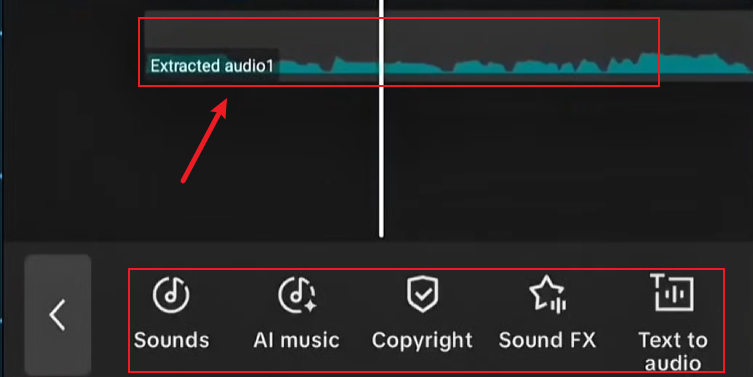
Step 3: Control Speed for Dramatic Impact
CapCut’s free version includes a speed control tool that lets you adjust videos from 0.1x to 100x. Use slow motion to highlight details or emotional parts, and use speed ramps to make your videos more exciting. The curve speed tool helps you create smooth transitions between different speeds for a professional finish.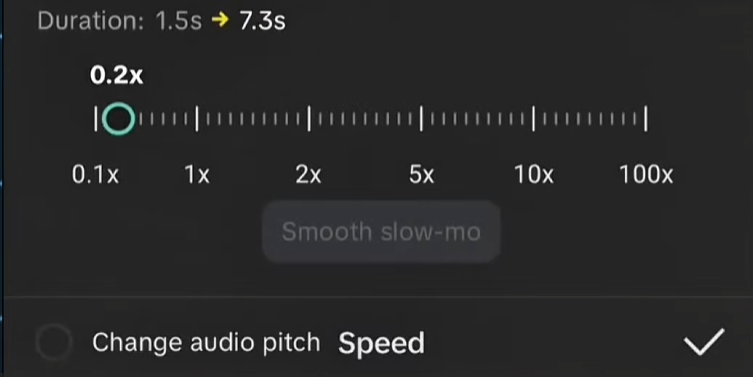
Step 4: Explore Overlay and Chroma Key Features
With the overlay feature, you can stack videos and images to create reaction clips or memes. The free green screen tool lets you swap backgrounds by removing specific colors. This makes professional-level editing easy and affordable.
Step 5: Animate with Keyframes
CapCut’s free version now includes keyframe animation, a feature once limited to professional software. This tool lets you create custom movements for text, images, or videos by adjusting their position, size, and transparency. It is an easy way to make eye-catching motion graphics for your projects.
How to Make Funny Edits on CapCut?
Creating humorous content requires a combination of timing, effects, and creativity. Here’s how to leverage CapCut’s free tools for comedy:
- Use Sudden Zooms
Fast zoom-ins work great for: Reactions, Facial expressions, Awkward moments. Especially combined with sound effects.
- Utilize Meme Elements and Stickers
CapCut lets you easily add funny stickers and emojis to your videos. It also features AI-generated stickers designed to match your video’s humor. For example, you can overlay troll face stickers to emphasize funny reactions or add animated emojis that respond to the action.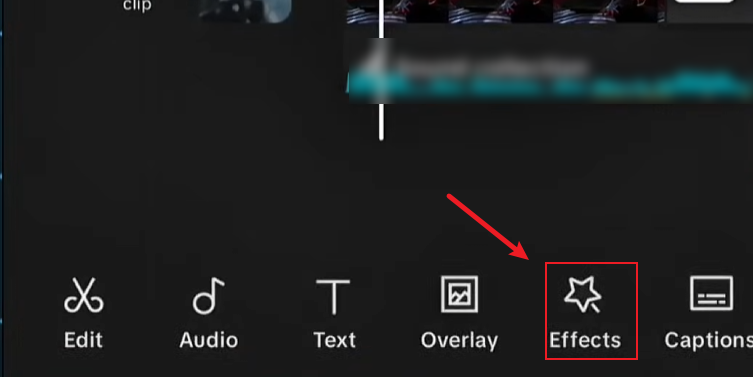
- Apply Comedy Effects
This software features funny effects like a gorilla face or a giant head to change how characters look. These tools are great for making comedy shorts and reaction videos. Use them carefully to highlight funny moments without overusing them.
- Add Meme Sounds
Funny edits often rely on: Vine booms, Record scratches, Cartoon sounds, Bass boosts, and dramatic echoes. Audio carries comedy more than visuals sometimes.
- Freeze Frames
Freeze frames create emphasis. Especially effective for: Embarrassing moments, Unexpected reactions, Chaotic scenes. Add text during freeze frames for a stronger comedic impact.
- Create the Epic Trollface Edit
One of the most viral meme edits currently trending involves combining intense zooms, sync effects, and glitchy visuals with the classic Trollface meme. Here’s how to create this effect for free:
- Import your background video and a transparent PNG of the Trollface
- Use keyframes to make the Trollface zoom in and out with music beats
- Include meme stickers from CapCut’s sticker section
- Add sound effects like “troll laugh” or explosion sounds for extra humor
How to Make Good Text in CapCut?
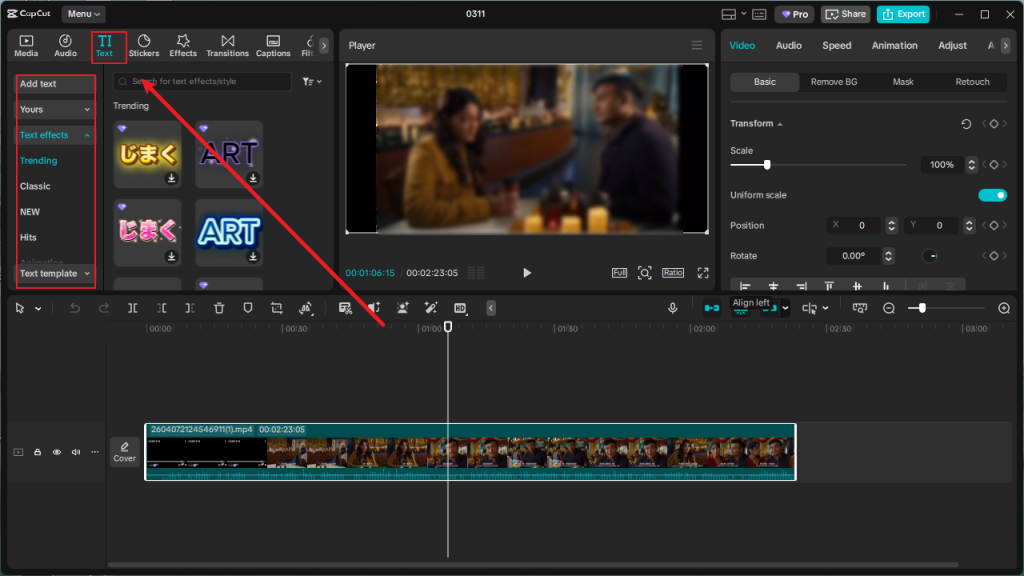
Text isn’t just words; it’s a visual tool that helps tell stories, highlight key points, and make information easier for everyone to use.
- Choose the Right Font and Style
CapCut offers various fonts that you can customize with colors, outlines, shadows, and backgrounds. Best Text Tips for Beginners: Keep Fonts Simple. The free version includes enough variety to suit most content styles.
- Animate Your Text
Static text can be boring. CapCut’s free text animation options include typewriter, bounce, wobble, slide, and fade effects. Make your text move with animations, but ensure the style fits the mood of your video. For example, a typewriter effect works well for tutorial videos, while bounce animations suit lighthearted content.
- Utilize Text Templates
If you’re short on time or design inspiration, CapCut provides pre-made text templates that you can customize. These templates include coordinated animations and styles that have been proven effective. Simply replace the placeholder text with your own message and adjust colors to match your brand.
- Layer Text for Depth
Create visual interest by layering multiple text elements. You might have a large title with a smaller subtitle beneath it, or text with a shadow or outline effect. Use different animation timings for each layer to create sophisticated text sequences without needing advanced design skills.
CapCut Editing Tricks for Beginners
If you’re new to video editing, these tricks will help you create professional-looking videos quickly:
- Start with Templates: CapCut offers ready-made templates for various video types and platforms. These templates provide a solid foundation with pre-configured transitions, effects, and text animations.
- Use the Rule of Thirds for Composition: Enable the grid overlay in CapCut’s settings to apply the rule of thirds—a fundamental composition principle. Position important elements along the grid lines or at their intersections to create balanced, visually appealing shots.
- Master the Multi-Track Timeline: CapCut lets you use multiple tracks for video, audio, text, and effects. To keep your project organized, place your main video on the bottom track. Put overlays above it, text on the next layer, and effects at the very top. This structure makes it much easier to handle complex edits.
- Utilize Auto-Captions for Accessibility: Automatic captions help people who are hard of hearing or watching on mute, which increases views. Make sure to fix any mistakes and change the font and style to match your video’s design.
- Experiment with Color Grading: CapCut Pro has advanced tools, but the free version still lets you adjust basic settings like brightness, contrast, and color. You can use these to change the mood of your video. For example, use warmer tones for a cozy feel or blue tints for a sad look.
- Create Smooth Transitions with Matching Frames: To make your video transitions look professional, match the end of one clip with the start of the next using similar colors, layouts, or movements. When you add a simple crossfade, these matching visuals will create a smooth and seamless effect.
- Use B-Roll Effectively: B-roll is extra footage that helps show what you are talking about. You can easily film it with one camera by capturing close-ups or different angles. When using CapCut, add these clips as overlays and use keyframes to add movement, which makes your video look more professional.
Why CapCut Free is More Than Enough for Most Creators?
CapCut exploded because it simplified editing for normal users.
Before CapCut: Editing felt technical, Mobile editors were limited, Effects looked outdated, and export quality was inconsistent.
CapCut changed that by combining: Mobile-friendly controls, Built-in templates, AI tools, Easy transitions, Auto captions, Social-media-focused editing.
And most importantly, It made beginner edits look decent very quickly. That’s a huge reason why TikTok-style editing evolved so fast.
FAQ
Q: Does CapCut work offline?
A: Basic editing tools work offline, but for accessing effects, music libraries, and some AI features, you’ll need an internet connection.
Q: How to use CapCut without downloading
A: If you don’t want to download the Capcut app, you can use Capcut Online, which will also meet your editing needs.
Q: How can I use CapCut Pro features for free?
A: You can download and use the CapCut Mod APK, which provides all the features of CapCut Pro and is free to use.
Q: Can I use CapCut without a TikTok account?
A: Absolutely. While CapCut is developed by ByteDance (TikTok’s parent company), it functions as a standalone app. You don’t need a TikTok account to use CapCut, and you can export videos to any platform, not just TikTok.


