
TikTok has become the ultimate platform for short-form viral content, and creating polished, eye-catching tik tok video content no longer requires professional editing skills. While mobile editing apps are convenient, CapCut PC offers more precise controls, larger editing canvases, and advanced features to craft high-quality clips. Whether you’re a beginner looking to make your first viral post or a content creator scaling up your work, mastering CapCut PC editing is the key to creating a new trending video capcut that stands out on For You Pages (FYP). In this guide, we’ll walk you through how to clip videos for TikTok on CapCut PC, coverhow to add music to capcut, and leverage a capcut edit template to streamline your content creation process.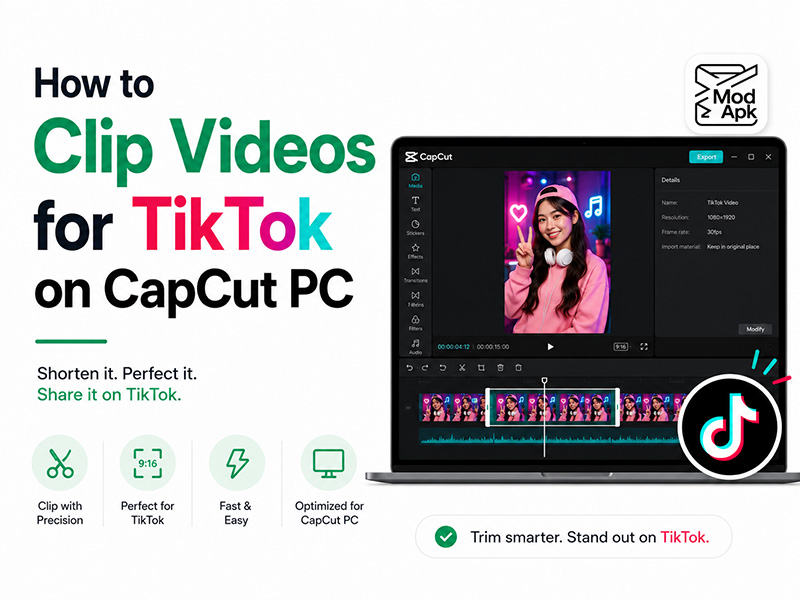
Why Use CapCut PC to Make Tik Tok Video
CapCut is officially paired with TikTok, which makes it the most compatible editor for all types of tik tok video. Compared with the mobile app, the PC version stands out in multiple ways when it comes to video clipping and post-production:
- The wide desktop screen lets you view every frame clearly, making frame-perfect clipping much easier.
- It supports multi-track editing, longer footage processing and flexible timeline adjustment for complex TikTok clips.
- It hosts a massive built-in resource library, including ready-made capcut edit template, daily updated sound effects, filters and all kinds of new trending video capcut materials.
- You can import large video files without lag and export high-definition footage stably for TikTok upload.
Step 1: Set Up TikTok-Optimized Project on CapCut PC
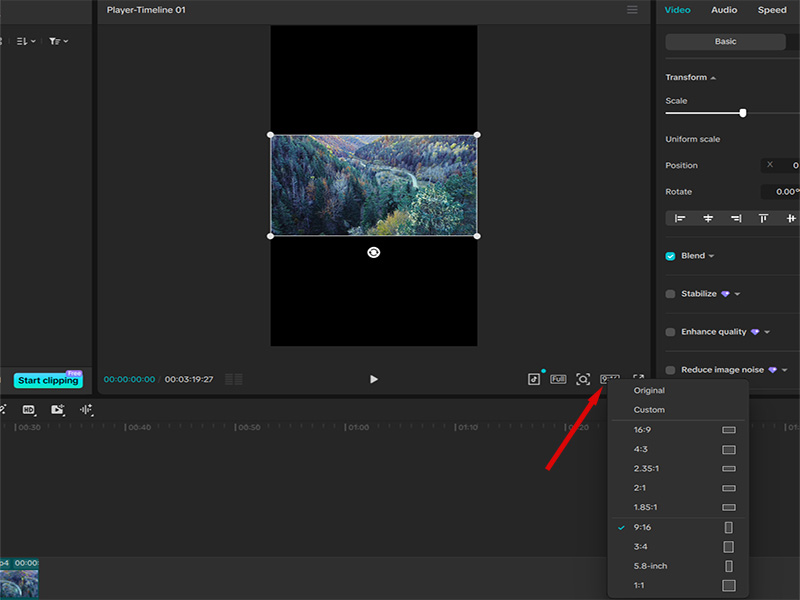
Before you start clipping footage, adjust your project settings to fit TikTok’s standard display rules. TikTok mainly uses a 9:16 vertical aspect ratio, which is different from regular landscape videos.
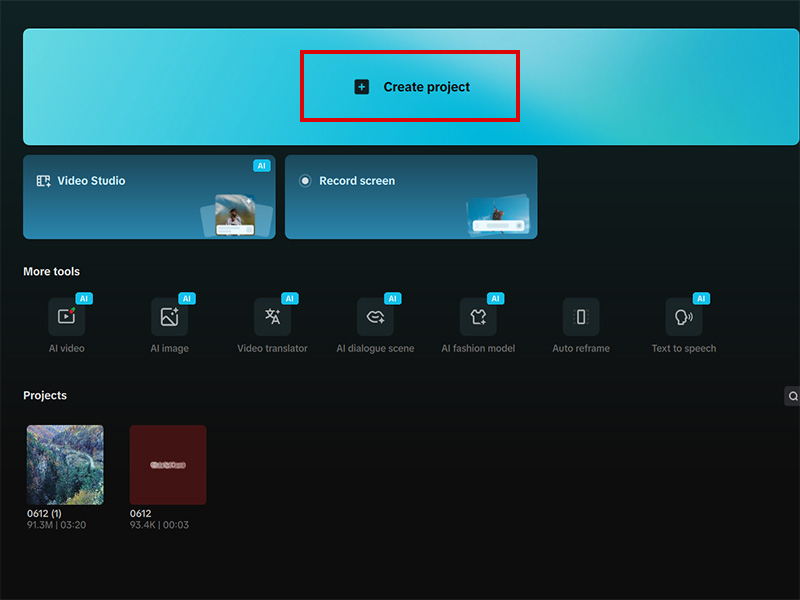
- Launch CapCut PC and click Create Project on the home screen.
- Drag your raw footage, photos or recorded clips into the media library.
- Click the canvas ratio option on the top toolbar and select 9:16.
- Set resolution to 1080P and frame rate to 30fps or 60fps for sharp and smooth tik tok video playback.
These basic settings ensure your content will not be cropped awkwardly or distorted after posting to TikTok.
Step 2: How to Clip Videos on CapCut PC
Clipping and trimming is the most fundamental work for short TikTok videos, helping you cut redundant footage, split long clips and keep only the most attractive segments. Follow these simple steps:
- Drag your imported video file from the media library down to the timeline.
- Hover your mouse over the start or end edge of the clip. When the double-arrow icon appears, drag left or right to trim unwanted parts directly.
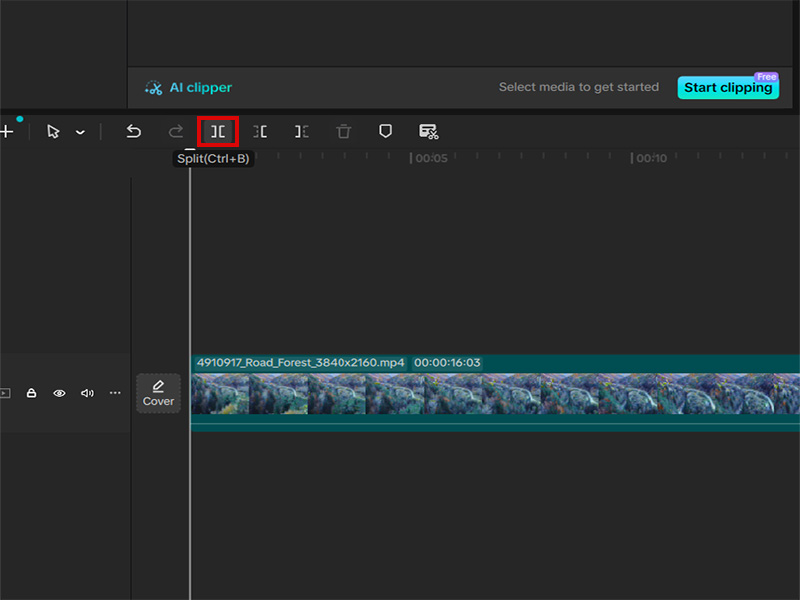
- To split a clip into multiple parts: move the playhead to the exact position you want to cut, then click the Split button on the top menu.
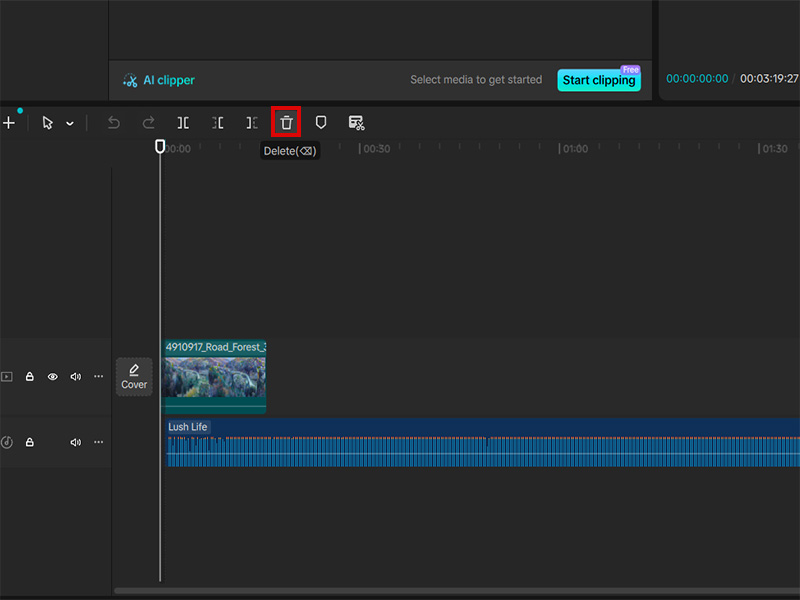
- Select the unnecessary clip segment and press the Delete key to remove it.
- Rearrange clip order by dragging segments on the timeline to create a fluent story flow.
For most tik tok video, keep the total length between 15 seconds and 1 minute to match users’ browsing habits.
Step 3: How to Add Music to CapCut
Background music and trending audio are the soul of viral TikTok content, so mastering how to add music to capcut is a must-learn skill for every creator. CapCut PC provides a huge built-in audio library, and you can also import your own local audio files:
- On the left sidebar of CapCut PC, click the Audio tab.
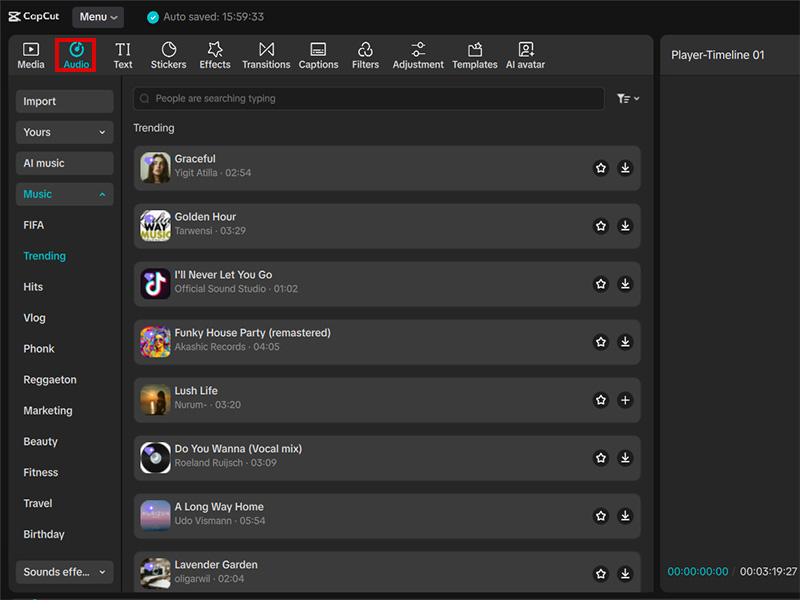
- Browse official music categories, trending sounds, sound effects and voiceovers. You can search for popular TikTok audio directly here.
- Preview the track you like, then drag it to the audio track below the video timeline.
- Align the audio length with your clipped video: trim the music track just like you trim video clips.
- Adjust volume, fade in and fade out effects to avoid abrupt sound changes. For beat sync, split video clips at strong beats to make your tik tok video more rhythmic and dynamic.
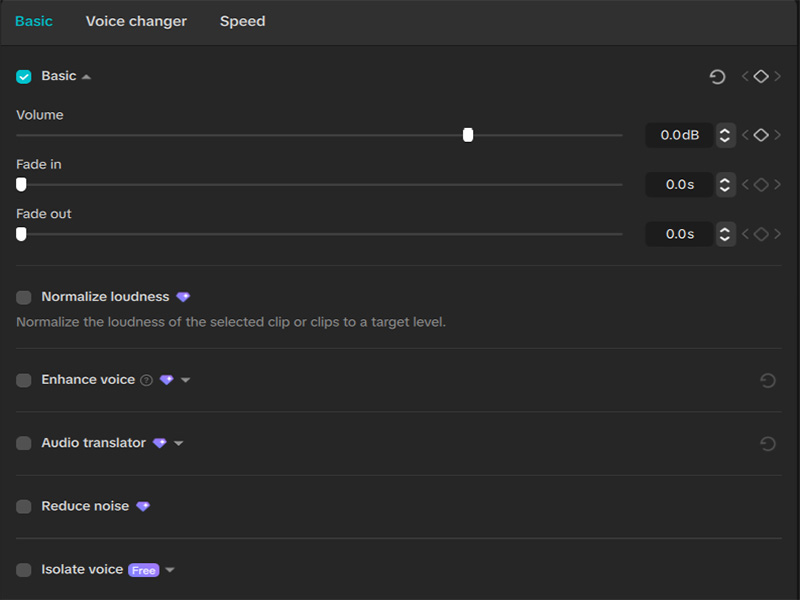
If the built-in library cannot meet your needs, click Import Audio to add songs downloaded from other platforms. If you want to further tweak your audio performance, check out our dedicated guide: How to only edit audio pitch in CapCut, which focuses on professional pitch adjustment operations for all types of clips.
Step 4: Use CapCut Edit Template to Make New Trending Video Capcut
Chasing viral trends is one of the fastest ways to gain views on TikTok, and a well-designed capcut edit template lets you create a new trending video capcut in minutes, even if you have no advanced editing skills.
- Go back to the CapCut PC homepage and click the Templates section.
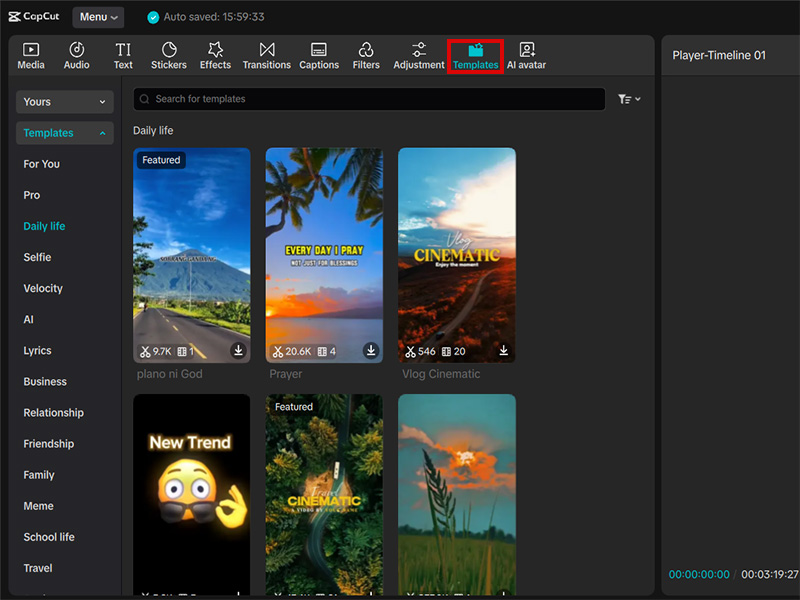
- Filter templates by categories like viral challenges, dance trends, lifestyle, comedy and more. You will find the latest popular styles updated daily.
- Select a trending template you like and click Use Template.
- Follow the on-screen prompts to replace the sample footage with your own clipped videos and photos.
- The template will automatically apply pre-set transitions, text animations, filters and matched music. You can still tweak details such as text content or clip duration based on your ideas.
Using capcut edit template greatly cuts down editing time, so you can release a complete new trending video capcut right when the trend is still hot.
Step 5: Polish Details for Better TikTok Performance
After clipping footage and adding music or templates, add small touches to make your tik tok video stand out:
- Add Text & Stickers: Insert catchy titles, captions or interactive stickers to deliver information clearly.
- Apply Filters & Effects: Use popular filters and visual effects to unify the video tone.
- Add Transitions: Put simple transitions between clips to make the whole video flow more naturally.
These minor edits will greatly improve the viewing experience for your audience.
Step 6: Export Your Clipped Video for TikTok
Once you finish editing, complete the export process for TikTok:
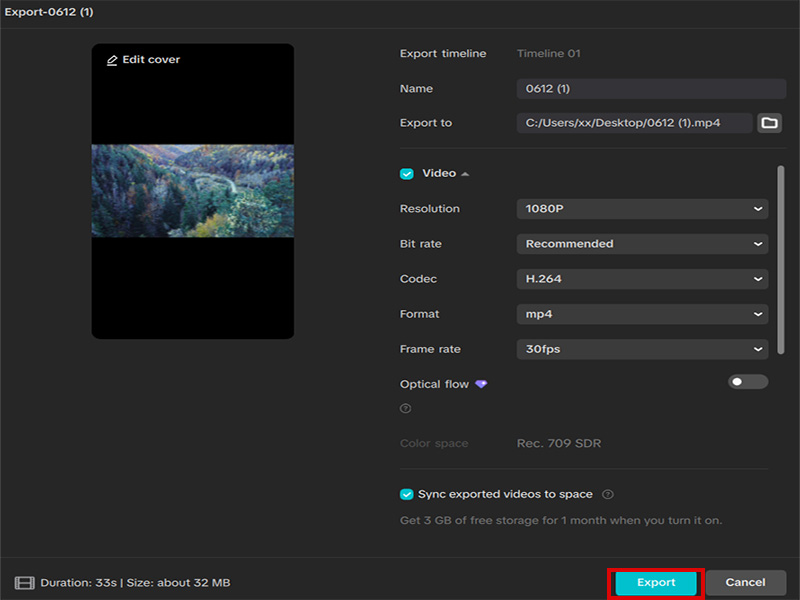
- Click the Export button on the top right corner.
- Keep resolution at 1080P and choose MP4 as the output format, which is fully compatible with TikTok.
- Select your save folder and start exporting.
Pro Tips for Better Tik Tok Video Clipping on CapCut PC
- Keep clips concise: TikTok users scroll quickly, so place the most exciting content in the first 3 seconds.
- Match clips to music beats: Align your cuts and transitions with music rhythms to make the video more engaging.
- Mix templates and trending effects: Do not copy templates fully; add unique adjustments to your capcut edit template works.
- Update trending resources regularly: Check new trending video capcut sections frequently to keep up with platform hot topics.
- Optimize audio volume: Ensure background music does not overpower voice or key sound effects in your clips.
Final Thoughts
Clipping and editing a qualified tik tok video on CapCut PC is easy to master with the steps above. From basic footage trimming to how to add music to capcut, and leveraging capcut edit template to create a hot new trending video capcut, every skill we covered can help you boost your content quality and efficiency.
CapCut PC is undoubtedly one of the most user-friendly tools for TikTok creators. The free version works well for beginners, while modified versions can unlock more advanced functions for heavy users. No matter which option you pick, focus on matching content with current trends and audience preferences, and you will create wonderful viral TikTok videos with CapCut PC.