If you’ve ever struggled with laggy previews, slow timeline responses, or unexpected crashes while editing in CapCut—especially when working with 4K footage, complex transitions, or multiple layers—Performance Priority Mode is your secret weapon. Designed to optimize resource allocation for smoother editing workflows, this feature becomes even more powerful in CapCut Mod Apk, which unlocks premium performance enhancements without subscription barriers. In this 2025 updated guide, we’ll break down exactly what Performance Priority Mode is, how to enable it across devices, and pro tips to maximize its effectiveness.
What Is CapCut Performance Priority Mode?
Performance Priority Mode is a built-in optimization feature in CapCut that prioritizes editing smoothness over real-time preview quality. Unlike Quality Priority Mode, which prioritizes high-resolution previews, Performance Priority Mode temporarily reduces preview resolution and disables non-essential real-time effects to allocate more CPU/GPU resources to timeline operations. Crucially, this trade-off only affects previews—your final exported video will retain the original high quality of your footage.
For CapCut Mod Apk users, this mode is enhanced by the mod’s ad-free environment and unlocked resource limits. Without background ads consuming system resources, Performance Priority Mode delivers even more consistent smoothness, making it ideal for mid-range devices or complex projects (e.g., vlogs with multiple text animations, gaming montages with dynamic transitions).
How to Enable Performance Priority Mode (Step-by-Step)
The process varies slightly between desktop (Windows/Mac) and mobile (Android/iOS) versions. Below are the latest 2025 steps, verified for CapCut’s August 2025 update and compatible with CapCut Mod Apk.
1. Desktop Version (Windows/Mac)
- Open CapCut and load your project (or create a new one).
- Locate the preview window in the upper-right corner of the interface.
- Click the three-dot menuin the top-right corner of the preview window.
- From the dropdown menu, select Preview Quality.
- Choose Performance Priorityfrom the submenu. A checkmark will appear to confirm activation.
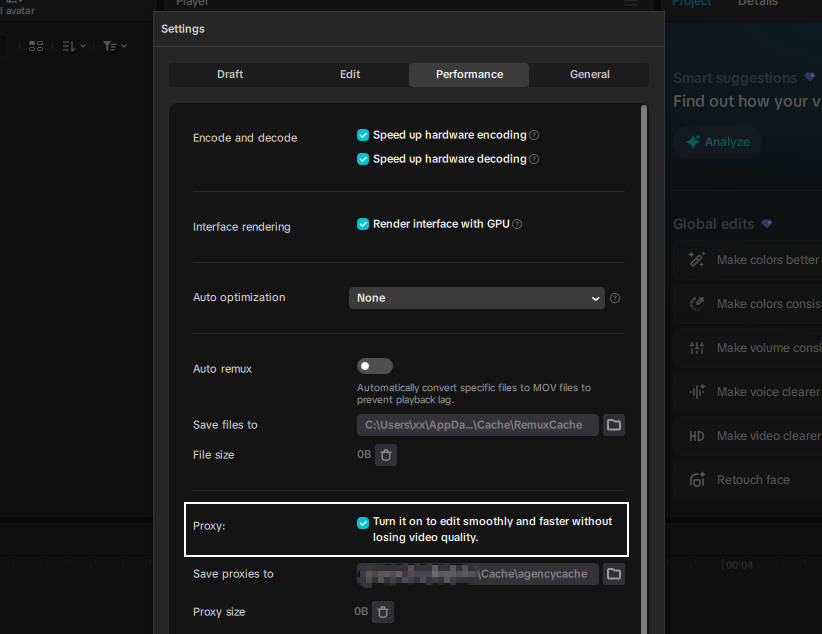
- (Pro Tip for Mod Apk Users) For further optimization: Go to Settings(gear icon in the top-right toolbar) > Performance tab, and enable Proxy Editing. This creates low-res copies of your footage for editing, with high-res export preserved.
2. Mobile Version (Android/iOS)
- Launch CapCut (or CapCut Mod Apk) and open your project.
- Tap the Settingsicon (gear symbol) in the upper-right corner of the editing screen.
- Scroll down to the Rendering Optionssection.
- Toggle onPerformance Priority(labeled “Prioritize Smooth Editing” in some regional versions).
- Optional: Disable Advanced Effects Real-Time Rendering in the same menu to reduce lag during complex edits.
When to Use Performance Priority Mode (Key Scenarios)
Activating this mode isn’t always necessary—use it strategically for these common pain points:
- Editing 4K or high-frame-rate (60fps+) footage on mid-range devices.
- Working with multiple layers (e.g., overlapping clips, text animations, stickers).
- Applying resource-heavy effects (e.g., AI enhancements, dynamic transitions, color grading).
- Experiencing lag or frame drops during timeline scrubbing.
- Editing for extended sessions (reduces device overheating by optimizing resource usage).
| Note for CapCut Mod Apk Users: Since the mod removes ads and unlocks premium resource allocation, you’ll notice a more significant smoothness boost compared to the standard version when Performance Priority Mode is active. |
Pro Tips to Maximize Performance (2025 Update)
Combine Performance Priority Mode with these latest optimization tricks for the best results:
- Update to CapCut’s August 2025 Version: The latest update includes an optimized rendering engine that reduces lag by up to 30%.
- Manage Device Resources: Close background apps (Android: Developer Options > Limit Background Processes; iOS: Ensure 5GB+ free storage).
- Use Proxy Editing: As mentioned earlier, this works seamlessly with Performance Priority Mode for high-res footage.
- Clear Cache Regularly: Prevent storage bloat by deleting CapCut’s cache (Settings > Drafts > Clear Cache).
- Avoid Overheating: Use a cooling pad (desktop) or cooling clip (mobile) during long edits to maintain consistent performance.
Common Issues & Fixes
If you’re still experiencing lag after enabling Performance Priority Mode, try these solutions:
- Mode Not Visible: Update CapCut to the latest version (standard or Mod Apk). Older versions may not have the feature.
- Persistent Lag: Split long projects into sub-projects and merge later.
- Crashing: Set CapCut to High Priority in Task Manager (Windows) or offload/reinstall the app on iOS.
- Preview Quality Too Low: Toggle back to Quality Priority Mode for final previews before export (export quality remains unchanged).
Final Thoughts
Performance Priority Mode is a game-changer for CapCut users, especially those on mid-range devices or working with complex projects. When paired with CapCut Mod Apk’s unlocked premium features and 2025’s optimized rendering engine, it eliminates the frustration of lag and lets you focus on creativity.
Remember: This mode sacrifices preview quality for smoothness, but your final export will always reflect your original footage quality. Experiment with the pro tips above to find the perfect balance for your workflow.
FAQs
Q: Does Performance Priority Mode affect export quality?
A: No—only preview quality is reduced. Exports retain full resolution and quality.
Q: Is this feature available in CapCut Mod Apk?
A: Yes, and it works better due to the mod’s ad-free environment and unlocked resource limits.
Q: Can I use Performance Priority Mode on iOS?
A: Yes—follow the mobile steps above (works for both iOS and Android).