

Many individuals use CapCut on a near-daily basis, yet many still encounter confusion when attempting to locate their drafts. This often happens after closing the app, switching devices, or managing multiple video projects simultaneously. You reopen CapCut expecting to continue editing, only to find the project seemingly gone. However, in most scenarios, the project hasn’t been deleted—it’s just stored in the drafts section.
Where to Find CapCut Drafts
The drafts in CapCut are saved directly on the app’s homepage, which is the first screen you see upon opening it. Near the top of this screen, there’s a Drafts section where all unfinished projects are automatically stored. You don’t need to manually save them; CapCut handles this process as long as the app remains installed on your device.
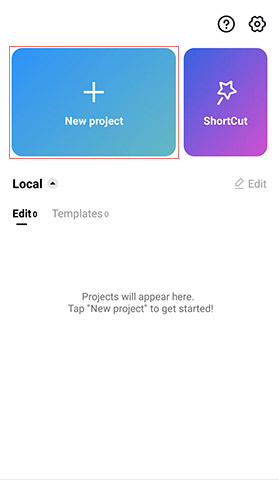
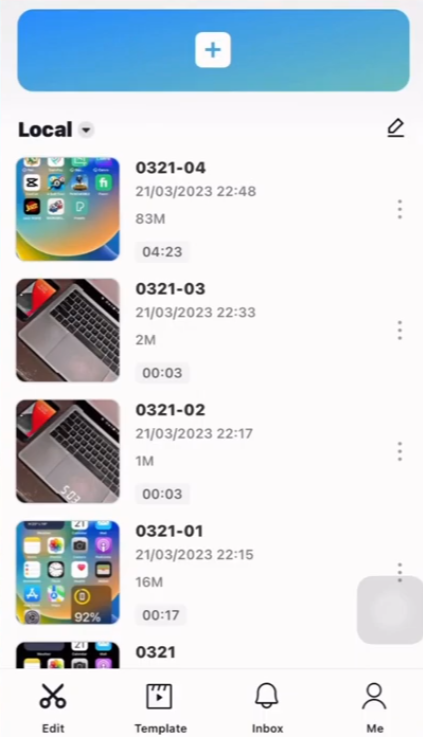
Tapping on the Drafts section will display a list of your unfinished projects, each accompanied by a thumbnail preview, video length, and the last edited timestamp. If you have several drafts saved, take your time scrolling through the list, as older drafts tend to sit toward the bottom.
Opening a Draft Project
Once you locate the draft you’re looking for, simply tap on it to reopen. CapCut will load the project, instantly bringing you back to the editing interface. All of your edits—including videos, text, music, and effects—should still be intact, provided the app was closed properly.
For larger projects containing numerous clips or effects, CapCut may take a few extra moments to load. This slight delay is normal—just give it time.
Recovering CapCut Drafts on a New Phone
Drafts won’t transfer to a new phone if they weren’t backed up beforehand. CapCut doesn’t automatically sync drafts unless you’ve explicitly uploaded them to the cloud or exported them as project files—a misunderstanding that often catches users off guard.
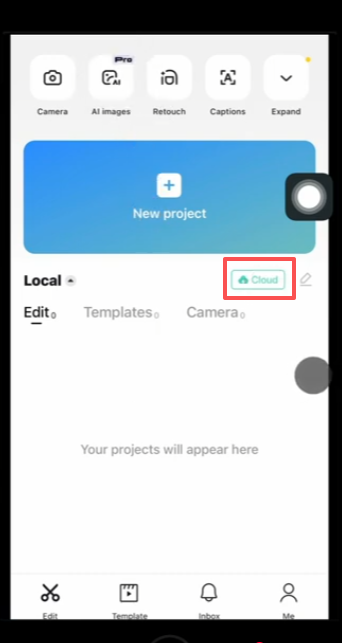
If you still have access to your previous device, open CapCut there and either export or upload your drafts to the cloud before making the switch. This simple action can save significant frustration when transitioning between devices.
Understanding Why Drafts Seem to Disappear
Drafts are stored locally on your device rather than in the cloud by default, which can create trouble under certain circumstances. If you uninstall the app, clear the app’s data, or switch phones without backing up your drafts, they won’t move with you to a new system. To the user, this can make it appear as though the projects have disappeared.
Another common issue is tied to user accounts. If you’re logged into CapCut or connected via TikTok using a different account than the one originally used to create the draft, your projects might not show up. Switching back to the right account should resolve the issue, revealing your drafts once again.
Tips for Keeping Your Drafts Safe
To avoid losing important projects, don’t rely solely on drafts for storage. It’s always wise to export a preview version of your work or upload completed projects to your CapCut MOD account. Additionally, renaming critical drafts can make them easier to identify within a long list of saved items—a small but effective step for organization.
Before You Worry
If a draft appears missing, take a moment to consider: Did you uninstall and reinstall the app? Clear app data or memory? Log into a different account by mistake? Many times, these minor changes are behind what seems like missing drafts.
In most cases, CapCut MOD APK drafts are easy to find once you know where to look. Open the app, head to the Drafts section, and scroll patiently. Chances are, your hard work is still exactly where you left it.


