
For creators producing short videos, stickers, or character content, adding animation effects to static PNG images is a common requirement. CapCut AI Sprite Generator is a powerful tool that transforms static images into dynamic ones without the need for manual frame-by-frame animation. This guide will cover what CapCut is, how to create PNG animations within CapCut, its functional limitations, and how to use CapCut AI tools to produce PNG animations for optimal results.

Can CapCut AI Directly Animate PNG Images?
Yes, CapCut can animate PNG files, including transparent PNGs. However, animation isn’t fully automatic unless AI animations or sprite-style effects are applied.
CapCut AI Capabilities:
- Detect subjects within PNG images
- Preserve transparency
- Automatically apply dynamic effects
- Assist with positioning and timing
What it cannot do:
- Generate full character rigging
- Create complHow to Create PNG Animations in CapCut AI Sprite Generator
How to Make a PNG Move in CapCut AI Sprite Generator
Here are the detailed steps to create PNG animations in CapCut AI Sprite Generator:
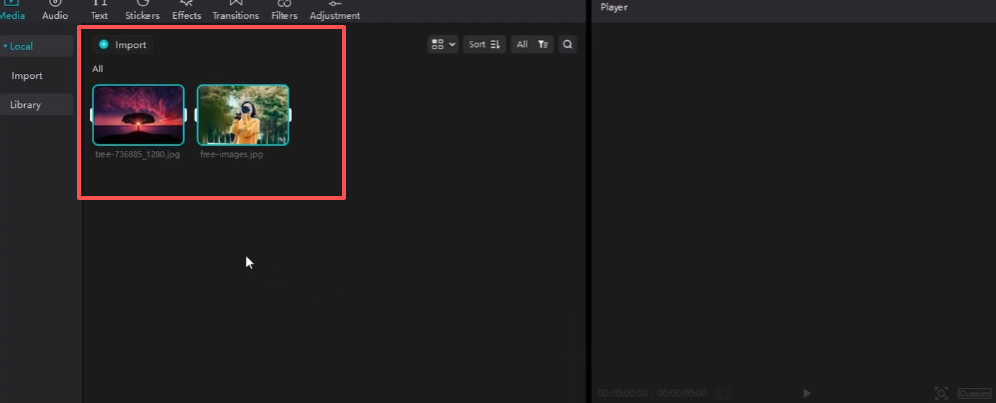
Step 1: Import PNG Files
Open CapCut, create a new project, then tap “Import” to add your static PNGs.
Step 2: Add PNG to Timeline
Drag the PNG onto the timeline, resize it, and position it where you want it to appear on screen.
Step 3: Open AI Sprite or Animation Tool
Select the PNG image on the timeline, then click “AI” tab > “Sprite Generator” > “Animate Existing Assets”.
Step 4: Apply AI Motion
CapCut’s AI analyzes the PNG and recommends relevant motion presets. Common effects include:
Idle character animations
Floating or bouncing effects
Subtle rotation or swayin
Select a preset, adjust the duration and intensity, then preview. For more control, combine AI presets with manual keyframes.
What is CapCut AI Sprite Generator?
CapCut AI Sprite Generator is an AI-powered feature designed to add animation effects to static visual assets by automatically applying motion patterns. Instead of requiring keyframes for each action, this tool analyzes images and generates fundamental animated behaviors such as floating, bouncing, walking-style motion, or subtle static movements.
It is primarily used for:
Character animation
Sticker dynamics
Social media images
Short video content
Professional Tips for Optimizing Animated PNGs
1. Maintain High PNG Quality: Use high-resolution PNGs to prevent blurry animations. Low-resolution PNGs may distort when scaled or moved.
2. Match Animation to Sprite Style: Select AI presets that complement your PNGs. For instance, retro game sprites suit pixelated bounce animations, while minimalist logos require smooth floating effects.
3. Apply morphing effects: During dynamic transitions, use AI animation’s “morph” feature for seamless transitions.
4. Audio synchronization: Enable CapCut’s AI beat-sync function to precisely align PNG animations with background music.
How to Verify PNG Animations Function Correctly
Before Exporting:
Preview the animation at full resolution.
Check for any unnecessary artifacts along the edges.
Export a short test clip.
Ensure transparency remains unaffected.
Frequently Problems and Solutions
1. PNG won't move
Ensure an AI animation or motion preset is applied.
Check if the PNG layer is selected.
Confirm the animation duration matches the video clip length.
2. Motion appears unnatural
Try different AI motion styles.
If available, reduce animation intensity.
Use shorter video clip durations.
3. PNG images are cropped or cut off
Adjust the size of the PNG image within the canvas.
Ensure it remains fully visible throughout the motion sequence.




