
Whether you use CapCut on PC or mobile, properly saving your completed projects ensures you won’t lose your work and lets you access and share your creations seamlessly. CapCut offers two saving methods: saving drafts for future editing and exporting final videos for sharing or storage. This guide details step-by-step procedures for different devices, provides practical tips for saving your work, and addresses common issues.
Core Concepts: Draft Save vs. Export
Before beginning, understand the functions and appropriate scenarios for CapCut’s two distinct saving methods:
- Draft Save: Preserves all editable layers in the project—including the timeline, effects, keyframes, and media files—for future adjustments. If synced, drafts can be stored locally or in the cloud and are accessible only within CapCut. Ideal for unfinished edits or projects requiring subsequent modifications.
- Export: Renders the project into a shareable video file (e.g., MP4, MOV) where all edits are finalized. Exported videos can be played in any media player, uploaded to social platforms, or stored locally. This is the final step when editing is complete, and the video needs to be used outside CapCut.
How can I save a CapCut file
When using video editing software, it is helpful to distinguish between “saving the project file in progress” and “exporting the completed video file”.
Project File (Draft): This is the working file in CapCut, which contains your timeline, split segments, applied filters, audio tracks, and effects. The file is fully editable within the application, allowing you to go back and adjust individual elements at any time.
Finished Video File (Exported Media): This is the final video file (usually in MP4 or MOV format) that you generate after editing. The export process combines all layers, effects, and audio tracks into a single file and saves it directly to your device’s storage or photo album.
To save the edited video outside of CapCut for playback in other applications, you must complete the export step.
Exporting on CapCut Mobile (iOS & Android)
Review Your Timeline: Go through the completed video to make sure there are no unexpected gaps, unnecessary watermarks, or unedited segments at the end.
Select Resolution, Quality, and Frame Rate: Click the resolution drop-down menu in the upper right corner of the screen (usually 1080p by default) to adjust the output parameters.
Resolution: You can choose 720p (smaller file size), 1080p (recommended for regular social media uploads), or 4K (highest image quality).
Frame Rate: Choose 30fps for standard video quality, or choose 60fps for smoother dynamic playback. Please avoid changing the settings arbitrarily to prevent screen lag.
Quality / Bitrate: Set to “High” or keep the recommended settings to preserve visual detail and avoid unnecessary compression loss.
Tap Export: Click the “Export” button in the upper right corner (an upward-pointing arrow).
Keep the App Open: CapCut will display a rendering progress bar. Do not close the app, switch tasks, or lock the screen until the progress reaches 100%.
Locate Your Saved Video: Once the video is finished, it will be saved directly to your device’s photo album or camera roll. You can also use the quick share icon to post directly to platforms such as TikTok, Instagram, or WhatsApp.
Note: You can modify the default save destination via Settings → Export → Save Path.
Exporting on CapCut PC / Mac
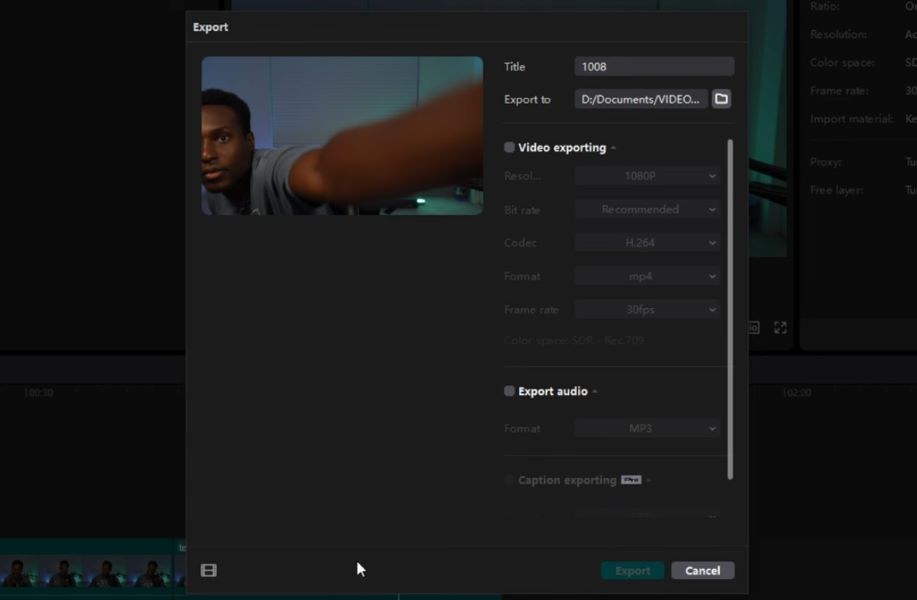
Click Export: Click the blue “Export” button in the upper right corner of the desktop interface.
Configure Video Export Settings: A pop-up panel with customizable export options will appear:
Title: Rename your file for easy organization on your hard drive.
Export to: Click the folder icon to specify the exact destination directory on your computer.
Format: Choose MP4 or MOV. MP4 has broad compatibility across almost all devices and platforms.
Resolution: Select 1080p, 2K, or 4K based on your project needs.
Bitrate: Choose “Higher” or “Recommended” to maintain the best visual quality.
Frame Rate: Select 24fps (cinematic), 30fps (standard), or 60fps (smooth).
Optional Audio Export: If you only need the project’s audio, check the “Export Audio” checkbox and select your preferred audio format (MP3, WAV, or AAC).
Start Processing: Click “Export” at the bottom of the window and observe the rendering progress bar.
Verify the File: Once rendering is complete, click “Open Folder” to immediately find the output video. Please play the exported video to ensure that all clips, audio layers, and transitions have been rendered correctly.
Does CapCut automatically save
Yes, CapCut automatically saves your editing progress in real time.
Whenever you make changes (such as splitting a segment, adding a transition, or adjusting text), the application writes those changes to its internal database. When working on the timeline, you don’t need to struggle to find the manual “Save Project” button.
1. How Auto-Save Works Across Platforms
Local Storage Auto-Save: Whether on a mobile device or a computer, CapCut continuously updates local draft files stored directly in system memory. In the desktop version, you can also manually trigger saving or configure a backup schedule through “Settings” → “Auto-save” to prevent data loss due to system crashes.
Cloud Storage Sync: Sign in to your ByteDance, Google, or Apple account to enable cloud sync/CapCut space. While local editing progress is automatically saved, backing up drafts to the cloud ensures that the project is synchronized across multiple logged-in devices and can be accessed at any time.
2. Scenarios Where Auto-Save Might Fail
Although the automatic save mechanism is reliable, project data loss may still occur under certain conditions:
Insufficient Device Memory: If your phone or hard drive has insufficient disk space, CapCut will be unable to write temporary project files, which may result in project corruption.
Deleting Source Files: CapCut project drafts rely on media material references. If original photos or video footage are deleted from device storage during editing, CapCut will display a gray thumbnail or indicate a file missing error.
Uninstalling the App: If you delete CapCut without backing up your drafts to the cloud or exporting a project backup file, all locally stored drafts will be permanently deleted.
How to save projects in CapCut mobile/PC
Managing project drafts allows you to continue unfinished edits later, copy templates, or re-export videos with different settings.
1. Managing Project Drafts on CapCut Mobile
Your project drafts are stored under the Edit / Drafts tab on the main home screen.
Rename & Organize: Click the three dots (…) next to a local draft or long-press the draft to rename, copy (useful when creating a backup copy before making major changes), or delete it.
Back Up to Cloud Space: Click the three dots (…) next to your local draft and select “Cloud Backup” (or “Upload to CapCut Space”) to prevent data loss when your work is lost or you change devices.
2. Managing Project Drafts on CapCut PC / Mac
CapCut desktop version offers richer control over project files, directory paths, and cache management:
Accessing and Renaming PC Drafts: Launch the CapCut desktop version to enter the main interface. In “Recent Projects”, right-click any project card to rename, copy, or categorize it into a custom folder.
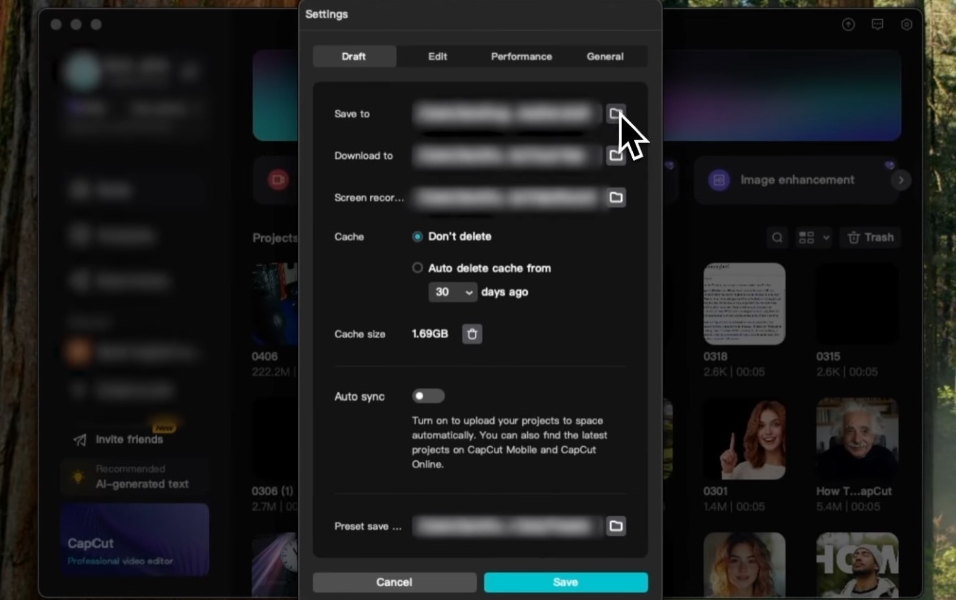
Changing Default Cache and Draft Paths:
On the startup screen, click “Settings” (gear icon) in the upper right corner, and then select “Settings”.
Under the “Project” tab, click the folder icon next to “Save path” to select a new local directory or external hard drive.
Under the “Cache” tab, set up automatic cleanup rules to free up disk space while ensuring that core draft files are not affected.
Common Issues and Solutions When Saving/Exporting
1. Drafts fail to save or disappear
Solution: Check if Auto-Save is enabled and adjust its frequency to 1-2 minutes. On mobile devices, clearing CapCut cache may resolve sync issues; avoid uninstalling the app before backing up drafts. On computers, recover lost drafts from the backup folder: Documents/CapCut/Backup.
2. Export Fails, or Video Is Corrupted
Solution: If device storage is insufficient or processing power is limited, reduce the export resolution. Close other apps to free up memory, then re-export. Check if the original footage is damaged—re-import the source file and try again.
3. Exported video has no sound/black screen
Solution: Ensure the audio track in the timeline is not muted.
For PC users: Update to the latest version to fix rendering errors.
For mobile users: Restart the app and re-export.
Ensure you don’t hide the video track.
FAQs
Q: Can CapCut projects be saved to external storage devices?
A: Yes. When exporting or saving drafts on a computer, you can select an external hard drive as the save location. On mobile devices, connect a USB storage device and change the export location via settings (Android only; iOS requires a Lightning adapter).
Q: How long are CapCut drafts saved?
A: Local drafts are saved permanently until you delete them. Cloud-synced drafts remain available while your account is active; avoid logging out without backing up your work.
Q: Can I export without a watermark?
A: Yes. The free version of CapCut exports without watermarks by default. Ensure you are not using modified third-party versions that may add watermarks.