

Text animations are essential for creating engaging videos on platforms like TikTok, YouTube Shorts, and Instagram Reels. With CapCut PC, users can create dynamic titles, subtitles, and motion text without advanced editing skills. This guide explains how to do text animations in CapCut PC using built-in tools, manual keyframes, and downloadable animation presets.
What Are Text Animations in CapCut PC?
Text animations in CapCut PC control how text appears, moves, and disappears on screen. These animations help:
- Highlight key messages
- Improve viewer retention
- Match pacing with music or narration
CapCut offers both preset animations and manual controls for custom movement.
Getting Started: Adding and Customizing Text in CapCut PC
Before diving into animations, master the basics of adding and styling text in CapCut PC. This foundation ensures your animated text looks professional and matches your video’s aesthetic.
Step 1: Add Text to Your Project
1. Open CapCut PC and create a new project or open an existing one.
2. Import your video footage by clicking “Import” or dragging files into the media library.
3. Drag your video to the timeline and select it.
4. Click the Text button in the top toolbar to open the text panel.
5. Choose from three text options:
- Basic Text: Simple text for titles, captions, or annotations.
- Text Template: Pre-designed animated text styles.
- Auto Captions: AI-generated subtitles that can be animated later.
6. Click “Add Text” and type your content in the text box.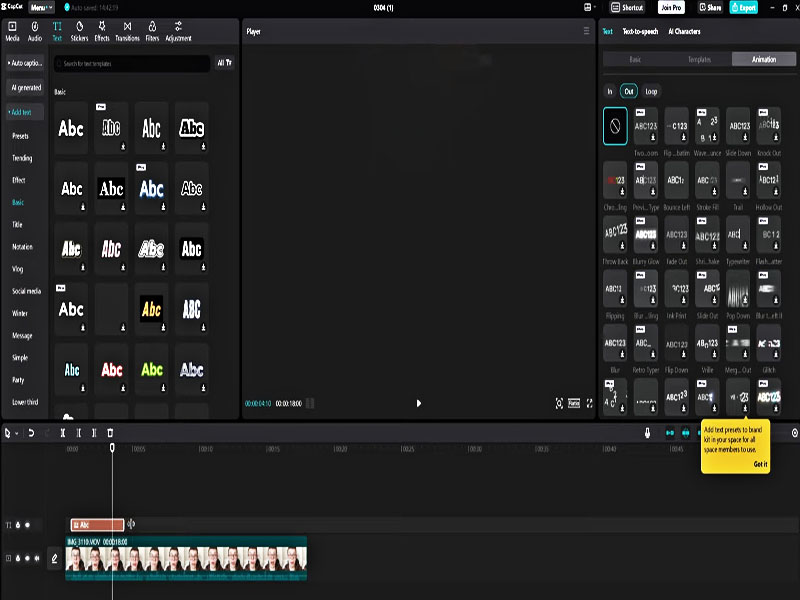
Step 2: Customize Text Appearance
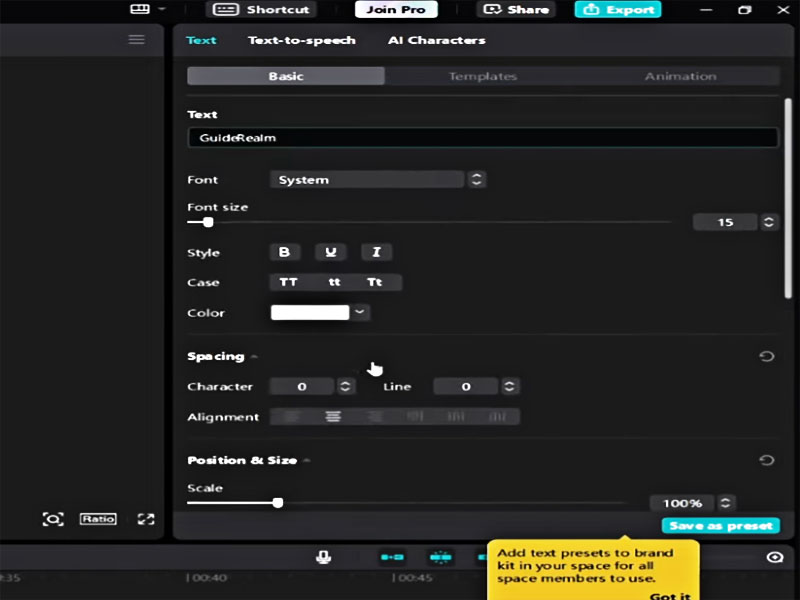
Personalize your text before adding animations:
- Font & Style
- Color & Gradient
- Outline & Shadow
- Spacing
- Alignment
CapCut Animation Tutorial: Built-in Text Effects
CapCut PC offers a library of pre-built text animations that require zero keyframing.
How to Create Typewriter Effect CapCut PC
The typewriter effect mimics text being typed in real-time, perfect for tutorials, storytelling, or vintage-themed videos:
1. Select your text layer in the timeline.
2. Click the Animation tab in the right sidebar (looks like a sparkles icon).
3. Under “In” animations, scroll down and select Typewriter .
4. Adjust animation settings:
- Duration: Set how long the typing effect takes.
- Speed: Control typing speed.
- Sound Effect: Add a keyboard typing sound.
5. Click “Apply” and preview the effect by pressing the play button.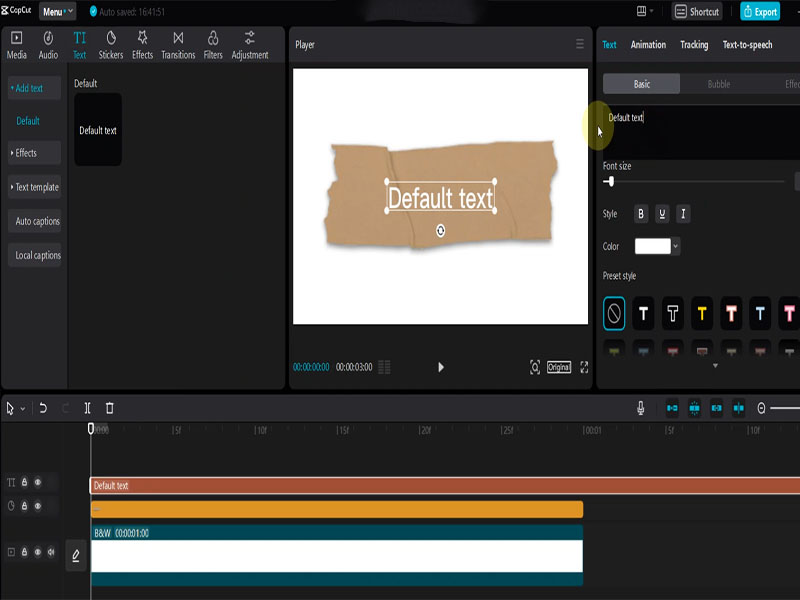
Other Popular Built-in Text Animations
Explore these effects to enhance your videos:
| Animation Type | Best For | How to Use |
| Fade | Subtle intros/outros | Under “In” or “Out” animations, select “Fade” and adjust duration
|
| Zoom | Title reveals | Choose “Zoom In” to make text grow from center to full size
|
| Rotate | Playful content | Select “Rotate” and set rotation direction
|
| Bounce | Energetic videos | Add “Bounce” to make text jump into view with a spring effect
|
Moving Text in CapCut PC: Create Custom Animations with Keyframes
For full control over moving text in capcut, use keyframes to create custom paths and movements. This advanced technique lets you animate text position, scale, rotation, and opacity.
Step 1: Add Keyframes for Position Animation
1. Select your text layer in the timeline.
2. Move the playhead to where you want the animation to start.
3. Click the Keyframe button next to “Position” in the right sidebar to add your first keyframe.
4. Drag the playhead to where you want the animation to end.
5. Move the text to its new position on the preview screen—CapCut will automatically add a second keyframe.
6. Play the video to see the text move smoothly between the two points.
Step 2: Advanced Keyframe Animations
Combine multiple properties for professional results:
- Scale Animation: Add keyframes for “Scale” to make text grow or shrink as it moves.
- Rotation Animation: Animate rotation by adding keyframes for “Rotate” and adjusting the angle.
- Opacity Animation: Make text fade in/out by animating the “Opacity” property from 0% to 100%.
- Curved Paths: For non-linear movement, add intermediate keyframes and adjust text position at each point.
CapCut Text Animation Download: Use Pre-Made Templates
How to Download and Use Text Animation Templates
1. Open CapCut PC and click the Templates tab on the home screen.
2. Search for “text animation” or specific styles like “typewriter,” “glitch,” or “3D text.”
3. Preview templates and select one that matches your project.
4. Click “Use Template” and replace the sample text with your own content.
5. Customize colors, fonts, and animation settings to match your brand.
6. Export the video—no watermark if you’re using the free version with proper settings.
Where to Find More Text Animation Templates
- CapCut Official Template Library: Thousands of free templates updated weekly.
- Third-Party Websites: Sites like CapCut Template Club offer premium text animations for download.
- Community-Shared Templates: Join CapCut creator groups on Reddit or Facebook for free user-made templates.
Tips for Better Text Animations
- Match animation speed to video rhythm
- Use simple movements for readability
- Avoid stacking multiple loop animations
- Preview before final export
Clean animation often performs better than complex motion.
Common Text Animation Problems in CapCut PC
1. Text Animation Looks Choppy
- Increase animation duration
- Avoid too many keyframes close together
2. Text Moves Too Fast
- Adjust keyframe spacing
- Reduce animation speed settings
3. Animation Not Showing
- Make sure the text layer is selected
- Confirm animation is applied to the correct section (In / Out / Loop)
Conclusion
Text animations are a powerful way to make your videos more engaging and professional. With CapCut PC, you have everything you need to create stunning effects—from the classic typewriter effect capcut pc to custom moving text in capcut paths. By following this capcut animation tutorial, you’ll be able to add professional-grade text animations to your videos in minutes. Don’t forget to explore capcut text animation download templates for quick, high-quality results. Start experimenting today and watch your videos stand out from the crowd!


