

You may have noticed that in some videos edited with CapCut, the subjects can appear freely in any scene. This actually utilizes the green screen (chroma key) function in CapCut.
Using green screen (chroma key) in CapCut allows you to place your subject in any virtual environment. The process is quite straightforward once you know the steps. Here’s a guide to get you started, combining the essential steps with key tips for a professional result.

How To Use Green Screen?
- Preparation
Film your subject against a bright, even, and solid green background with good lighting. Ensure your subject is 3-5 feet from the green screen to avoid green color spill. Alternatively, you can use the background removal function to cut out the desired figure.
- Project Setup
Create a New Project and import the video or image you want to use as the new background.
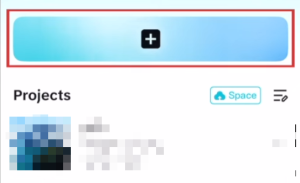
- Add Green Screen Clip.
Tap “Overlay” and then “Add Overlay” to import your green screen footage. Green screen material is the character you want to add to the background. This places your green screen clip on top of the background layer.
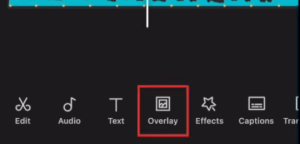
- Apply Chroma Key.
Select the overlay clip, find and tap “Chroma Key” in the editing menu. Use the color picker to select the green background. If the Chroma Key option is missing, try the latest CapCut Update 2026.
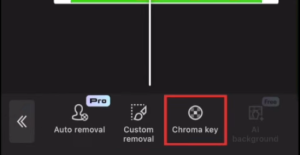
- Fine-tune the Effect.
Adjust the Intensity/Similarity slider to remove all green, then use the Shadow and Edge sliders to refine the subject’s edges. Zoom in on the timeline for precise adjustments, especially around hair or fine details.
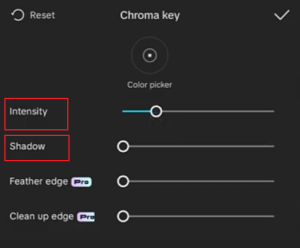
Advanced Tips for a Flawless Look
Getting the initial effect is one thing, but making it look seamless is what separates good videos from great ones.
- Color Matching: After applying the chroma key, the lighting on your subject might not match the new background. Use CapCut’s color grading tools (adjusting brightness, contrast, saturation, and temperature) on both clips to create a cohesive look.
- Dealing with Motion: If your subject moves, you might need to keyframe the position or scale of the background to keep the perspective consistent. This means setting a start point and an end point for the background’s movement, and CapCut will animate the transition smoothly.
- Alternative Background Removal: If you’re struggling with the chroma key tool—especially if the background isn’t a solid green—Cap Cut offers other methods. Look for the “Remove BG” (Remove Background) option, which uses AI to automatically cut out the subject. This can be effective for non-green backgrounds or complex scenes.
Want to achieve the same results as other users?
You can use the green screen CapCut template.
Many users have uploaded and shared their best-looking green screen capcut templates. If you want to achieve the same effect, you can use “CapCut green screen download”. Simply import your character to easily get the perfect result.
Creative Ideas to Try
Once you’ve mastered the basics, you can start getting creative. Here are some popular uses for green screen effects in CapCut:
- Travel Vlogs: Place yourself in front of famous landmarks without leaving home.
- Gaming Videos: Overlay your webcam footage onto the game screen for a more engaging presentation.
- Educational Content: Use a green screen to display relevant graphics, diagrams, or footage behind you as you explain a concept. Make your teaching more vivid and concrete
- Funny Skits: It will be more interesting than you expect. by changing your background to unexpected locations, like a superhero lair or outer space.
FQA:
Q: Why do I still see a green hue or outline around the subject in my videos?
A: Try adjusting the Shadow slider in the chroma key settings. If that doesn’t work, ensure your original footage was well-lit and that the subject was sufficiently far from the green screen.
Q: Why is my Capcut Chroma key missing?
A: If you can’t find the Chroma Key option, you can check if CapCut Modded is the latest version. If not, you can download the latest CapCut Update 2026 from our website. The feature is a core part of the app and should be available in updated versions.
Q: Why is there still a remnant of my green background, or why has the main part disappeared?
A: carefully adjust the Intensity/Similarity slider. If that doesn’t clean it up, the Custom Removal tool (available under “Remove BG”) lets you manually paint over areas to keep or remove.
Have you learned how to use a green screen?
With these steps and tips, you’re well-equipped to create impressive green screen videos in CapCut. Tips for creating the perfect video are patience and practice, especially when fine-tuning the effect for a natural look.
I look forward to seeing the video you create using Green Screen; the effect will definitely be amazing.


