

Keeping your editing projects organized is essential, especially when working on multiple videos. Knowing how to change project name CapCut helps you manage drafts efficiently, avoid confusion, and improve your workflow. This guide explains how to rename project in CapCut on CapCut Android, CapCut desktop version, and CapCut Windows, along with common issues and practical tips.
Why Change Project Name in CapCut?
Before we dive into the steps, let’s talk about why a CapCut project name change matters. By default, CapCut assigns generic names like “New Project” or “Project [Number]” to every new draft. This might work for a single project, but if you’re editing videos regularly—for TikTok, Instagram, YouTube, or personal use—generic names can quickly become a hassle. Renaming your project to something specific helps you:
- Track different editing versions
- Organize client or brand projects
- Quickly locate drafts
- Prevent accidental deletion
Proper CapCut project name change improves both productivity and file management.
How to Change Project Name in CapCut Android
If you edit on your phone, CapCut Android makes a CapCut project name change incredibly easy—no technical skills required. Follow these steps to rename project in CapCut on your Android device:
- Open CapCut
- Go to Projects
- Locate the project you want to rename
- Long-press the project thumbnail
- Tap Rename
- Enter a new project name
- Tap Confirm
Pro Tip: If you accidentally rename a project wrong, repeat the steps above to correct it—CapCut lets you rename projects as many times as you want, and it won’t affect your editing progress or project content.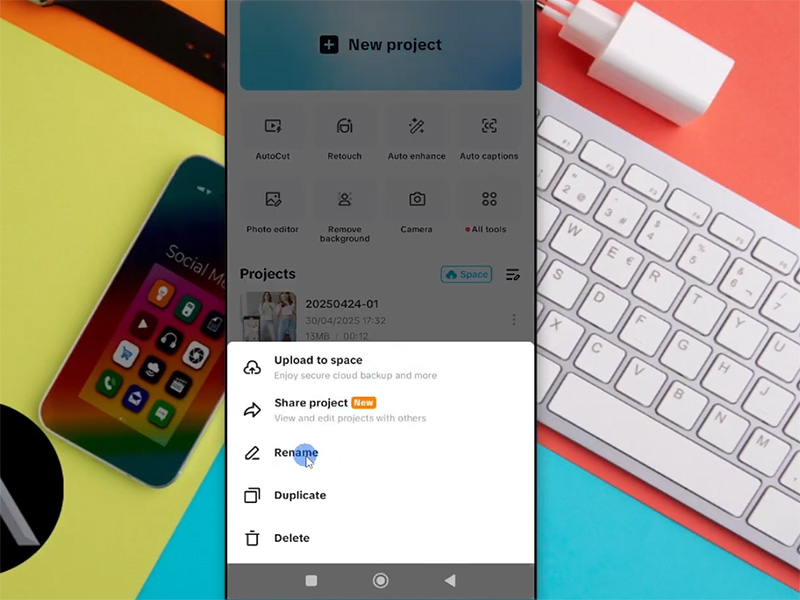
How to Rename Project in CapCut Desktop Version
Editing on a computer? CapCut desktop version offers even more straightforward ways to change project name CapCut. Whether you prefer using the mouse or keyboard shortcuts, we’ve got you covered with two easy methods:
Method 1: Rename from the CapCut Windows Projects Page
This is the quickest way to rename project in CapCut on Windows, perfect for when you haven’t opened the project yet:
- Launch CapCut
- Click Projects on the home screen
- Right-click the target project
- Select Rename
- Enter the new name
- Press Enter
This method works smoothly across the desktop platform.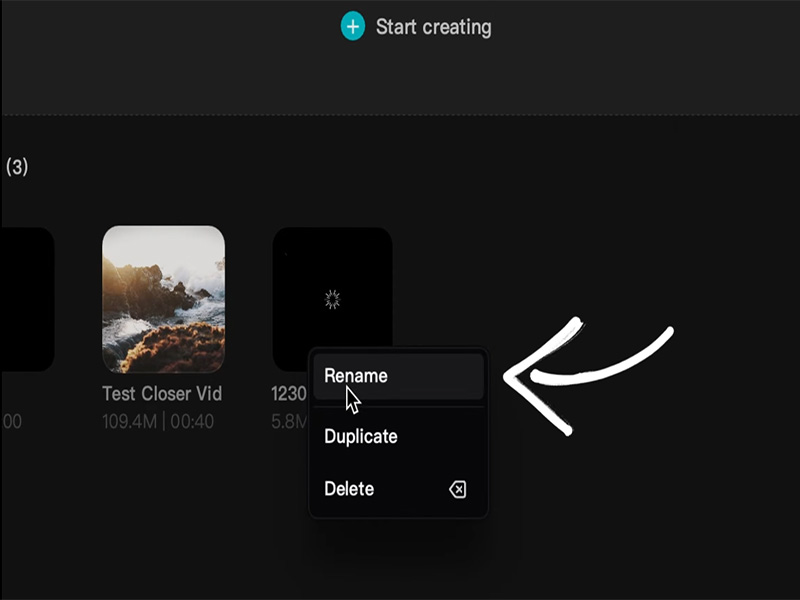
Method 2: Rename While Editing (CapCut Windows)
If you’re already working on a project and want to rename it without closing the editor, use this method:
- Open the project in CapCut Windows.
- Look at the top of the CapCut window—you’ll see the current project name displayed next to the CapCut logo.
- Double-click the project name to make it editable.
- Type in your new project name and press “Enter” to confirm. The change will take effect immediately, both in the editor and on the home screen’s Projects page.
Bonus Shortcut: For keyboard-savvy users, select the project on the home screen and press the “F2” key. This will bring up the editable text box instantly—no need to right-click!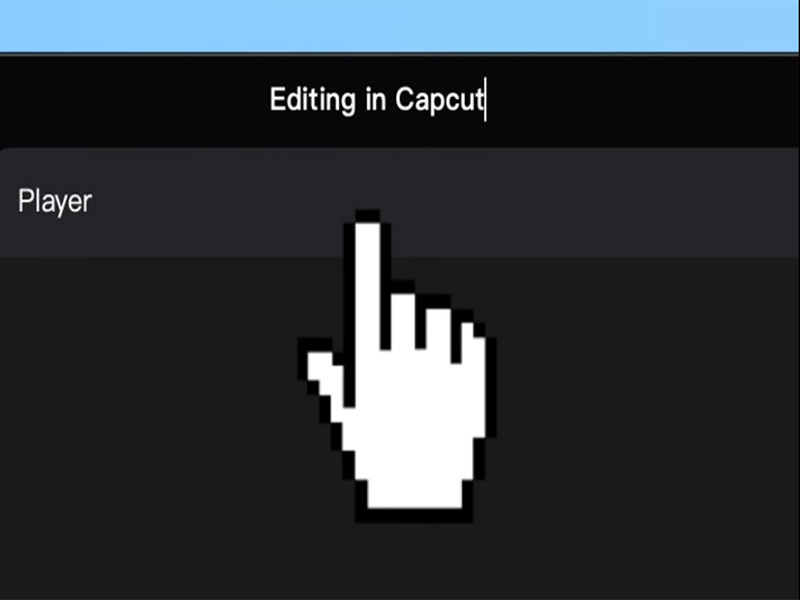
Useful Tips for CapCut Project Name Change
No matter which platform you use (CapCut Android, or CapCut desktop version), these tips will make your CapCut project name change even smoother:
- Keep names short but descriptive: Avoid overly long namesbut be specific enough to identify the project at a glance.
- Stick to letters, numbers, and spaces: Special characters can sometimes cause display issues, so it’s best to avoid them.
- Rename early: Get in the habit of renaming your project as soon as you create it—this avoids confusion later when you have dozens of drafts.
- No impact on project content: Rest easy—renaming a project only changes its label, not the video clips, edits, filters, or transitions inside the project.
Common Issues When Renaming CapCut Projects
Rename Option Not Showing
- Restart the app
- Update CapCut to the latest version
Name Not Saving
- Ensure enough device storage
- Avoid special characters in names
- Reopen the app after renaming
Project Name Reset
- Log in to your CapCut account
- Sync projects to cloud storage
Conclusion
Learning how to rename project in CapCut is a simple yet powerful way to improve editing workflow. Whether you’re using CapCut Android, CapCut desktop version, the CapCut project name change process only takes a few seconds and helps keep your creative workspace clean and efficient.


