

Reversing a video is a simple and easy way to create fun special effects. When the video is played in reverse, the original actions will present a completely different effect. For example, water will flow back into the cup, characters will move abnormally, and broken objects will seem to repair themselves. Many short video creators use this technique to increase the appeal of their videos. If you want to try this effect without installing extra software, it is helpful to learn how to reverse video in CapCut Web, since the online editor allows users to upload clips and apply the reverse feature quickly while editing directly in a browser.
If you use CapCut, reversing videos is quick and easy, requiring little editing experience. This guide will explain the process step-by-step and provide some practical tips to help you achieve even better results.
What Does Reversing a Video Do?
Reversing a video means playing a video clip from the last frame to the first frame. In other words, the action is played backwards, not forwards. Everything that happens at the end of the video will appear at the beginning. This simple change can make an ordinary scene look unexpected or ridiculous.
When a video is reversed, the action appears to be reversed. For example, if someone breaks a glass, a reversed video clip will show the broken glass being pieced back together and returning to their hand. If water spills on the ground, it looks like the water is flowing back into the container. These small visual tricks often capture the viewer’s attention because they are not scenes we often see in real life.
Another effect of reversing a video is how it changes the mood of a scene. Simple actions can look dramatic, strange, or even funny when played backward. This is why many creators like to reverse a video on CapCut 2026, as it quickly adds a creative twist. Even basic movements such as walking, throwing a ball, or opening a door can look completely different once the frames run in reverse.
Reversing the playback is also perfect for storytelling. Some creators insert a reversed clip at the beginning of their videos to pique the audience’s curiosity. Afterwards, the normal version of the video will be played, allowing viewers to understand the truth of the matter. This simple technique can make short videos more engaging.
In video editing apps like CapCut, the reverse playback function processes clips frame by frame and rearranges them in the opposite order. The video length usually stays the same, but the motion direction changes. Even when using tools such as capcut pc mod apk, the process remains simple and automated, allowing users to create the effect with just a few clicks and no advanced editing skills.
For creators who want to add creative elements but don’t want to use complicated tools, reversing video clips is one of the simplest and most effective editing techniques.
Step-by-Step: Reverse a Video on CapCut
Reversing a video in CapCut takes only a few steps, but understanding the whole process can help you achieve a smoother result. The following is a more detailed guide that clearly explains each step.
1. Open CapCut and Start a New Project
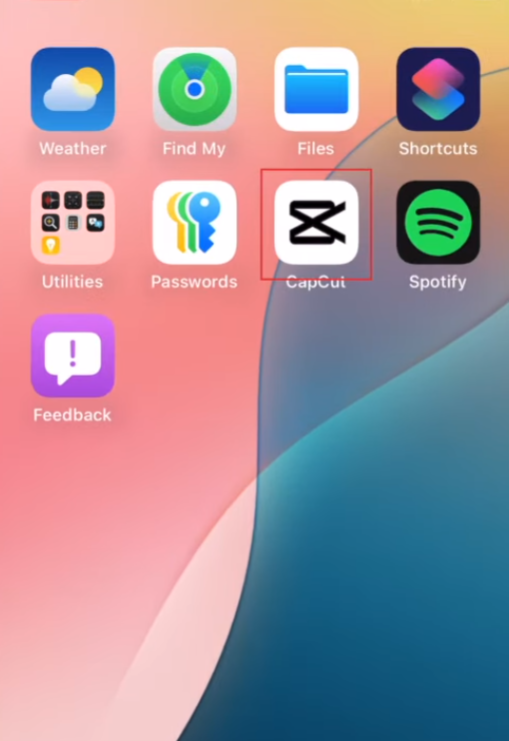
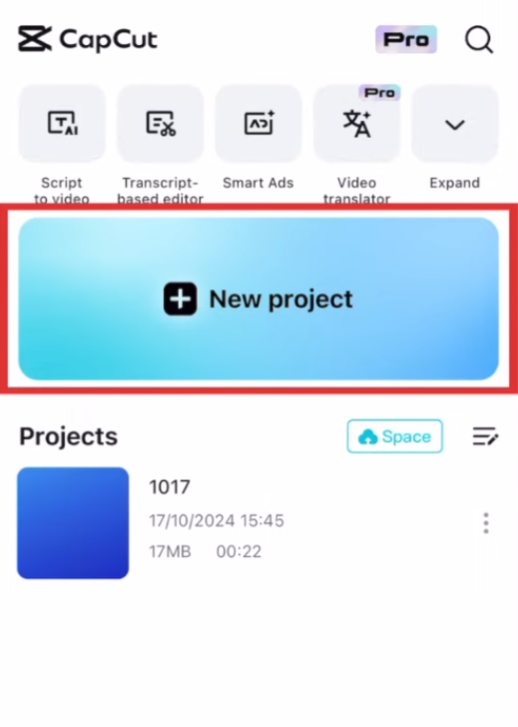
Open the CapCut app on your phone. On the main screen, you will see a “New Project” button. Tap this option to start editing.
After tapping, your phone’s gallery will open. You can select the video clips you want to edit here.
2. Select the Video You Want to Reverse
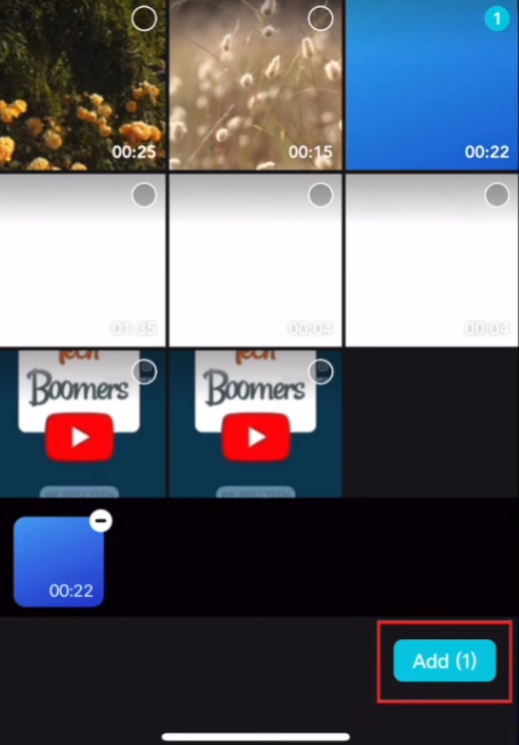
Browse your gallery and then click on the video you want to use. You can choose multiple video clips, but for beginners, it’s usually easier to start with a single video clip. Once you have chosen the video, tap Add. The video will then appear on the timeline in the editing area.
3. Trim the Clip Before Reversing
It’s usually best to trim the video clip before using the reverse playback tool. Many creators prefer to only play the part where the main action takes place in reverse.
To trim the video:
Tap the clip on the timeline.
Drag the start or end of the clip to shorten it.
Focus on the moment you want to reverse, such as a jump, splash, or object movement.
Shorter clips process faster and usually look better when reversed.
4. Tap the Clip to Open Editing Tools
Please ensure that the video clip is selected on the timeline. Once selected, a row of editing tools will appear at the bottom of the screen.
These tools include options like Split, Speed, Animation, and others.
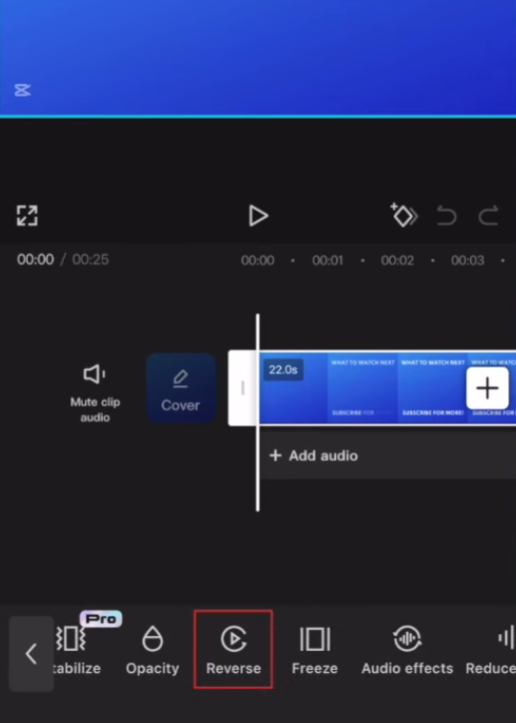
Scroll through the menu until you find Reverse.
5. Apply the Reverse Effect
Click the “Reverse” button. After clicking, CapCut will begin processing the video clip. During this time, the application rearranges the frames so that the video plays from the last frame to the first frame.
The time required depends on:
video length
video resolution
device performance
Short clips usually finish within a few seconds.
6. Preview the Reversed Video
Once processing is complete, press the play button in the preview window. The video clip should now be played in reverse.
Watch the video carefully and check:
whether the motion looks smooth
whether the timing feels natural
whether you want to trim more parts
If needed, you can still split or trim the clip after reversing it.
7. Add Extra Edits if Needed
At this point, you can improve the video by adding a few simple edits. For example:
add background music
adjust video speed
insert text or stickers
apply filters or effects
These steps are optional, but they can make the reversed clip more interesting.
8. Export the Final Video
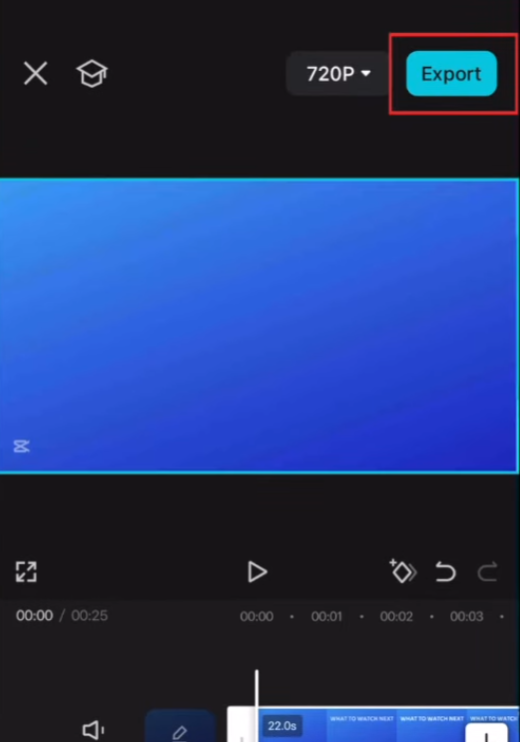
If you are satisfied with the result, please click the “Export” button in the upper right corner of the screen. Choose your preferred resolution and frame rate, then save the video to your phone. Once exported, you can share the reversed video on social media or send it to your friends.
When Should You Use the Reverse Effect?
Reverse playback tools are best suited for certain types of scenarios. Some scenarios naturally become more interesting when played in reverse.
Action Scenes
Jumping, running, or throwing objects can look quite unusual when done in reverse. A simple action can suddenly become full of creativity.
Water and Liquid Effects
The water splashes look very soft after they are reversed. Many creators use this effect to take dramatic or artistic photographs.
Object Movement
When the actions of falling objects, opening boxes, or breaking items are played in reverse, unexpected effects are produced. These tips can make short videos more unique.
Combining Reverse With Other Edits
The reverse effect is even more powerful when used in conjunction with other editing tools. Here are some simple examples of combinations.
Reverse + Slow Motion
Slow down the video playback speed first, then play it in reverse. This can produce a smoother, more dramatic effect.
Reverse + Music
Adding background music can make a video feel more complete. Choose music that matches the rhythm of your movements.
Reverse + Cuts
Sometimes you only need to reverse a portion of the video. You can split the video clip and then reverse only a part of it.
This helps maintain the editing’s interest and avoids making the effects seem repetitive.
Tips for Better Reverse Videos
A few small habits can improve the final result.
Use shorter clips.
Very long reversed videos may feel slow or confusing. Short scenes usually work better.
Keep the camera steady.
Shaky footage can look messy when played backward.
Check the ending frame.
Since the video starts from the last frame when reversed, make sure the ending of the original clip looks good.
Preview before exporting.
Always watch the clip once to make sure the motion looks natural.
Common Problems and Simple Fixes
Sometimes users notice small issues after reversing a clip. Most of them are easy to fix.
Audio sounds strange
Reversed audio often sounds unnatural. Many creators mute the original sound and add music instead.
Processing takes too long
If the video is very long or high resolution, processing may take time. Try trimming the clip before reversing it.
Video feels confusing
If the action is complex, the reversed version may be hard to understand. In this case, reverse only a short section.
Final Thoughts
Learning how to reverse videos on CapCut is very useful for anyone making short videos. This tool is simple to use and can quickly add creativity to ordinary clips. With just a few taps, everyday actions can turn into fun and surprising scenes. Some creators even explore extra editing options through capcut mod for pc apk when looking for additional features while working on their video projects.
Try different moments, such as jumping, splashing water, or throwing objects, and see how they look when played backwards. Small changes like these can make your videos stand out without requiring advanced editing skills.


