

If you’re a content creator struggling with CapCut’s QR code scanner refusing to work, experiencing login failures, or the Snap microphone not working and going silent. Such problems interrupt your creativity at the worst possible time.
I understand that feeling, so I’ve explored many issues related to CapCut. This time, I’ll help you solve the CapCut QR code login problem.
Why Is My CapCut Scan Not Working?
The QR scan feature in CapCut depends on several things working correctly at the same time:
- Camera permissions
- Internet connection
- App version compatibility
- Device storage
- QR code refresh timing
- Background services
If even one of those breaks, the scanner can fail.
Common Causes of CapCut QR Scan Not Working
CapCut’s QR scanner easily connects your phone and computer. It lets you quickly use templates, sync your work, and log in without needing a password.
- Outdated CapCut Version
This is probably the biggest reason. Older versions may not communicate properly with newer login servers, especially for QR authentication. If your app hasn’t been updated in a while, certain parts do not work together, which can cause issues.
- Camera Permissions Disabled
CapCut needs full camera access for QR code login. Sometimes Android or iPhone privacy settings block camera permissions automatically after updates.
The result: CapCut opens the scanner… but the camera never actually activates.
- Weak Internet Connection
QR login relies on real-time server communication. Slow Wi-Fi or unstable mobile data can interrupt: QR generation, y Login verification.
Weak or unstable connections can cause the scanning process to appear successful but then fail when attempting to access the linked content.
- Poor Lighting and Focus Problems
QR codes require adequate lighting and camera focus to be properly detected. Unlike traditional barcode scanners, CapCut’s implementation is optimized for well-lit conditions with minimal glare. Scanning in dim environments, with backlighting, or through screen reflections often results in failed detection attempts.
- Corrupted Cache Files
Temporary files and cached data can become corrupted over time, interfering with the scanner’s functionality. This is especially common on devices with limited storage or those that haven’t been restarted in extended periods.
How to Fix CapCut QR Code Login Problems?
Method 1: Update CapCut Immediately
If your version is outdated, nothing else may work properly. Updating the application is the fastest solution.
If you are using the official CapCut, update the official CapCut app through the Play Store or its official website.
If you are using the CapCut Mod APK, you can go to capcutmoda.com to get the latest download link.
Method 2: Direct Camera Permission Reset
Android Devices:
- Open Settings > Apps > CapCut
- Tap Permissions > Camera
- Select “Allow” or “Allow only while using the app”
- Restart CapCut and test the scanner
iOS Devices:
- Open Settings > Privacy & Security > Camera
- Find CapCut in the app list and toggle it ON
- Alternatively, go to Settings > CapCut > Camera and enable access
- Force close and reopen the CapCut app
Method 3: Optimize Scanning Conditions
Improve your scanning environment for better results:
- Ensure adequate lighting without direct glare on the QR code
- Hold your device steady 6-12 inches from the code
- Clean your camera lens with a microfiber cloth
- Try scanning from different angles if the code isn’t flat
Method 4: Clear CapCut Cache
Corrupted cache files can cause: Scanner freezes, Login loops, Camera bugs
- Android: Settings > Apps > CapCut > Storage > Clear Cache
- iOS: Offload and reinstall the app (Settings > General > iPhone Storage > CapCut > Offload App)
Avoid deleting app data unless necessary. Otherwise, you may lose drafts.
Method 5: Alternative Scanning Methods
When direct scanning fails, try these workarounds:
- Use your device’s native camera app to scan the QR code, then tap the link that appears
- Take a screenshot of the QR code and upload it through CapCut’s gallery scanning option
- Manually enter any visible code numbers or URLs if provided alongside the QR code
Methods without using the CapCut QR code login
If QR codes don’t work and you forget your login details, you can use other ways to sign into CapCut.
1. Log in with a linked account
Many people use this method to log in, which is very convenient as it eliminates the need for a QR code.
Log in to your CapCut account on your phone, tap “Manage accounts,” and then select your account to link below. You can choose TikTok, Facebook, or Google.
In CapCut for PC, simply log in with any associated account.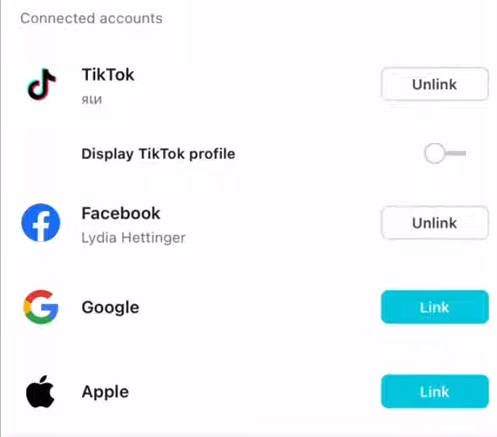
I bought CapCut Pro, but Unable to sync on the CapCut PC.
This is a classic problem, and many users have encountered it, but don’t worry, a solution has already been found.
- Disconnect your CapCut account on your phone from your previous email account.
- Re-link it to a Google account that you haven’t used with CapCut before.
- Log in to CapCut desktop with that email address.
- Done
2. Using CapCut Mod For PC Premium
CapCut Mod For PC allows you to use its Pro features without logging in, and it’s even free.
Final Thoughts
Usually, problems logging into CapCut with a QR code are caused by the app itself, not us. This issue has existed for over a year and hasn’t been fixed yet. Successfully logging in this way is mostly down to luck.
If our devices are working correctly, the issue is probably with the official app. Instead of waiting for a fix, we should try using the CapCut Mod app.


