

One of the most common questions from beginners is: does CapCut automatically save? The good news is yes. CapCut includes an auto-save system that protects your editing progress while you work. This helps prevent data loss if the app crashes, your battery dies, or you accidentally close the editor.
Whether you’re using CapCut mobile or the desktop version, auto-save ensures you never lose progress. Plus, CapCut’s auto cut and autocut template tools make editing faster than ever. In this blog, we’ll break down everything you need to know about CapCut auto-save, project locations, and how to use auto cut like a pro.
Does CapCut Automatically Save While Editing?
Yes, CapCut automatically saves your project progress in the background while you edit.
This means:
- You do not need to manually click a save button
- Timeline changes are stored automatically
- Text, effects, audio, and cuts are usually preserved
- If the app closes unexpectedly, your draft often remains available
Here’s how it works across platforms:
| Platform | Auto-Save Behavior | Key Notes |
| CapCut Mobile (Android/iOS) | Auto-saves every few minutes while editing | Drafts are stored locally; enable Cloud Sync for cross-device access |
| CapCut Desktop (Windows/Mac) | Auto-saves project files to a default folder | You can also manually save at any time |
| CapCut Mod PC Version | Same auto-save as regular desktop | May include extra backup options |
Where Does CapCut Save Projects?
Knowing where does CapCut save projects is critical for backups and sharing.
CapCut Mobile (Android & iOS)
- Android: Navigate to Internal Storage/Android/data/com.lveditor.draft/files/CapCut/Drafts
- iOS: Access via the Files app → On My iPhone/iPad/CapCut/Projects
- Cloud Sync: Enable CapCut Cloud in settings to save projects online
CapCut Desktop (Windows & Mac)
- Windows:C:\Users\[Your Username]\AppData\Local\CapCut\User Data\Projects\com.lveditor.draft
- Mac: /Users/[Your Username]/Movies/CapCut/User Data/Projects/com.lveditor.draft
- Exported Videos: Choose your save location during export
How to Locate Projects in CapCut App
- Open CapCut and go to the Projects tab
- Long-press (mobile) or right-click (desktop) a project
- Select Show in File Manager (mobile) or Open Folder (desktop) to jump directly to its location
Auto Cut in CapCut Mobile
Auto cut capcut mobile uses AI to trim clips, sync to music, and highlight key moments in seconds.
How to Use Auto Cut in CapCut Mobile
- Open CapCut and tap Auto Cut or the + icon to create a new project
- Select a video from your gallery and tap Next
- Choose your editing trigger:
- Music Beat: Select a song—Auto Cut slices clips to match the rhythm
- Voice/Speech: Cuts align with natural pauses in your voiceover
- Text Prompt: Describe your video for AI-generated edits
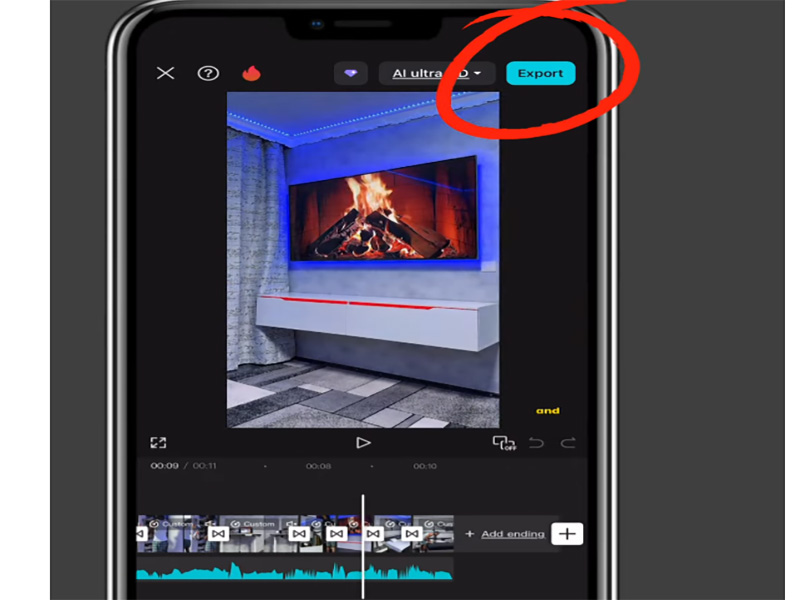
- Tap Export to let Auto Cut process your video
- Preview and tweak before exporting
Key Benefits of Auto Cut
- Saves hours of manual trimming
- Perfect for social media reels, TikTok, and YouTube Shorts
- Automatically applies transitions and music to match your style
CapCut Autocut Template: Create & Use Templates for Consistent Edits
Capcut Auto-Edit Templates: These pre-designed projects automatically apply effects, transitions, and edits.
How to Use CapCut Autocut Templates
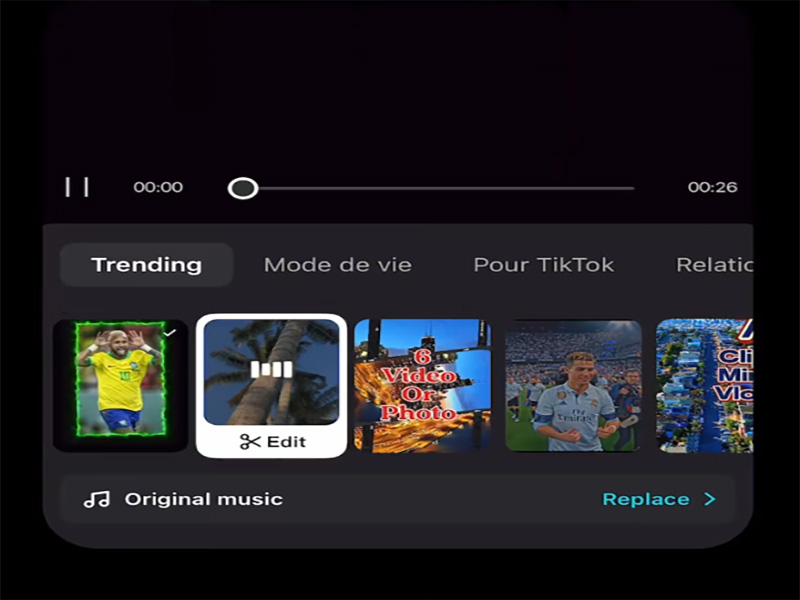
- Open CapCut and tap Templates
- Browse trending templates or search by style
- Select a template and tap Use Template
- Import your media. CapCut auto-applies the template’s edits
- Customize text, music, and effects to match your vision
When Auto-Save Might Fail
Although auto-save is reliable, it may fail if:
- The app is force-closed during heavy rendering
- Device storage is full
- App cache becomes corrupted
- The app is uninstalled before export
- Draft files are manually deleted
This is why regular exports and backups are still recommended.
Essential Tips for CapCut Auto-Save & Project Management
To avoid losing work and stay organized, follow these best practices:
- Enable Cloud Sync: Always turn on Auto Sync to Cloud in CapCut settings for cross-device access and backup
- Manual Save: Press Ctrl+S (desktop) or tap the Save button (mobile) anytime to create a manual backup
- Backup Regularly: Copy important projects to an external drive or cloud storage
- Name Projects Clearly: Use descriptive names to avoid confusion
- Check Auto-Save Frequency: CapCut auto-saves every 2–5 minutes. If you’re working on a critical edit, save manually
- Recover Lost Projects: If a draft disappears, check the Recently Deleted folder in the Projects tab
Final Thoughts
So, does CapCut automatically save? Absolutely, and it’s one of the features that makes CapCut a top choice for creators worldwide. With reliable auto-save, clear project locations, and powerful auto cut and autocut template tools, you can edit with confidence knowing your work is protected.
Whether you’re using CapCut mobile for on-the-go edits or the capcut mod pc version for advanced desktop features, these tools simplify your workflow and let you focus on creativity. Remember: enable cloud sync, back up regularly, and leverage Auto Cut to save time.


