

When you’re cutting a video in CapCut, sometimes you just need a picture from one frame, but there’s no clear ‘export thumbnail’ button, and all the tutorials online only show you how to export the whole video. It’s a bit of a CapCut thing—so many features, but you can’t always find what you want right away.
No worries, though. I’m gonna show you more Cap Cut tips here, like how to capcut export thumbnail, which you can refer back to whenever you need it.
How to Export Just the Thumbnail: Multiple Solutions for Different Scenarios
Capcut PC users:
Method 1:
1. Add Video: Drag the video onto the timeline.
2. Select Frame: Drag the playhead to the desired frame.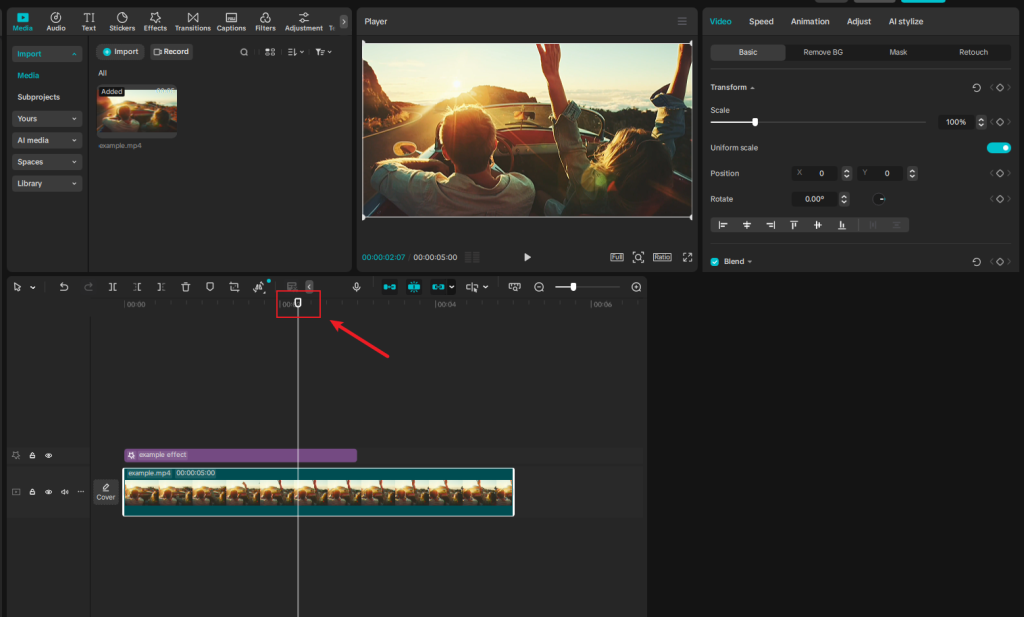
3. Open Menu: Click the three horizontal lines icon at the top of the preview screen.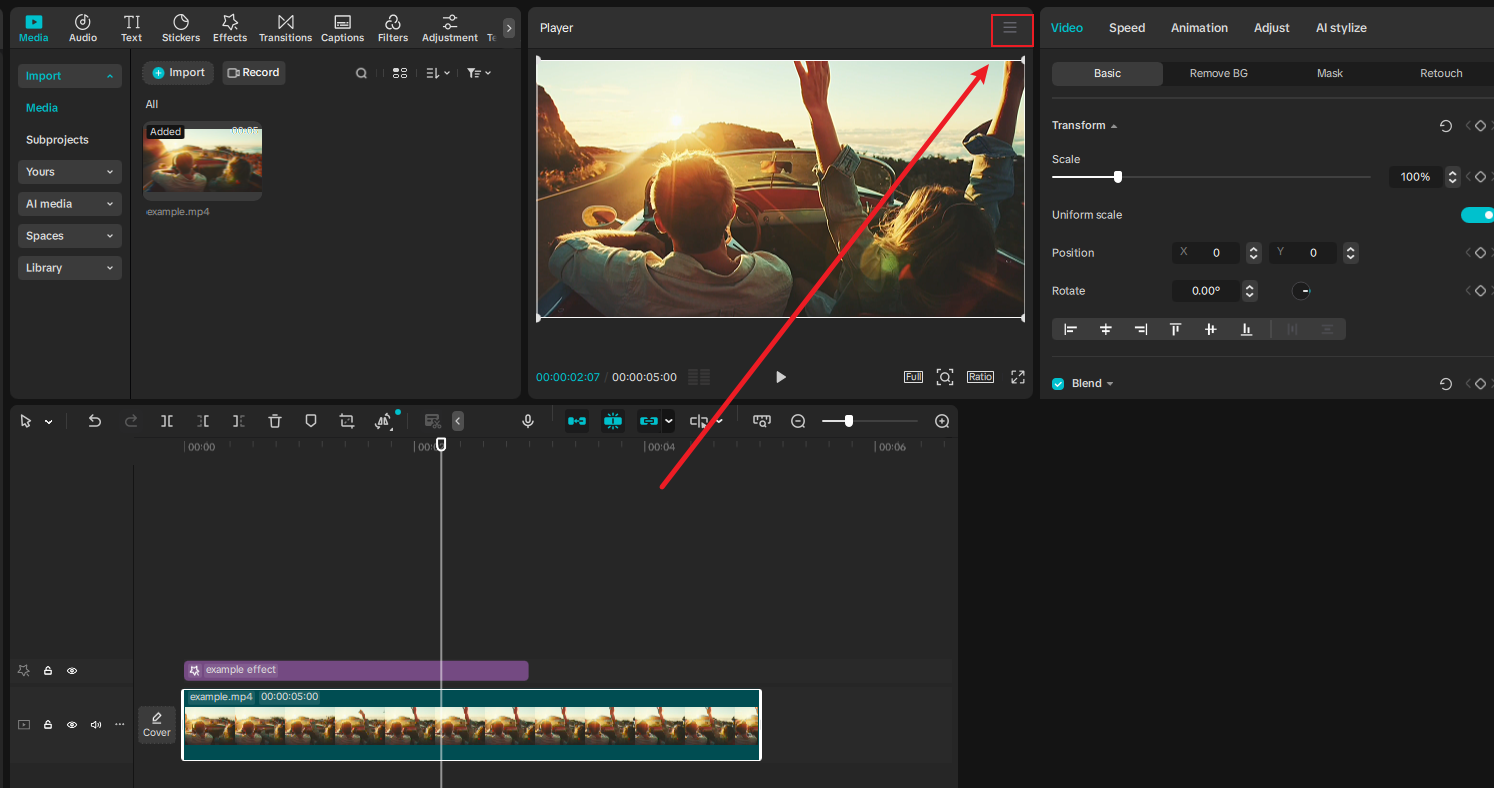
4. Export: Select “Export still frames”.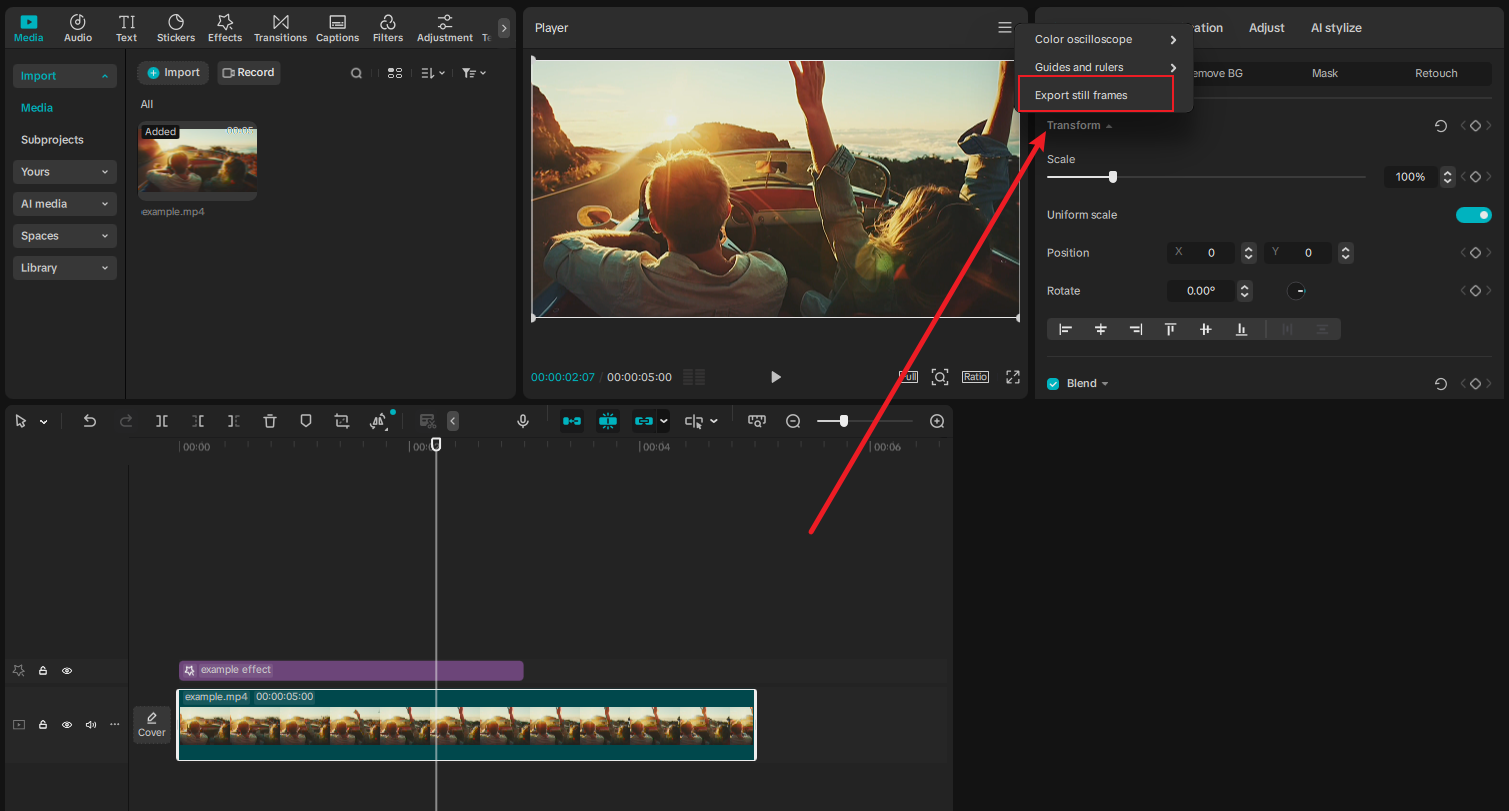
5. Configuration: A window will appear where you can change the file name, destination folder, image format, and resolution.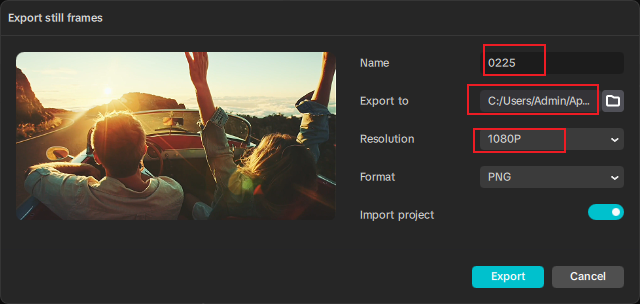
6. Click “Export”.
Method 2:
1. Add Video: Drag the video onto the timeline.
2. Select Frame: Drag the playhead to the desired frame.
3. Use your operating system’s screenshot tool:
• Windows: Windows Key + Shift + S
• Mac: Command + Shift + 4
4. Open the screenshot in an image editor, Editing capcut thumbnail editing, crop out the CapCut interface
5. Save in your preferred format
For Mobile Users:
Method 1:
1. Add Video: Drag the video onto the timeline.
2. Select Frame: Drag the playhead to the desired frame.
3. Use your device’s screenshot function, typically Power + Volume Down on Android or Side Button + Volume Up on iPhone
4. Crop the screenshot to remove interface elements using your device’s photo editor, Adjust capcut thumbnail size
5. Save the cropped image to your gallery
Method 2:
1. Export the video
2. Find “all tools” under “popular tools”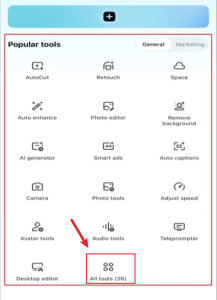
3. Click “Frame capture”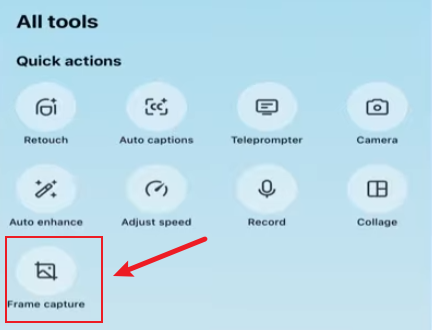
4. Select the video you want to capture
5. Select the page you want to capture; you can export many images at once.
This is a method to capture multiple thumbnails at once, but you need to export the video first.
The above are the methods for setting up CapCut thumbnail on both PC and mobile devices. No CapCut mod version is required; you can easily export thumbnails. You can choose the most convenient method according to your needs.
Key points for exporting thumbnails:
1. Screenshots capture the screen resolution, not the original resolution of the thumbnail. Therefore, for a clearer image, please choose either “Export still frames” or “Frame capture”.
2. To obtain better image quality, export video with the lowest compression rate for frame extraction.
3. Adjust CapCut thumbnail settings according to the thumbnail size of different platforms:
• YouTube: 1280×720 pixels (16:9 ratio), but 1920×1080 is becoming standard.
• Instagram: 1080×1080 (1:1 square) or 1080×1350 (4:5 portrait).
• Facebook: 1200×630 (1.91:1 landscape).
• Twitter: 1200×675 (16:9 landscape).
You may have the following questions:
Q1: Why doesn’t the CapCut mobile app have the “Export still frames” option?
A: To reduce memory usage, CapCut has removed many features, retaining only the most basic video editing capabilities. Therefore, to experience the full functionality of CapCut, you can download the CapCut PC version.
Q2: I lose image quality when taking thumbnails. Is there a better way?
A: Absolutely. Screenshots capture your screen’s resolution, not the native resolution of your thumbnail. You can use the “Export still frames” or “Frame capture” function, which preserves the video quality to the greatest extent, or export your video at the highest resolution, 4K, and then take a screenshot.
Q3: My thumbnails look different on YouTube than in CapCut. What’s happening?
A: Several factors cause this discrepancy. YouTube recompresses all uploads, which can affect image quality, and Different browsers display colors and sharpness differently
In summary:
For computer users, the best approach is to use the “Export still frames” feature, while for mobile users, the best approach is to use the screenshot function. However, the method used varies depending on the specific needs. I highly recommend using the desktop version of CapCut for its more comprehensive features. Which one would you choose?


