
When editing videos using Capcut, you might notice that other users’ videos exhibit a dynamic effect that alternates between fast and slow motion. How can you achieve this speed adjustment effect using CapCut? This guide will detail Capcut’s speed adjustment features and provide usage instructions.
CapCut is a powerful, web-based video editor that allows you to create engaging content directly in your browser. One of its most dynamic features is speed control, which lets you transform ordinary clips into captivating content by creating slow-motion drama, fast-paced action, or rhythmic velocity edits.
What is Capcut’s speed adjustment function?
CapCut’s speed adjustment function is the core tool for modifying the playback rate of video clips. It can achieve uniform speed change, dynamic speed change (speed curve), and reverse playback. It can also maintain audio pitch and optimize slow motion quality, and is widely used for slow motion, fast forward, time-lapse photography, and speed gradient effects.
How to Change Video Speed in CapCut Online:
一、Basic Speed Adjustment (Normal Mode)
For quick and simple speed changes:
- Select the Clip: Click on the video clip in your timeline.
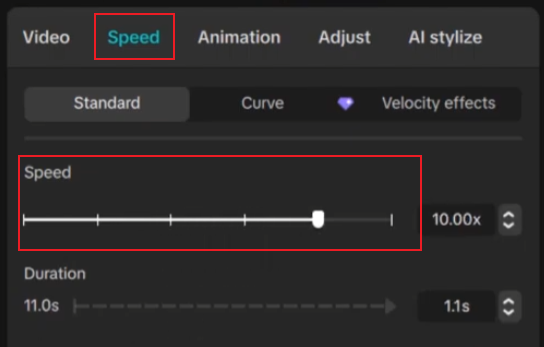
- Locate the Speed Tab: On the right-side panel, find and click the “Speed” tab. You’ll see two main modes: “Normal” and “Curve”.
- Adjust the Speed: In the “Normal” mode, you will find a slider or a numerical input field. Dragging the slider to the right (e.g., 1.5x, 2x) will speed up your video, making it shorter. Dragging it to the left (e.g., 0.5x, 0.75x) will slow it down, increasing its duration. The CapCut mod allows a wide range of adjustments, typically from 0.1x to 100x of the original speed.
Use Helpful Options: Before finalizing, consider two key options:
• Keep Pitch: Check this box if you want the audio’s pitch to remain normal when you slow down or speed up the clip. Without this, the audio will become deeper when slowed down and higher-pitched when sped up.
• Smooth Slow-Mo: For slow-motion effects, enabling this option uses advanced algorithms (like Frame Blending or Optical Flow) to create smoother, less choppy playback.
二、Advanced Speed Control (Curve Mode)
For creative, professional-grade velocity edits where speed changes at specific points:
- After selecting your clip and clicking the “Speed” tab, switch to the “Curve” mode.
- Select “Custom” to open a graph. The horizontal axis represents time, and the vertical axis represents speed.
- Create Speed Points: Click on the line in the graph to add control points (or “beats”). You can add as many points as you need.
- Adjust the Curve: Drag a point upward to speed up the video at that moment, or downward to slow it down. The line between points shows a gradual transition, allowing for seamless speed ramping.
- Preview and Refine: Always play back the section to see if the effect matches your vision. You can right-click any point to delete it if needed.
How to ensure a smooth experience.
The video created in Cap Cut Online is too large, especially with high-resolution videos or complex effects, which can sometimes cause lag. We can use the following methods to increase video production speed.
Using CapCut performance priority mode for Smooth Editing
Some versions of CapCut have a performance priority mode, which can be enabled when creating videos with many special effects.
You can often find an option to lower the Preview Resolution.
This reduces the load on your system, making playback smoother during editing. Crucially, this setting only affects what you see while editing and does not reduce the quality of your final
We recommend using Capcut Pro PC Mod, which allows for smooth and fast video production without reducing video resolution.
Personal Tip:
I believe that mastering CapCut Plus speed adjustment techniques can significantly enhance the professional appeal and audience engagement of video content.
After becoming proficient in the video speed adjustment function, I created better video effects.
Starting with this guide, try it out now and use Cap Cut Online’s video speed adjustment function to create your own videos.
FAQ:
Q: Is speed editing in CapCut Online mod free?
A: Yes, the basic speed adjustment tools, including both Normal and Curve modes, are completely free to use.
Q: Why does my video look choppy after slowing it down?
A: This is often due to a low original frame rate. To create smooth slow-motion, it’s best to shoot your video at a higher frame rate (e.g., 60fps or 120fps). Also, always enable the “Smooth Slow-Mo” option, which helps reduce choppiness by generating intermediate frames.
Q: Can I adjust the speed of multiple sections within a single clip?
A: Absolutely. This is the primary purpose of the “Curve” mode. By adding multiple points on the speed graph, you can create a sequence where one part is slow motion, the next is sped up, and then it returns to normal, all within the same clip.
Q: How do I sync my speed changes to music beats?
A: The most effective method is to use the Curve Mode. First, add your music track to the timeline. Play the video and pause at each major beat. At each of these points, add a speed point on the graph. Then, adjust the points up or down to create speed ramps that match the rhythm of the song .
Final Thoughts
Mastering video speed in CapCut Online is a gateway to creating dynamic and professional-looking content. The process, from basic speed sliders to advanced curve editing, is designed to be accessible yet powerful.



