

The core of a viral video isn’t flashy editing—it’s accurately meeting audience needs. CapCut is a nationwide editing tool packed with free templates, AI-powered features and viral-worthy effects. With the right approach, even beginners can create high-quality videos quickly. This guide skips vague theories and focuses on actionable CapCut tips, covering everything from topic selection to detail refinement to help you turn ordinary footage into videos with 10k+ likes.
Pre-Production: Choose the Right Niche & Match CapCut Features to Lower Viral Barriers
A strong topic is the foundation of a viral video. Choosing the right niche maximizes CapCut’s functionality. Prioritize these high-potential niches and pair them with corresponding editing tools:
- Niche Tutorials (Career/Learning/Makeup): Pair with CapCut’s text templates and split-screen features. For example, create a “3-Step Excel Efficiency Hacks” video using split-screen to compare before-and-after results. Use text templates to highlight key steps so viewers grasp core points at a glance.
- Emotional Resonance (Life Snippets/Relaxing Vlogs): Pair with filters, music library, and transitions. For a soothing food vlog, use CapCut’s “Natural” or “Warm Winter” filters to soften footage. Match with trending platform music and choose “Dissolve” or “Push” transitions to boost immersion.
- Trend-Jacking (Movie Reviews/Event Commentary): Pair with auto subtitles, speech-to-text, and stickers. For movie reviews, use CapCut’s auto subtitle feature to generate lines quickly. Add exclamation mark or arrow stickers to key clips to guide attention and stay in step with trending rhythms.
| Pro Tip: Open the “Templates” section on CapCut’s homepage and filter for current trending templates. Analyze their niches, durations and editing styles. Reuse their structural frameworks directly to double your success rate. |
Core Editing: 3 CapCut-Exclusive Tips to Master Viral Rhythm
A viral video’s rhythm determines audience retention, especially during the crucial 3-second hook phase. Use these 3 CapCut features to control rhythm precisely—10x more efficient than manual editing:
1. 3-Second Hook: Grab Attention with Freeze Frame + Text
Viewers scroll fast, so your first 3 seconds must deliver a highlight. Here’s how to do it:
- Import your video footage and find the most impactful frame, such as the moment a dish is served or a plot twist.
- Select the clip, tap CapCut’s “Freeze Frame” feature at the bottom and set the duration to 0.5-1 second.
- Add text: Use bold, eye-catching text templates and input hook copy like “10 Dollars for Michelin-Quality Food” or “Step 3 Will Blow Your Mind”. Choose high-contrast colors such as black text on a white background or white text on a black background.
2. Full-Video Speed Control: Match Music Rhythm with Auto Beat Sync
Chaotic rhythm makes viewers leave. CapCut’s Auto Beat Sync ensures seamless clip transitions with music beats—perfect for beat-synced videos and fast-paced tutorials:
- After importing footage, tap “Audio” at the bottom and select trending BGM from the music library. Prioritize tracks marked as “Viral Potential” by the platform.
- Select the music track, tap “Auto Beat Sync” and choose “Beat 1” or “Beat 2”. Pick Beat 1 for fast-paced music and Beat 2 for slower rhythms.
- The system will automatically add yellow dots at music beats. Cut your video clips along these dots and delete excess footage to ensure every transition aligns perfectly with the beat.
3. Shorten Duration: Compress Rhythm with Speed Adjustment + Trimming
Most viral videos run 15-60 seconds. Longer videos risk losing viewers. Use CapCut to shorten your video quickly:
- Select the entire video track, tap “Speed” and choose “Regular Speed”. Adjust the speed to 1.1-1.3x. Go faster for tutorials and slower for emotional content.
- Trim redundant footage: Remove lengthy openings, meaningless transitions and repetitive explanations. Keep only core information and highlight moments.
Visual Enhancement: Elevate Quality with CapCut’s Free Features Zero Cost
Visual quality determines a video’s reach potential with the same footage. Elevate quality quickly using these free CapCut features—no complex operations needed:
1. Filters + Adjustments: Unify Visual Style
Inconsistent visual styles distract viewers. Start with a unified filter from CapCut’s filter library and fine-tune parameters:
- Vlogs/Lifestyle: Choose “Natural” or “Warm Winter” filters and set intensity to 30%-50%. Tap “Adjustments” to increase contrast by 5, saturation by 3, and sharpness by 10 for clearer, more vibrant footage.
- Tutorials/Knowledge: Choose “Cool White” or “Clarity” filters and set intensity to 20%-30%. Adjust brightness by +5 and sharpness by +15 to highlight text and details.
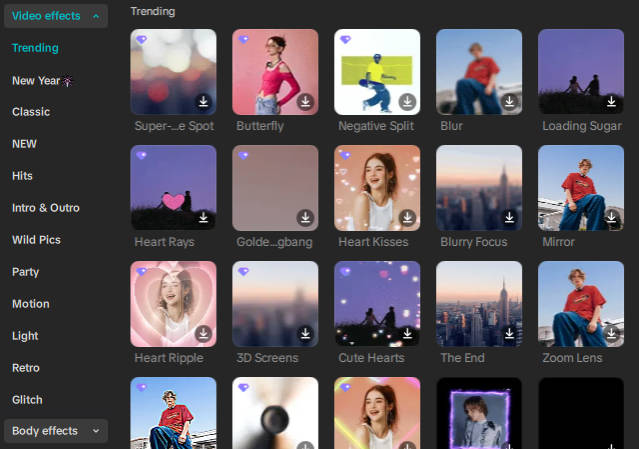
2. Transitions: Keep It Simple, Avoid Overcrowding
Excessive flashy transitions distract viewers. Viral videos rely on simple transitions—these 3 from CapCut are enough:
- Basic Transitions: Use “Dissolve” for emotional, slow-paced videos and “Push” for fast-paced tutorials and beat-synced videos. Set duration to 0.2-0.3 seconds for a natural look.
- Advanced Transitions: Replace transitions with camera movements. Select a clip, tap “Camera Movement” and choose “Zoom In” or “Zoom Out” to simulate camera motion—more natural than abrupt transitions.
3. Subtitles: Clear, Readable and Highlight Key Points
80% of viewers watch videos without sound, making subtitles critical for conveying information. Generate subtitles quickly with CapCut’s Auto Subtitles and optimize formatting:
- Tap “Text” at the bottom and select “Auto Subtitles”. The system will automatically recognize audio and generate subtitles. Manually correct any typos.
- Select the subtitle track and unify the font. Prioritize easy-to-read options like Heiti or Microsoft YaHei. Set font size to 24-28 and choose white text with black outline to avoid clashing with footage.
- Highlight key information such as core tips or conclusions. Select the relevant subtitles, tap “Style” and add a colored background box—red or yellow works well for emphasis.
Viral Boosters: 2 Hidden CapCut Features to Increase Engagement
Engagement—likes, comments, saves—drives video traffic. Use these 2 CapCut features to boost interaction:
1. Stickers + Effects: Guide Viewer Attention
Add simple stickers to key frames to direct attention to core information and boost fun factor:
- Tutorials: Add arrow or checkmark stickers next to steps and highlight boxes next to key data points.
- Emotional Content: Add heart or star effects to touching moments. Set intensity to 20%-30% to enhance emotional impact without overwhelming the footage.
Note: Use no more than 3 types of stickers and effects to keep footage clean and uncluttered.
2. End Screen Call to Action: Drive Interaction with Text + Voice
Clearly prompt viewers to interact at the end of your video—like, save, comment. Use CapCut’s text + voice combination for double the impact:
- Add text: Use text templates to input CTAs like “If this helped, like and save for later. Next up: XX” or “What tips do you have? Drop a comment below”.
- Add voiceover: Tap “Audio” and select “Text to Speech”. Input your CTA and choose a friendly voice—warm female or calm male works well. Sync the voiceover with the text display.
Pitfall Guide: 3 Common Mistakes Newbies Make When Editing Viral Videos
- Overusing Effects/Stickers: Cluttered footage makes it hard for viewers to focus. Solution: Only keep effects relevant to core information. Limit to 3 types max.
- Unreadable Subtitles: Fonts too small or colors clashing with the footage. Solution: Use white text with a black outline consistently. Font size should be no smaller than 24.
- Copyright Music Issues: Using unlicensed music leads to video restrictions. Solution: Only use music marked “Commercial Use Allowed”, “Platform Recommended” or “Viral Potential” in CapCut’s music library to avoid infringement.
Summary: The Editing Logic Behind Viral Videos
Making viral videos with CapCut boils down to three core principles: choose the right topic, master the rhythm and refine details. Start with a high-potential niche, use Freeze Frame and Auto Beat Sync to hook viewers in 3 seconds and control rhythm. Enhance quality with filters and subtitles. Finally, boost engagement with stickers and end screen CTAs. Beginners don’t need complex skills. Master these tips and reuse trending CapCut templates to create viral videos quickly.
FAQs
Q: What type of viral video should beginners practice first?
A: Start with short tutorials like “3 Steps to XXX”. These videos have clear topics and easy-to-control rhythms. Use CapCut’s auto subtitles and split-screen features to create them quickly—great for building positive feedback early on.
Q: Can I use CapCut templates directly?
A: Yes, but prioritize differentiation. Reuse the structure of trending templates but replace the footage, text and music with your own. Avoid direct copying to prevent duplicate content restrictions.
Q: How to check if music is copyright-safe?
A: Stick to CapCut’s music library. Tracks marked “Commercial Use Allowed”, “Platform Recommended” or “Viral Potential” are safe to use. Exercise caution with externally imported music as it may lead to infringement.


