

In some videos, enlarged text appears to float behind a person, creating a three-dimensional image. This visually striking effect has become increasingly popular on social media platforms like TikTok, Instagram Reels, and YouTube Shorts. You might be wondering how this is achieved. What specialized equipment is needed?
The good news? You can create that exact effect using CapCut — and you don’t need advanced editing skills. This guide walks you through everything: why it works and how to do it.
What is the principle behind “Text Behind a Person”?
It’s a layering effect.
The fundamental principle behind putting text behind a person involves layer manipulation and background removal. Essentially, you’re creating three layers: your original video, your text, and a duplicate of your video with the background removed. By carefully arranging these layers, you create the illusion that the text exists in the space behind your subject.
This creates a clean, professional look often used in TikTok, Reels, and YouTube edits.
Don’t worry if you don’t understand the principles; you can simply follow these steps to achieve the same result.
Put text behind a person in CapCut free
Duplicate Layer Trick on CapCut PC
This is the most straightforward method.
- Import your video
Open CapCut Pro mod APK for PC and create a new project. Import your video footage by selecting it from your gallery.
- Add Your Text:
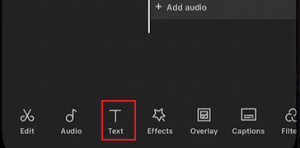
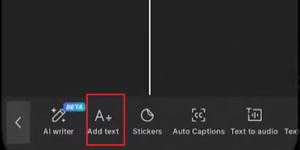
Navigate to the Text menu and tap “Add text.” Position the text where you want it to appear in relation to your subject. You’ll be adjusting this later, so don’t worry about perfect placement yet.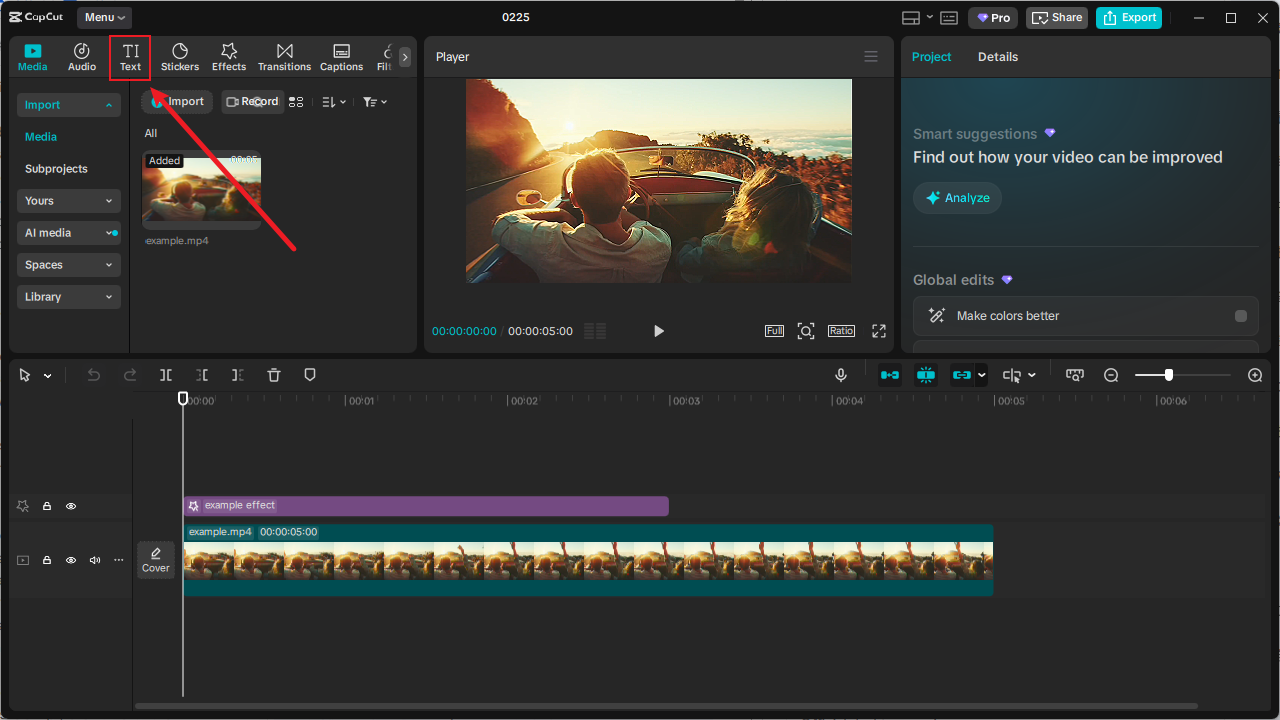
- Duplicate Your Video Layer
Select your original video clip in the timeline and duplicate it. You now have two identical video layers. Move one of these duplicates to the overlay track, usually above your main video track.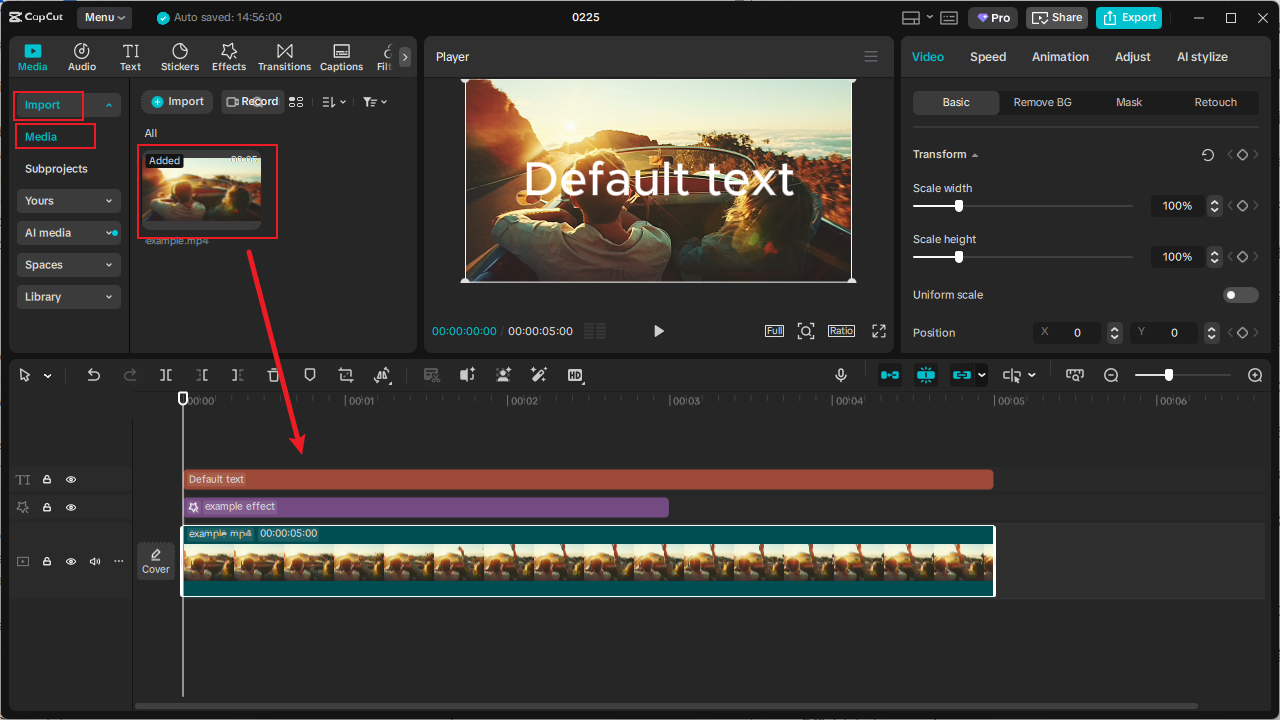
- Remove the Background from the Overlay Layer
Select the duplicated video layer that’s on the overlay track. Find and tap the “Remove BG” (background removal) feature. CapCut’s AI-powered tool will automatically detect and remove the background from this layer. For more precise control, you can use the “Custom Removal” option with the brush tool to manually refine the edges around your subject.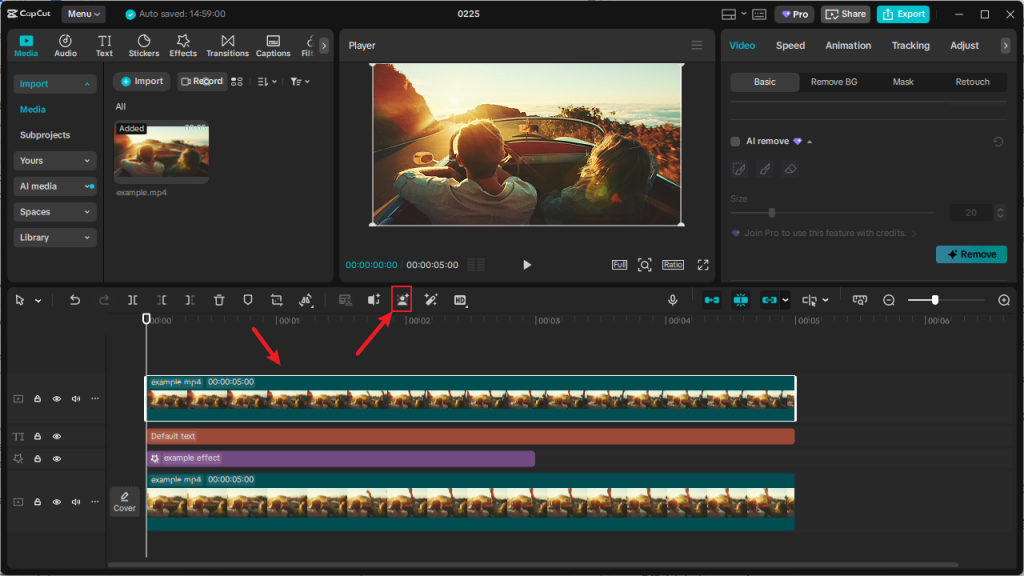
- Arrange Your Layers
Now you have three elements: your original video (bottom layer), your text (middle layer), and your duplicated video with background removed (top layer). The text should be sandwiched between the two video layers. If the text still appears in front of your subject, go to the layer settings and bring the person clip (the one with the background removed) to the front.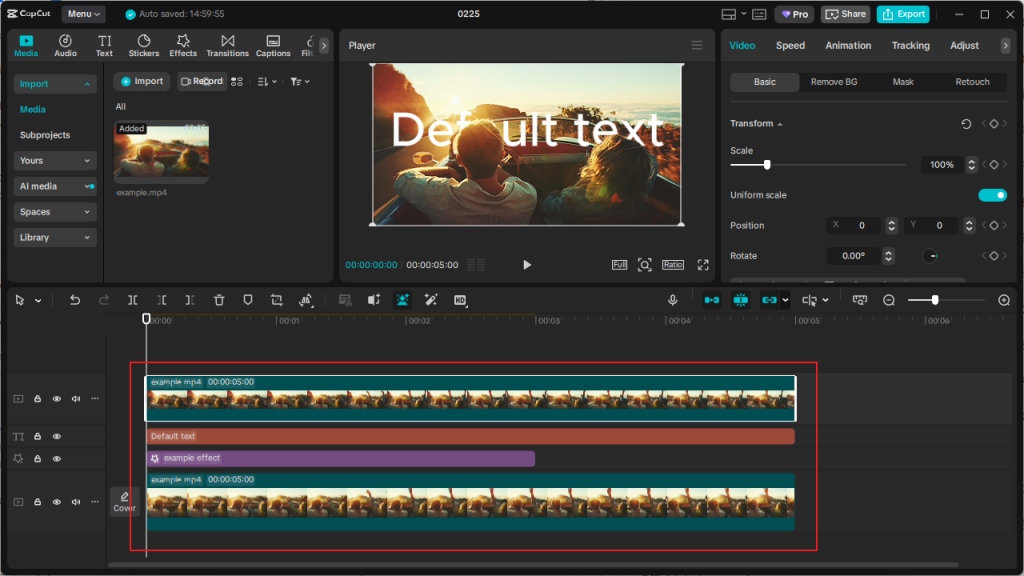
- Fine-Tune and Export
Play through your video to ensure the effect works smoothly throughout. You may need to adjust the timing of your text animation or refine the background removal on specific frames. Once satisfied, export your video in your preferred resolution and format.
Capcut Mobile App
-
- Import Video
- Add Text: Adjust the size, color, and font of the text, and place it in the appropriate position.
- Duplicate Video: Click on the video clip, find “Dulicate,” and click to copy the video.
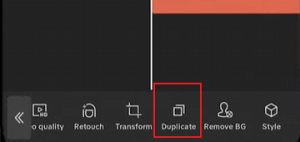
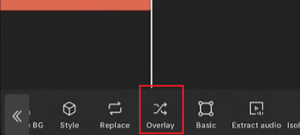
- Move Video: Click “Overlay” to move the video copy below the main video.
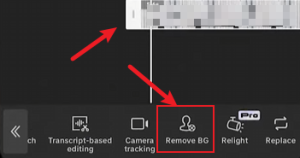
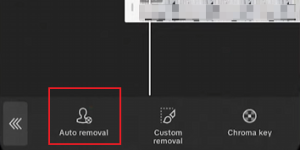
- Remove Background: Click “Remove BG” > “Auto removal” > “Restore”> Confirm. Wait for the background removal to complete.
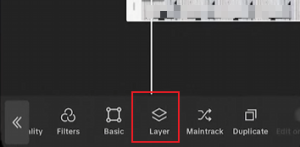
- Move Layer: Click “Layer” to move the video copy (with background removed) in front of the text.
- Export Video: After fine-tuning the video, text, and other effects, export the video.
Understanding CapCut’s Background Remover
CapCut’s background removal feature is the engine that makes this effect possible. The “Remove BG” tool uses artificial intelligence to automatically detect and separate subjects from their backgrounds. This technology has democratized what was once a complex visual effects technique requiring green screens and professional software.
The AI analyzes each frame of your video, identifying the primary subject (usually a person) and distinguishing it from the background. It then creates a transparency mask around the subject, allowing whatever is behind that layer to show through. This process happens in real-time as you edit, making it incredibly user-friendly.
For more challenging footage—such as videos with complex backgrounds, moving hair, or transparent objects—CapCut offers a “Custom Removal” option. This allows you to manually paint over areas you want to keep or remove, giving you greater control over the final result.
Why Put Text Behind a Person?
When text appears behind a moving subject, it creates a dynamic, three-dimensional feel that immediately captures viewer attention. The psychological impact is clear: When text interacts with a person on screen—appearing and disappearing as they move—it creates a sense of immersion that static text overlays simply can’t match. This effect works particularly well for:
- Product demonstrations where you want text to highlight features without obscuring the product
- Tutorial videos where you walk through steps, while text reinforces key points
- Travel vlogs where location names can appear behind you as you explore
- Fitness content where motivational text can follow your movements
FAQ
Q: The background removal isn’t perfect around my hair or transparent objects. How can I fix this?
A: Use the “Custom Removal” tool with the brush feature. Zoom in on the problem areas and manually paint over them. For challenging areas like hair, use a smaller brush size and take your time. You can also try adjusting the video’s contrast or brightness before applying background removal to create better separation between the subject and the background.
Q: Is there a way to do this effect without duplicating the entire video?
A: While duplicating the video is the standard method, you can sometimes achieve similar results using masking techniques. However, this approach is more complex and time-consuming. The duplication method remains the most straightforward and reliable technique for most users.
Q: Why doesn’t my CapCut feature automatically remove the background?
A: The AI-powered automatic background removal feature is only available in newer versions of the app. If you cannot find this feature in CapCut, it means you should upgrade to the latest version of CapCut.
Q: CapCut’s features require payment; are there any free alternatives?
A: You can download the Capcut Mod APK for PC. This version of Capcut offers all features and assets for free and can be used freely.
My Personal Experience and Recommendations
Having used CapCut extensively for both personal and professional projects, I can confidently say it’s one of the most accessible yet powerful video editors available today. The text-behind-person effect, which once required expensive software and specialized knowledge, is now achievable by anyone with a smartphone and a few minutes to learn. This is very beginner-friendly.
The only drawback is that automatic background removal isn’t always perfect — but with a bit of practice or manual masking, you can get really clean results.
I eagerly await the results of your practice after reading the guide.


