
Whether you use CapCut on PC or mobile, properly saving your completed projects ensures you won’t lose your work and lets you access and share your creations seamlessly. CapCut offers two saving methods: saving drafts for future editing, and exporting final videos for sharing or storage. This guide details step-by-step procedures for different devices, provides practical tips for saving your work, and addresses common issues.
Core Concepts: Draft Save vs. Export
Before beginning, understand the functions and appropriate scenarios for CapCut’s two distinct saving methods:
- Draft Save: Preserves all editable layers in the project—including the timeline, effects, keyframes, and media files—for future adjustments. If synced, drafts can be stored locally or in the cloud and are accessible only within CapCut. Ideal for unfinished edits or projects requiring subsequent modifications.
- Export: Renders the project into a shareable video file (e.g., MP4, MOV) where all edits are finalized. Exported videos can be played in any media player, uploaded to social platforms, or stored locally. This is the final step when editing is complete and the video needs to be used outside CapCut.
How to Save on CapCut PC
Save as Draft
CapCut PC automatically saves drafts by default, but you can manually save or manage drafts to prevent data loss:
1. After editing, click the Save button in the top-left corner to manually save the latest version, ensuring all recent edits are preserved.
2. Manage drafts: Close the project to return to the CapCut main interface. All saved drafts will appear in the “Recent Projects” section. Right-click a draft to rename, duplicate, or move it to a custom folder.
3. Set auto-save options: Go to Settings → Auto Save. Enable “Auto Save Every X Minutes” and select a backup location. This feature prevents data loss if the app crashes.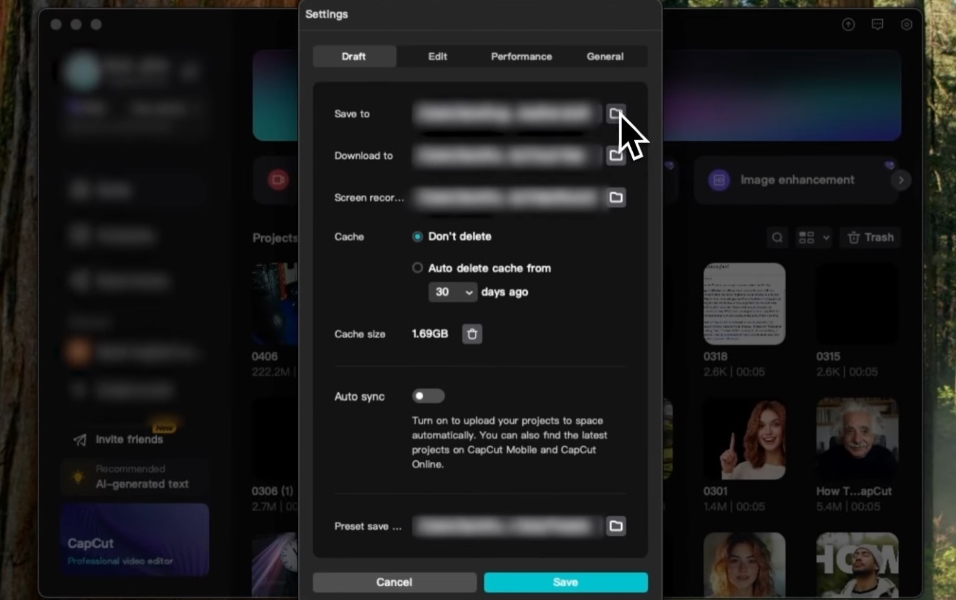
Export CapCut Video
Once you’re fully satisfied with your edits, ues Capcut download video:
1. Click the Export button to open the export settings panel.
2. Customize export parameters:
Format: Select MP4 or MOV.
Resolution: 1080p recommended for most scenarios; 4K for high-quality playback.
Frame Rate: Match your project’s frame rate. Standard video: 30fps; Smooth motion: 60fps. Avoid arbitrary changes to prevent stuttering.
Bitrate: Set to “High” to preserve quality. Lowering bitrate reduces file size but may cause detail loss.
3. Select the save location and rename the file for easy retrieval.
4. Click Export and wait for rendering. The progress bar displays remaining time—do not close CapCut before completion.
5. After you export your project, navigate to the save location to verify that the video plays correctly and all your edits remain intact.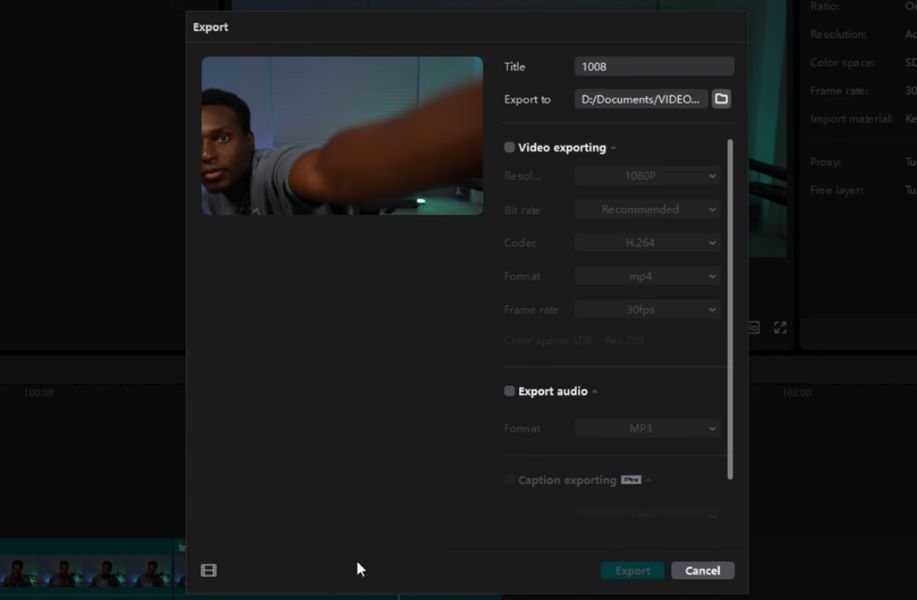
How to Save on CapCut Mobile
Save as Draft
CapCut Mobile automatically saves drafts to your device or cloud storage without manual intervention, but you can still manage them efficiently:
1. Enable “Auto-Save Drafts” in Settings.
2. View drafts: Return to the CapCut home screen and tap the “Drafts” tab at the top. All saved items appear here; long-press a draft to rename, copy, or delete it.
3. Sync drafts across devices: Log in with your ByteDance/Google/Apple account. Go to Settings → Cloud Sync and enable auto-sync. Drafts will be accessible on any device logged into the same account.
Export CapCut Video
The mobile export feature has been optimized for quick sharing to social platforms:
1. After editing, tap the Export button.
2. Adjust export settings:
Resolution: 1080p; 720p reduces file size but may compromise quality.
Quality: High or Standard.
Direct Share: Tap social icons to export and upload instantly without saving to device.
3. Tap “Export” and wait for processing. Videos default to device gallery.
4. Change save path: Go to Settings → Export → Save Path, then select folder.
Advanced Techniques for Protecting Completed Projects
Backup Drafts to Ensure Safety
Prevent draft loss due to device damage or app crashes using these backup methods:
- PC: Manually copy draft files to an external hard drive or cloud storage after editing.
- Mobile: Export “draft backups” by saving projects as .cap files (PC only) or copying drafts to cloud storage for synchronization. Click Share → Save as Draft File or Export Draft to create a backup.
Save Edits as Presets
If you’ve applied custom effects, color grading, or keyframe settings, save them as presets to avoid repetitive work:
1. Select the edited clip → Click “Copy Edits”.
2. Go to “My Presets” → Choose “Save as Preset” and name it.
3. Apply the preset in future projects to save time.
Save for Collaborative Editing
To share a project for others to edit:
- PC: Go to File → Export Project, save the project as a project file (.cap). Recipients can import the CapCut file to edit all layers.
- Mobile: Tap Share → Collaborate, send the link via chat. If collaborators log in to the same account, they can edit the draft in real time.
Common Issues and Solutions When Saving/Exporting
1. Drafts fail to save or disappear
Solution: Check if Auto-Save is enabled and adjust its frequency to 1-2 minutes. On mobile devices, clearing CapCut cache may resolve sync issues; avoid uninstalling the app before backing up drafts. On computers, recover lost drafts from the backup folder: Documents/CapCut/Backup.
2. Export Fails or Video Is Corrupted
Solution: If device storage is insufficient or processing power is limited, reduce the export resolution. Close other apps to free up memory, then re-export. Check if the original footage is damaged—re-import the source file and try again.
3. Exported video has no sound/black screen
Solution: Ensure the audio track in the timeline is not muted.
For PC users: Update to the latest version to fix rendering errors.
For mobile users: Restart the app and re-export.
Ensure you don’t hide the video track is.
FAQs
Q: Can CapCut projects be saved to external storage devices?
A: Yes. When exporting or saving drafts on a computer, you can select an external hard drive as the save location. On mobile devices, connect a USB storage device and change the export location via settings (Android only; iOS requires a Lightning adapter).
Q: How long are CapCut drafts saved?
A: Local drafts are saved permanently until you delete them. Cloud-synced drafts remain available while your account is active; avoid logging out without backing up your work.
Q: Can I export without watermark?
A: Yes. The free version of CapCut exports without watermarks by default. Ensure you are not using modified third-party versions that may add watermarks.



