

Many creators start editing on CapCut PC because of the larger screen and precise controls, then want to continue working on their project on a mobile device. Transferring a CapCut project from PC to phone doesn’t have to be complicated, and there are two reliable methods to get the job done: seamless cloud sync and local file transfer. In this 2026 guide, we’ll walk you through both processes, including how to Sync CapCut PC to mobile, use CapCut Upload to Space for cloud storage.
Can You Directly Transfer a CapCut Project from PC to Phone?
At the moment, CapCut does not support direct cross-platform project file transfer in the traditional sense.
Key limitation:
- CapCut PC and CapCut mobile use different project structures
- Project folders copied manually will not open correctly on another device
Because of this, exporting a project file alone will not allow continued editing on mobile.
Method 1: Official & Easiest – CapCut Upload to Space
The most reliable way to transfer a CapCut project from PC to phone is using CapCut’s built-in cloud storage feature: CapCut Upload to Space. This tool lets you save your PC project to CapCut’s cloud, then Sync CapCut PC to mobile with just a few taps—no cables, no file conversions, and your project retains all edits, layers, and effects. Best of all, this feature is 100% free for all official CapCut versions.
Step 1: Sign In to the Same CapCut Account on PC & Mobile
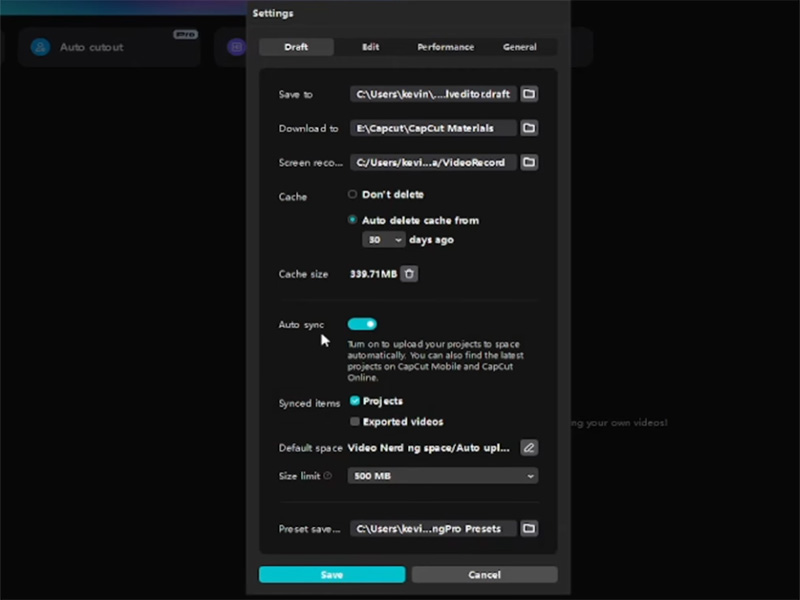
To Sync CapCut PC to mobile, you must use the same CapCut/ByteDance account on both devices—this is the key to seamless cloud sync:
- On CapCut PC: Open the app, click the Profile icon in the top-left corner, then select Sign In. Choose to sign in with TikTok, Google, or email.
- On CapCut Mobile: Launch the app, go to Me → Sign In, and use the same account you used on PC. Ensure both devices are connected to Wi-Fi for fast syncing.
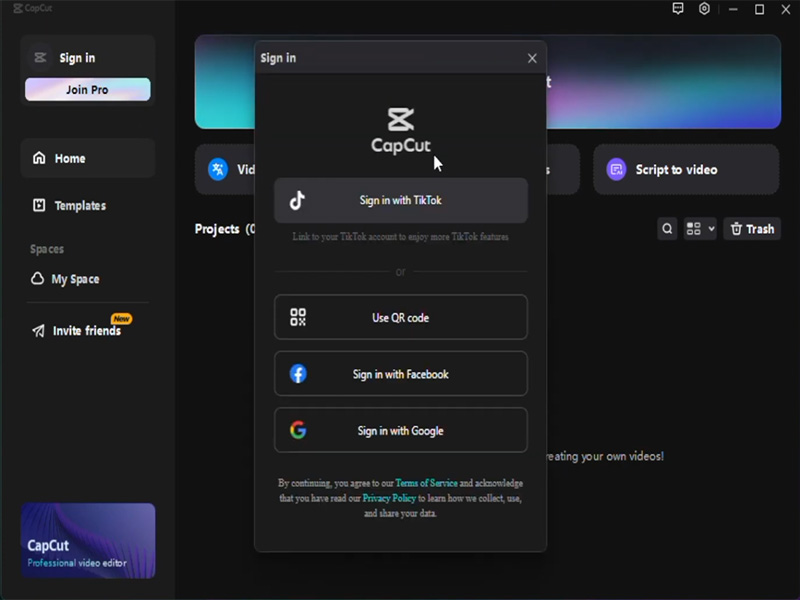
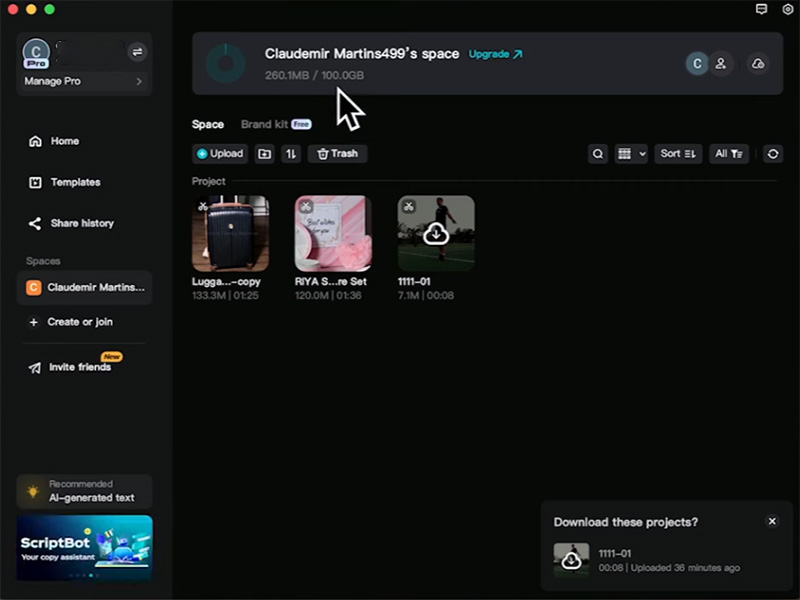
Step 2: CapCut Upload to Space (Save PC Project to Cloud)
Once signed in, upload your PC project to CapCut’s cloud space to make it accessible on your phone:
- On CapCut PC, open the project you want to transfer.
- Click the Cloud Upload icon in the top toolbar—this is the CapCut Upload to Space button.
- A pop-up will appear: name your project and click Upload. The upload time depends on your project size.
- You’ll see a “Upload Complete” notification once done—your project is now saved to CapCut’s cloud and ready to sync to your phone.
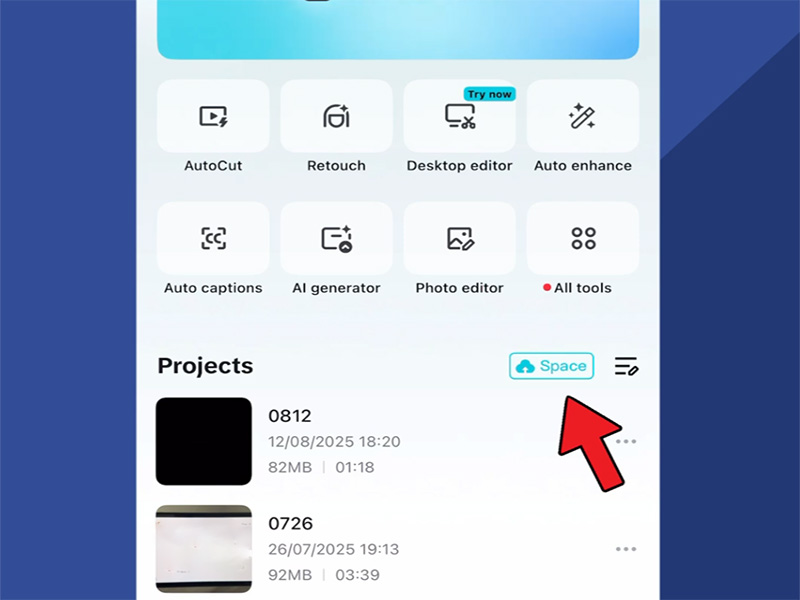
Step 3: Sync CapCut PC to Mobile
Now, retrieve the uploaded project on your mobile device with one tap:
- On CapCut Mobile, go to the Cloud tab.
- You’ll see a list of all projects you’ve uploaded via CapCut Upload to Space—find the project you transferred from PC.
- Tap the Download icon next to the project. CapCut will sync the project from PC to mobile, preserving all edits, text, effects, and layers.
- Once downloaded, the project will appear in your mobile “Projects” tab—you can edit it further, add mobile-exclusive effects, or export it directly to TikTok/Instagram.
Method 2: Backup Option – Transfer CapCut Project Locally
If you don’t have Wi-Fi or prefer not to use cloud storage, transfer the project file locally. This method works for all CapCut versions (including official and modified builds like capcut mod pc), but requires a USB cable or file-sharing app.
Step 1: Export the Project File from CapCut PC
- Open your project in CapCut PC.
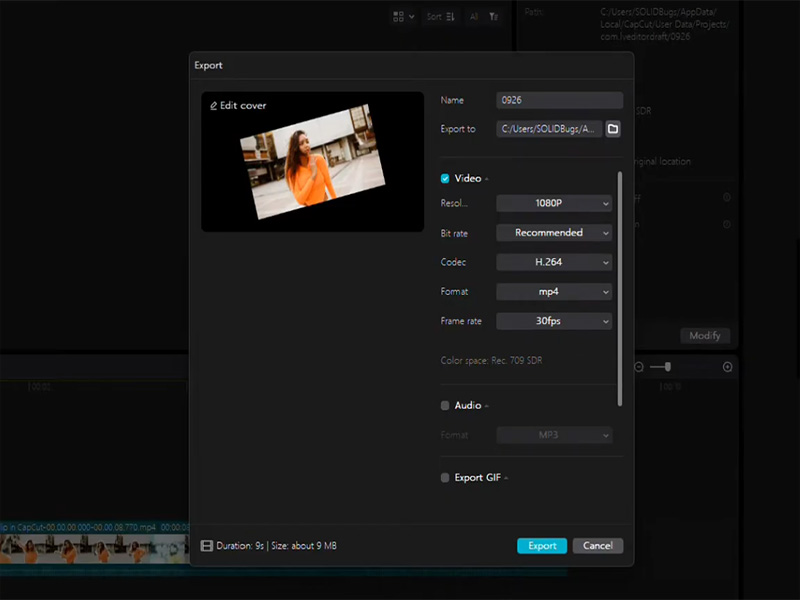
- Click File in the top-left corner → Select Export Project (not “Export Video”). This exports the project as a .draft file, which preserves all editable elements.
- Choose a save location on your PC and click Save. The file will be labeled with your project name + “.draft”.
Step 2: Transfer the .draft File to Your Phone
Move the .draft file from your PC to your phone using one of these methods:
- USB Cable: Connect your phone to PC with a USB cable. On your PC, open your phone’s storage (via File Explorer), and drag the .draft file into a folderon your phone.
- File-Sharing Apps: Upload the .draft file to Google Drive, Dropbox, or send it to yourself via email/WhatsApp. On your phone, download the file to your device’s storage.
Step 3: Import the Project into CapCut Mobile
- Open CapCut Mobile and go to the Projects tab.
- Tap the + Import button at the bottom of the screen.
- Select Import from Device and navigate to the folder where you saved the .draft file.
- Tap the .draft file—CapCut will import the project, and you can start editing immediately.
CapCut for PC Premium Unlocked APK & CapCut Mod PC
Searches such as capcut for pc premium unlocked apk and capcut mod pc are common among users looking for expanded features or fewer limitations.
From an informational standpoint:
- These versions are unofficial
- Cloud sync and CapCut Upload to Space may not work reliably
- Account-based syncing can fail or be unavailable
- Updates and compatibility are inconsistent
If project transfer between PC and phone is important, official versions provide better stability.
Common Issues & Solutions (2026)
Issue 1: Can’t Sync CapCut PC to Mobile (Cloud Upload Fails)
Solution: Ensure both devices use the same CapCut account. Clear CapCut’s cache on PC and mobile, then re-upload the project via CapCut Upload to Space. Check your Wi-Fi connection—weak signals cause upload failures.
Issue 2: .draft File Won’t Import to Mobile (Corrupted File)
Solution: Re-export the project from CapCut PC to generate a new .draft file. Ensure the file isn’t renamed and transfer it again via USB or a reliable file-sharing app.
Issue 3: CapCut Mod PC Projects Don’t Sync to Mobile
Solution: Uninstall the modded PC version and download the official CapCut PC. Import your project into the official app, then use CapCut Upload to Space to sync to mobile. Modded versions often break cloud sync functionality.
Conclusion
Transferring a CapCut project from PC to phone is quick and easy with two reliable methods: CapCut Upload to Space and local .draft file transfer. By following the step-by-step guides above, you can seamlessly move your PC-edited projects to mobile for final tweaks, sharing, or publishing to social media.


