

How to flip video on CapCut?
If you simply want to rotate the video frame by a certain angle for playback, please select this method
Mobile Version:
- Import video: Click “New Project” to create a new project, and select the video from the angle you want to choose.
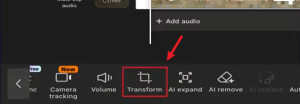
- Select “Transform”: Swipe left on the bottom editing bar to find “Transform” and click it.
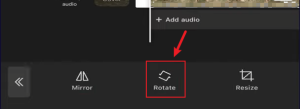
- Click “Rotate”: Each click will rotate the screen 90° clockwise until you achieve the desired orientation.
- Export video
Desktop Version: Precision Control
Capcut PC allows for more precise control over video rotation angles.
First scenario: The entire video needs to be rotated.
- Import Video: Create a new project and import the video you want to modify.
- Rotation Angle: Click on the video timeline, find “Rotate” on the right, enter the desired rotation angle, or click the circular icon on the right to rotate manually.
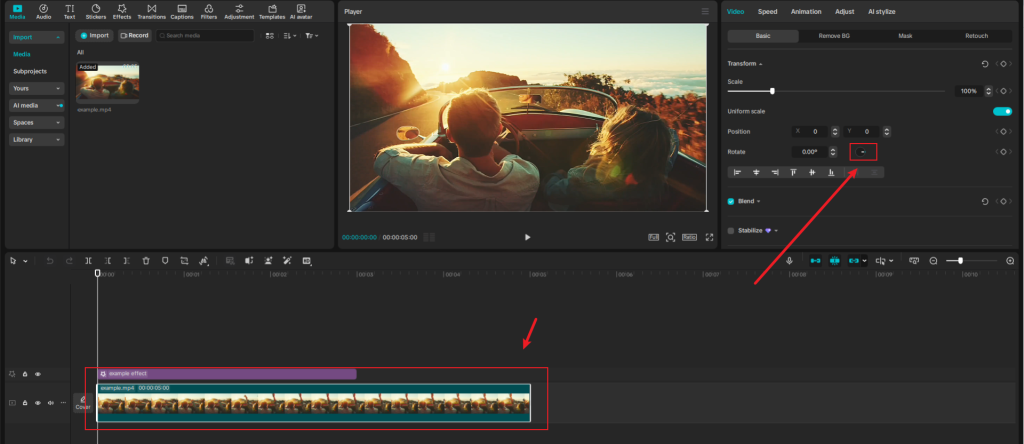
- Export video: After confirming the angle, export the video.
The second scenario: Only one segment needs to be rotated.
This method can be used when you only need to rotate a specific segment of a video.
- Import Video: Create a new project and import the video you want to modify.
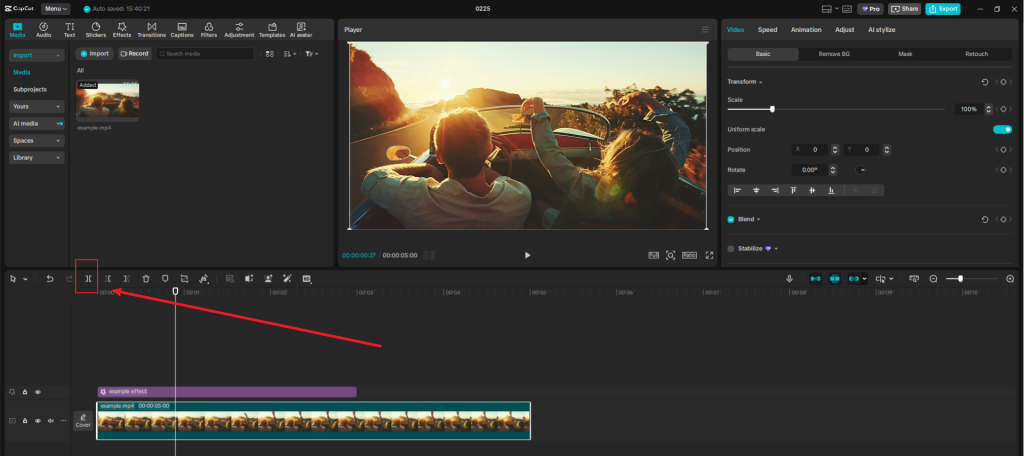
- Cut a segment: Drag the progress bar to the segment you want to rotate, and click the “Split” icon above the timeline to isolate the segment.
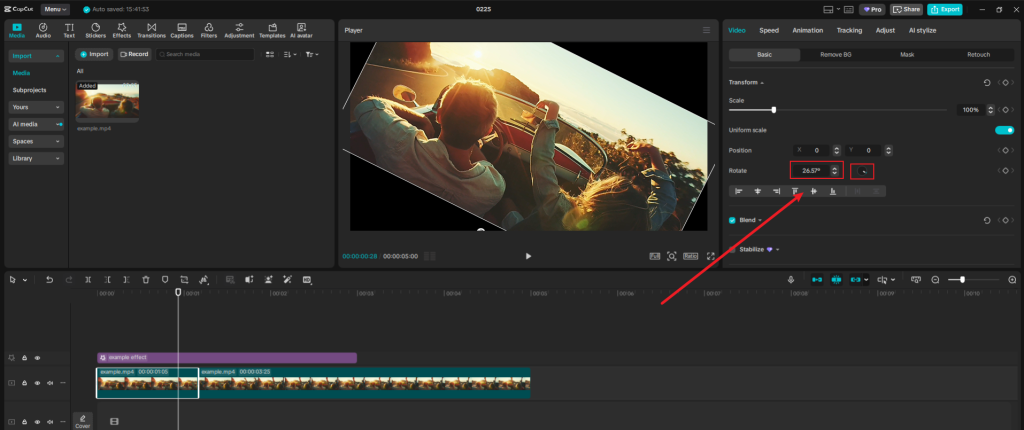
- Rotation Angle: Click on the video segment, find “Rotate” on the right, enter the desired rotation angle, or click the circular icon on the right to rotate manually.
- Export video: After confirming the angle, export the video.
How to create dynamic rotating videos in CapCut?
If you want your videos to achieve professional-level rotation effects and give the footage a dynamic feel, you can refer to the following tutorials.
Mobile Version:
- Import video: Click “New Project” to create a new project, and import the video
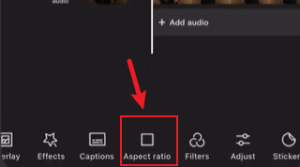
- Adjust the page: Locate and click “Aspect ratio” in the editing bar below to adjust the video to a suitable size.
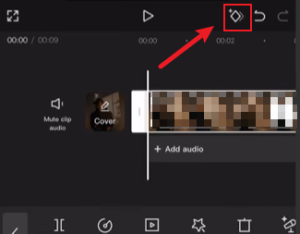
- Set keyframes: Slide the progress bar to the desired segment and place a keyframe before and after the segment.
- Rotate the screen: Manually scale and rotate the screen at the last keyframe.
- Fine-tuning: Slide the progress bar to inspect the screen, view, and make careful adjustments.
- Adjust rotation speed: Click the button near the keyframe and select the variation curve.
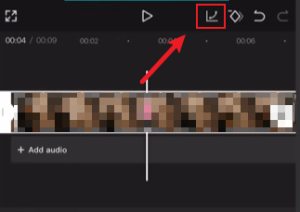
- View the final result: Click play to view the final result.
- Export video
Desktop Version:
- Import Video: Create a new project and import the video you want to modify.
- Add keyframes: Slide the progress bar to the page you want to rotate, then click the diamond-shaped keyframe button next to “Rotate” to add a keyframe to that page. Next, drag the progress bar to the screen where the rotation ends, and add another keyframe there as well.
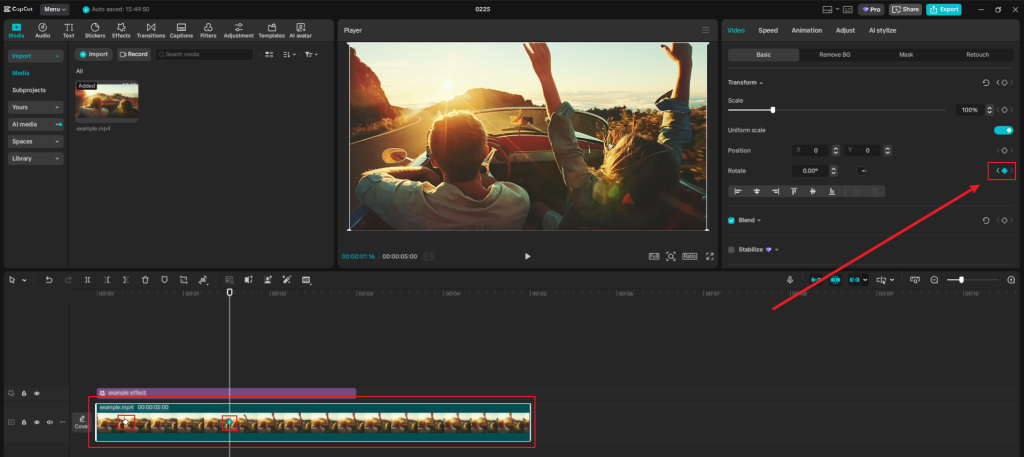
- Rotate the screen: At the second keyframe, click the circular button next to “Rotate” to manually rotate the screen to the desired angle.
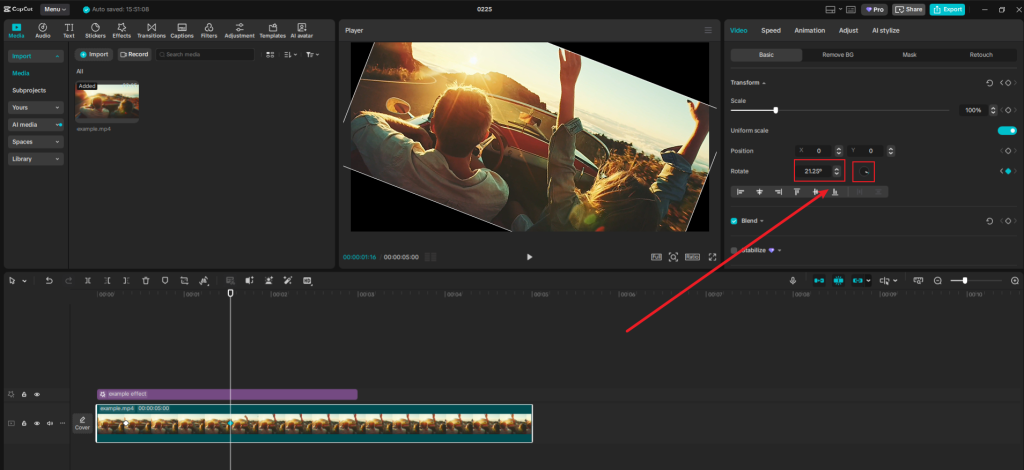
- Check the effect: Play the video or manually drag the progress bar to check the rotation effect.
- Fine-tuning: make careful adjustments.
- View the final result: Click play to view the final result.
- Export video
Tips to make videos more dynamic
- Use the speed adjustment function to adjust the page rotation speed
- Add subtle rotation to static shots for a dynamic feel
- Combine rotation and scaling to enhance the dramatic effect.
- Superimpose different video clips and rotate them simultaneously to simulate a 3D effect.
- Slightly adjust the angle to follow the movement in the video to simulate a sense of realism.
- Adjust the aspect ratio to match the platform you want to publish to better fit the platform’s visuals.
FQA:
Q: Does the video quality decrease after rotating it?
A: Yes, to maintain the original image quality as much as possible, you can rotate the image by multiples of 90° to minimize image quality loss.Export at the highest possible quality settings and consider using CapCut’s “Smart Scale” feature to minimize interpolation artifacts.
Q: What should I do if a black border appears after rotating the page?
A: Use the Canvas settings to add background fills, or employ the Crop tool to zoom in on your video. Fill the canvas with the page
Q: Why is my rotation animation lagging?
A: Increase your project’s frame rate before creating rotation animations. Higher frame rates, 60fps or above, create smoother motion. Also, ensure you have sufficient keyframes – generally one keyframe every 10-15 frames for smooth rotation.
Q: Rotating one video clip accidentally affected other clips.
A: In the timeline, ensure you’re selecting individual clips rather than the entire track. Use the “Ungroup” function if clips are linked, and apply rotation to each clip separately as needed.
Have you learned how to use CapCut video rotation?
Both the mobile and desktop versions provide detailed steps, which you can follow along with the guide. I highly recommend using the Capcut PC Mod APK latest version for editing. The latest version of Capcut includes more features and allows for higher video quality editing.
If there are any other tutorials you’d like to learn, please let me know.


