

Video editing is more than just cutting clips and adding music. The way scenes are transitioned can completely change the overall feel of a video. Using CapCut transitions effectively can help create a professional look, improve the flow between scenes, enhance the narrative, and keep the audience interested from beginning to end.
CapCut Mod includes CapCut’s original powerful editing tools, which is why CapCut is so popular with content creators. Among these tools, transitions are one of the simplest and quickest ways to improve video quality without spending hours editing. Whether you’re creating short social media videos, travel vlogs, gaming content, or personal projects, learning how to use transitions correctly can make a significant difference.
We have shared the way to do a whoosh effect at the beginning of a clip in CapCut before. In this guide, you will learn how to add transitions in CapCut Mod, explore different transition styles, and discover practical tips for creating smoother videos.

What Are Video Transitions
Video transitions are visual effects that connect different segments. They avoid abrupt scene changes, instead creating a smoother, more natural flow to the video.
You can think of transitions as bridges connecting different moments in a video. They help viewers better understand the story and avoid being interrupted by abrupt scene changes. Choosing the best transition in CapCut for each scene can make the flow feel more natural and engaging. Well-designed transitions guide the viewer’s attention, improve the pacing of the video, and create a smoother, more enjoyable viewing experience from start to finish.
CapCut Mod offers a variety of transition effects. Some are simple and subtle, such as fade-in/fade-out and dissolve; others are more dynamic, including zoom, slide, rotate, and glitch art effects. Each transition can create a different atmosphere and affect the audience’s perception of the content.
Why Use Transitions in CapCut Mod
Many beginners focus only on editing clips, but transition effects can greatly enhance the final result.
Some advantages include:
1. Better Flow
Transitions connect separate clips and make the video feel continuous.
2. More Professional Editing
Even simple transitions can give videos a polished look.
3. Enhanced Storytelling
Different transition effects can create different emotions. Gentle fade-in and fade-out can bring a sense of calm, while rapid zoom can bring excitement.
4. Improved Viewer Retention
Smooth scene transitions help maintain audience interest and reduce the likelihood of them fast-forwarding.
How to Add Transitions in CapCut Mod
Adding transitions in CapCut Mod is a straightforward process.
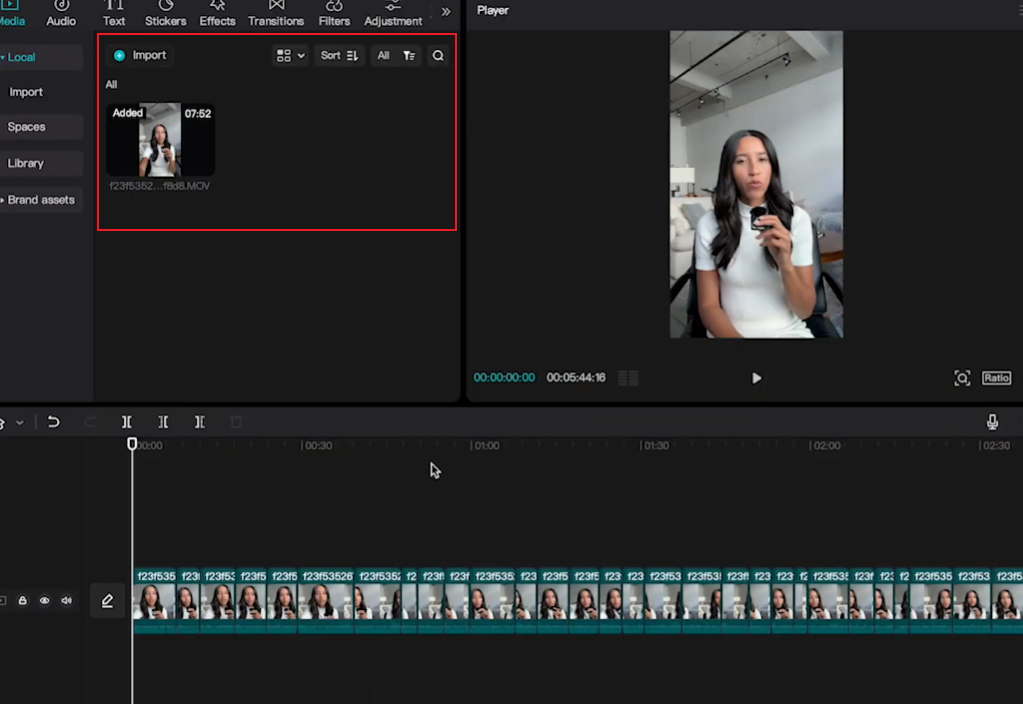
Step 1: Create a New Project
Open CapCut Mod and click “New Project”.
Select the video clip you want to edit and import it into the timeline.
Step 2: Arrange Your Clips
Place your clips in the desired order.
Review the sequence before adding transitions. Good transitions work best when clips already have a logical flow.
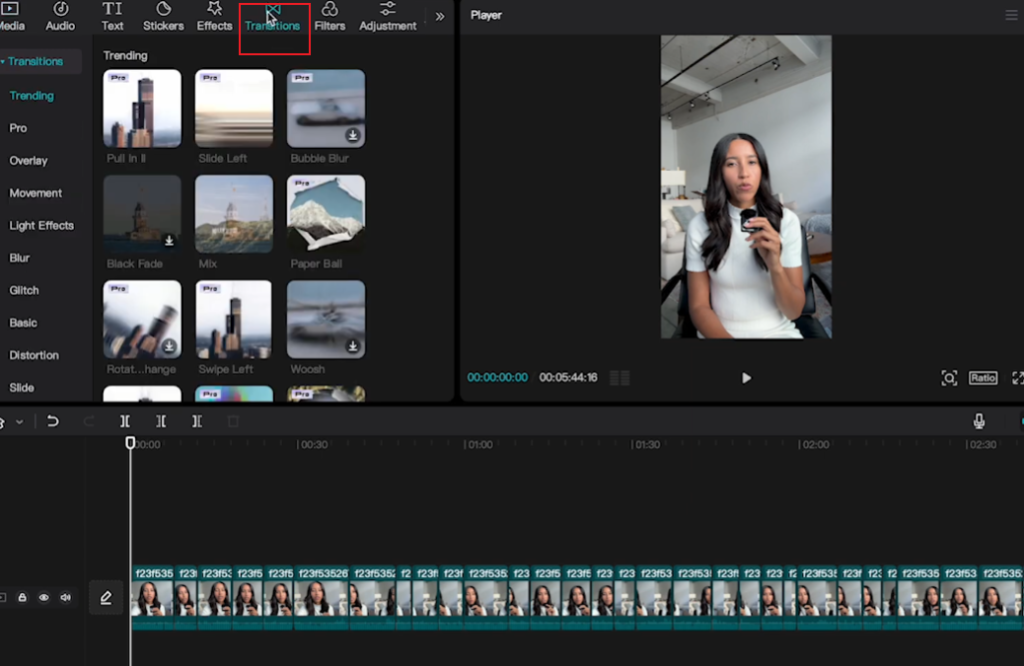
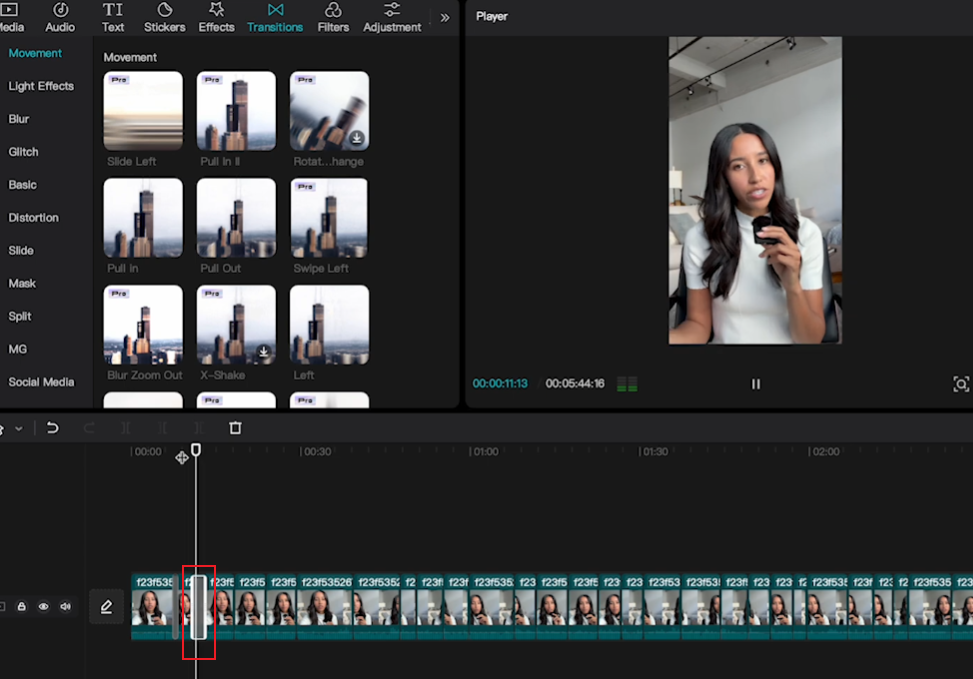
Step 3: Locate the Transition Icon
Between every two clips, you will see a small white box or transition marker.
Tap this icon to open the transition library.
Step 4: Choose a Transition
CapCut Mod offers many categories, including:
- Basic
- Camera
- Slide
- Zoom
- Blur
- Glitch
- Light Effects
- Distortion
Browse through the available options and preview each effect.
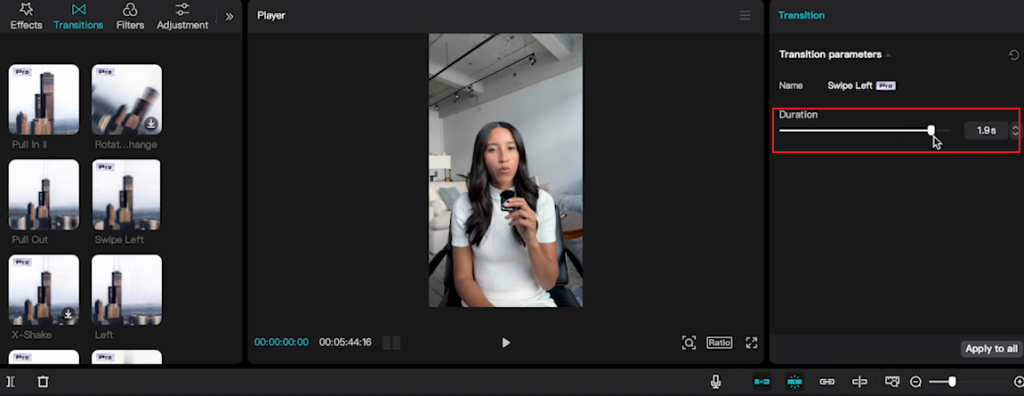
Step 5: Adjust Duration
After selecting a transition, use the duration slider to control its speed.
Short transitions often work best for fast-paced content, while longer transitions can create a cinematic feel.
Step 6: Apply and Preview
Tap the checkmark to apply the transition.
Play your video to see how the clips connect.
If the effect feels too strong or too slow, return to the transition settings and make adjustments.
Popular Transition Types and Their Uses
Choosing the right transition effect is just as important as choosing the right music or a well-selected video clip. Each transition effect can create a different atmosphere and influence how viewers experience the content. Understanding when and where to use specific transitions helps maintain a smooth flow between scenes, enhances visual storytelling, and makes your editing appear more polished and professional.
Fade
Fade-in and fade-out transitions allow two segments to gradually transition, creating a smooth and natural scene change. Because it works for almost all types of video, fade-in and fade-out transitions are among the most widely used transition methods.
Fade-in and fade-out transitions can also imply the passage of time, making them very useful when switching between different locations or events.
Dissolve
Dissolve transitions refer to briefly overlapping two scenes before the next scene fully appears. This transition method creates a smooth transition effect that is less noticeable than many modern special effects.
Because dissolve transitions are subtle, they help keep the viewer’s attention focused on the story itself, rather than the editing.
Slide
The sliding transition effect moves a clip off-screen while simultaneously introducing the next clip from a different direction. This transition technique creates dynamism and maintains a lively rhythm.
The sliding transition effect is particularly good when the direction of movement is consistent with the direction of action in the clip.
Zoom
Scaling transitions can create the feeling of quickly entering or exiting a scene. They can add excitement and create connections between different segments.
When combined with musical beats, zoom transitions can make videos more dynamic and engaging.
Blur
The blur transition effect softens the image temporarily before the next clip appears, creating a stylish and modern visual effect without being too distracting.
Blur effects are commonly used on platforms like TikTok and Instagram because they allow for smooth scene transitions while maintaining visual appeal.
Glitch
Glitch transitions utilize digital distortion, flickering effects, and visual noise to create dynamic transitions between scenes.
Because the malfunction effect is visually impactful, it is best used in small quantities at critical moments.
Tips for Professional-Looking Transitions
Creating professional-grade transitions doesn’t involve using the most complex special effects. Often, simple, smooth, and well-timed transitions are superior to fancy animations. When learning how to edit videos in CapCut, it’s important to understand that the goal of a transition is to connect scenes naturally and smoothly, helping the story flow without distracting the viewer. A well-placed transition can improve the overall viewing experience while keeping the audience focused on the content itself rather than the editing effects.
1. Avoid Overusing Effects
Many beginners try to use different transition effects between each clip. While this may seem creative at first glance, it often makes the video appear cluttered and distracting. Professional editors typically stick to a few transition styles throughout a project. Maintaining consistency helps create a simpler, more refined viewing experience.
2. Match the Mood of the Video
Every transition should match the tone of the content. Smooth fade-in and fade-out effects are suitable for travel videos, emotional stories, and cinematic editing. Fast zooming and dynamic swiping are better suited for sports highlights, game clips, or dynamic social media content. Choosing transition effects that match the content’s atmosphere helps maintain visual consistency.
3. Pay Attention to Clip Movement
One of the simplest ways to make transitions smoother is to consider the motion within the clip. Transitions usually appear more natural if a subject moves in the same direction in both segments. For example, if a person walks from left to right in one scene, they can smoothly transition to another segment with similar actions. This technique creates a sense of continuity, which viewers may subconsciously notice.
4. Keep Transition Duration Balanced
The length of transitions can significantly affect the rhythm of a video. Transitions that are too short may appear abrupt, while transitions that are too long will slow down the video. For most social media content, shorter transitions tend to be more effective because they maintain the smoothness of the video. Longer transitions are generally more suitable for films or narrative works, because these types of works are inherently slower-paced.
5. Synchronize with Music Beats
If your video contains background music, try adding transitions at key beats, rhythm changes, or musical climaxes. This enhances the connection between visuals and audio. Even a simple transition can have a stronger impact if it occurs at the right time with the music.
6. Use Effects Sparingly
The transition itself can attract the audience’s attention to changes in the scene. Adding too many filters, animations, stickers, and visual effects at the same time can overwhelm viewers. Therefore, transitions should be allowed to serve their intended purpose, and unnecessary interference should be avoided. Simpler editing often appears more professional.
7. Preview Your Video Multiple Times
A transition that looks good on its own may not be able to blend perfectly into the entire video sequence. After adding transitions, please watch the video repeatedly, paying attention to the rhythm, smoothness, and overall consistency. Even minor adjustments, such as time or duration, can have a significant impact on the final result.
Final Thoughts
Learning how to add transition effects in CapCut Mod is one of the quickest ways to improve your editing skills. The platform offers a wealth of transition effects, allowing you to easily create smoother and more engaging videos.
The key is not to use as many transition effects as possible, but to choose special effects that fit the content, echo the rhythm and music, and enhance the atmosphere of the story. With practice, even simple transitions can transform ordinary video clips into exquisite and professional masterpieces, captivating viewers from beginning to end.