
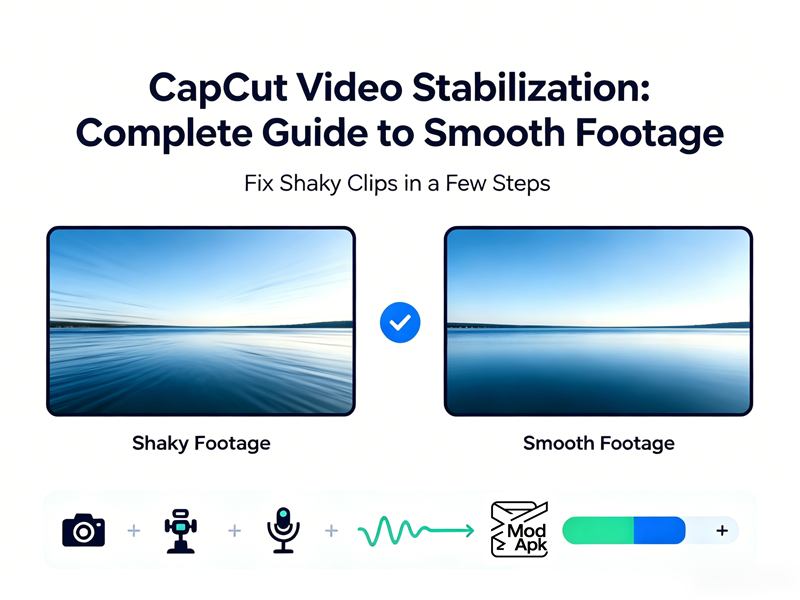
Shaky footage is the fastest way to make an otherwise great clip feel amateur. Shaky footage from walking, action shots, or handheld TikTok reviews can ruin the experience. On social media, a jittery video often leads viewers to just scroll past.
You don’t need Premiere Pro’s Warp Stabilizer or a Hollywood budget to fix it. CapCut’s free video stabilizer built-in video stabilizer handles most handheld shake in one click, and it’s free across mobile, desktop, and web.
CapCut Mobile
- Open CapCut → New Project → import the shaky clip.
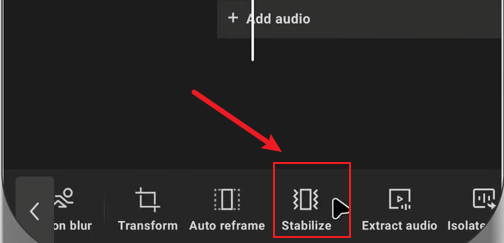
- Tap the clip on the timeline, then swipe the bottom toolbar until you see Stabilize.
- Tap it, and you’ll get the three-level slider (Minimal / Recommended / Most Stable).
- Let it process (a few seconds for short clips). Preview—if it looks “floaty” or the crop feels too tight, dial it back one notch.
- Export: top-right arrow, pick 1080p or 4K at 30/60fps, save or ship straight to TikTok/Instagram.
Pro nudge: if you’re on a phone, shoot with at least 15 Mbps and 30fps to begin with—CapCut can’t invent detail that isn’t there, and low-bitrate shaky footage will still look mushy after stabilizing.
CapCut PC
- Import the clip → drop it on the timeline.
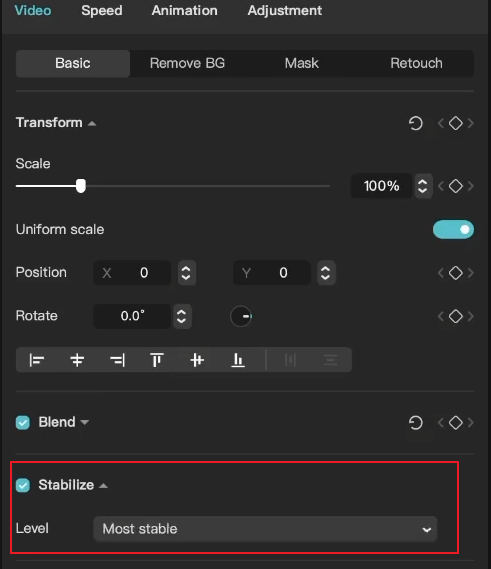
- Select the clip, then look at the Video properties panel on the right → scroll to Basic settings → find Stabilize and toggle it on.
- From the dropdown pick Minimum Cut / Recommended / Most Stable.
- CapCut runs an analysis bar—longer clips take proportionally more time, expect ~2–4 min per minute of 1080p on a mid-range laptop; 4K is roughly 3×.
- Export at 1080p/4K, H.264 or HEVC, bitrate matched to platform, 8–12 Mbps for TikTok, higher for YouTube.
CapCut Web
- Log in, hit Create a Video, upload the shaky clip.
- Select it on the timeline → right panel → toggle Stabilize → pick a level.
- Export. Free tier caps at 1080p; 4K needs Pro.
Web is fine for quick social fixes, but it queues to CapCut’s cloud and processes slower than desktop.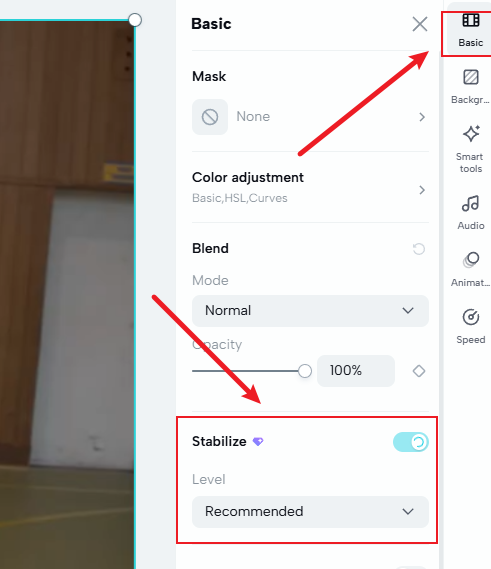
Types of Video Stabilization
Understanding the different types of stabilization helps you choose the right solution.
- Optical Image Stabilization: Built directly into some cameras and smartphones. The camera hardware physically reduces movement.
- Electronic Image Stabilization: Software inside the camera smooths the image. Many smartphones use this method.
- Post-Production Stabilization: Editors use software after recording. CapCut belongs to this category.
When CapCut Isn’t Enough
CapCut’s stabilizer is deliberately simple: three presets, no axis controls, no rotation/Perspective fine-tuning. That’s perfect for 80% of social content, but it falls in three cases:
- Extreme shake (running, mountain bike, FPV drone) → CapCut’s “Most Stable” can produce a jello warp because it’s fighting motion it can’t fully solve.
- You want manual control over pan vs. tilt vs. zoom smoothing individually.
- Rolling shutter (GoPro-style “wobble”) → CapCut doesn’t expose a dedicated rolling-shutter correction slider.
That’s when you pivot to proper video stabilization software.
Video Image Stabilization Software
DaVinci Resolve 20 (Free)
Same stabilizer that ships in the $295 Studio edition, free forever.
- Pros: Hollywood-grade, no watermark, unlimited export.
- Cons: steep learning curve, wants 8 GB+ VRAM, analysis takes 3–8 min/minute of 1080p.
- Best for: YouTubers, semi-pros, anyone already in Resolve.
Shotcut (Open Source, Win/Mac/Linux)
Free, no watermark, no account. Two-step workflow: Analyze first, then Apply.
- Pros: 100% free, cross-platform, granular.
- Cons: UI feels utilitarian, no AI border-fill, slow on long clips.
- Best for: Light shake, hobbyists who want zero cost and zero sign-ups.
Gyroflow – Best for GoPro / FPV / Drone
Open-source, gyro-based. Results can beat both CapCut and Resolve for action footage.
- Best for: Action cam, drone, FPV—anything with gyro telemetry.
iMovie
Mac/iOS only software for video stabilization. One-click stabilize + built-in rolling shutter correction slider. Extremely simple, but exclusive to Apple and crops heavily on bad shake.
Stabilize Image Online
| Tool | What it handles | Cap / Watermark |
| CapCut Web | General shake, 3 presets | 1080p free / 4K Pro |
| TensorPix (browser) | Stabilize + upscale + denoise | Free tier has resolution + credit caps |
| 123Apps Online Video Stabilizer | Short clips, pure auto | File-size limit, no reg |
| VideoUtils | MP4/AVI/MOV, server-side | No preview |
Anything “online stabilize image” or video goes to someone else’s server. Don’t upload client NDA footage or sensitive personal content to random browser tools.
FAQ:
Q: Can CapCut completely remove camera shake?
A: No. It can reduce movement significantly, but extremely shaky footage may still contain visible motion.
Q: Does CapCut’s stabilizer crop the footage?
A: Yes—always. The stronger the level, the more zoom-in to hide edge wobble.
Q: Is CapCut stabilization free?
A: Core feature is free on mobile, desktop, and web. You can also use the CapCut Mod APK, which offers all features for free.
Q: How long does it take?
A: On desktop, ~2–4 min per minute of 1080p on mid-range hardware. 4K is ~3× slower.
Q: Can I turn it off after applying?
A: Yes—untoggle “Stabilize” in the properties panel (desktop) or deselect it in the bottom toolbar (mobile). The original clip isn’t destroyed; it’s non-destructive.
Q: Does stabilization reduce video quality?
A: Sometimes. Cropping and processing may slightly reduce image sharpness.
Final Thoughts
CapCut strikes an excellent balance between simplicity and effectiveness. The free video stabilizer stabilization feature is easy enough for beginners while still being powerful enough for most creators. For people who regularly shoot handheld footage, it can dramatically improve video quality without requiring expensive equipment.
If your videos often look shaky, learning how to use stabilization properly may be one of the fastest ways to make your content look more professional.