
Editing videos with mobile phones is now very common, especially for short video content such as TikTok, Instagram Reels, and YouTube Shorts. CapCut Mod on Android is a very convenient tool. It offers simple editing controls, allowing you to quickly cut, trim, and adjust video clips without a computer, while also helping users gradually build stronger video editing skills.
We have talked about the ways to turn off snapping in capcut pc. This guide will teach you step-by-step how to shorten videos and provide some practical tips to make your editing smoother and more natural.
Why Shortening Videos Matters
Shortening video length is not just about reducing duration; it also helps improve the viewing and comprehension experience. In most cases, people prefer clear and concise videos to long and tedious ones. Here are the main reasons why shortening video length is crucial: it increases viewer engagement, makes key information easier to absorb, and helps content perform better across platforms where attention spans are limited, especially when creators learn practical editing methods like how to shorten a video on Android, which allows quick trimming and refinement without losing the core message.
1. Better viewer attention
Most viewers will decide within seconds whether to continue watching or swipe away. Shorter videos can focus on the most important parts and are more likely to capture the viewer’s attention.
2. Clearer message
After removing the unnecessary parts, the main idea becomes easier to understand. The audience will not be distracted by pauses, repetitions, or unnecessary movements.
3. More suitable for social media
Platforms like TikTok, Instagram Reels, and YouTube Shorts are designed specifically for short video content. Shorter videos are better suited to these platforms and provide a more natural and better viewing experience.
4. Faster editing and sharing
Short videos are easier to upload, review, and share. Their editing time is also shorter, which helps in creating content regularly.
5. Stronger impact
A short and focused video often feels more powerful. It delivers the key moment quickly, which makes it more memorable for viewers.
Getting Started with CapCut Mod on Android
Before you start editing or cutting videos, it will be helpful to understand the basic layout of CapCut Mod for Android. Once you open the app, you’ll find that it’s based on a simple project system, so you can get started without any editing experience. If you’re wondering how to learn video editing, the easiest way is to begin by exploring basic tools inside the app and practicing small edits step by step, instead of trying to master everything at once.
After launching the application, the first screen typically displays several main areas. At the top or middle, you will see a “New Project” button. This is the entry point for all editing work. Below the button, you’ll usually see saved drafts, which are used to store any unfinished edits. Depending on your device, you may also see suggestions for recently used media or projects.
To begin editing, click “New Project”. The app will redirect you directly to your phone’s photo gallery. Here, you can browse the videos stored on your device. You can select one or more segments to edit as needed. After selecting, click the “Add” button, and the video will be loaded into the editing timeline.
How to Shorten a Video Step by Step
1. Select the Video Clip
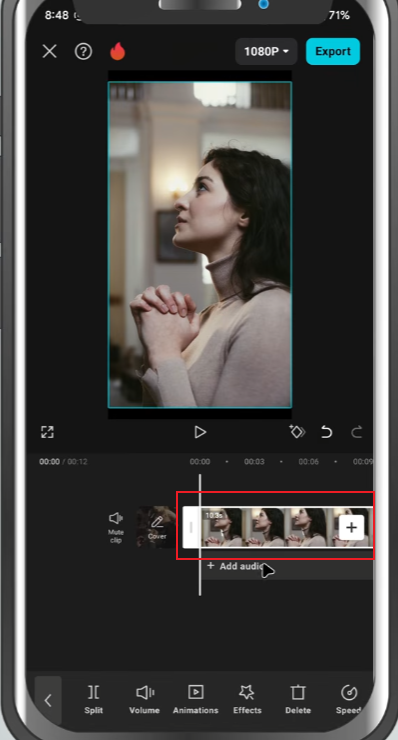
After adding the video to the timeline, click on it. Editing tools will appear at the bottom of the screen. These tools can be used to cut, split, and adjust video clips.
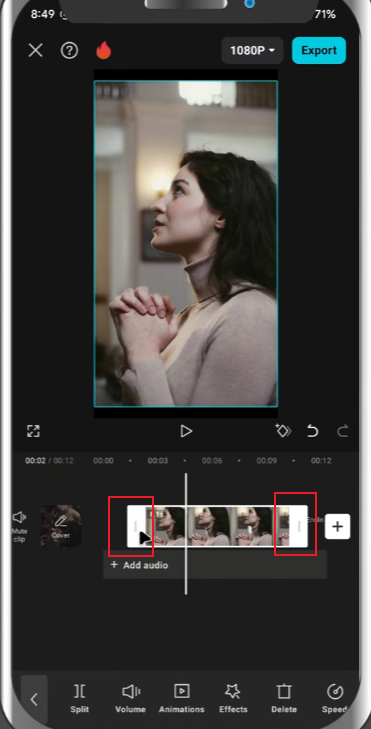
2. Use the Trim Tool
The trim tool is the main way to shorten a video.
- Drag the start handle to remove the beginning part
- Drag the end handle to remove the ending part
This is the fastest way to cut off unwanted sections.
If you only want a short part of the video, this method is enough.
3. Use the Split Tool for More Control
If you want to remove a part from the middle, use the split tool:
- Move the timeline marker to the point you want to cut
- Tap Split
- Move forward and split again
- Select the middle part and delete it
This helps when you want to keep the start and end but remove unwanted scenes in between.
4. Adjust Clip Length Carefully
After editing or splitting, please play the video again. Check if the rhythm is natural and smooth. Sometimes cutting too much can make a video look rushed, so you need to adjust it gradually.
You can go back and re-edit at any time if needed.
Making the Shortened Video Look Better
After shortening a video, the next step is to make it feel smooth and natural. A simple cut can work, but a few small adjustments can improve the overall result without making the editing process complicated, especially when learning how to shorten video on iphone, where trimming, transitions, and timing tweaks help the final clip feel more polished and easy to watch.
1. Keep Only What Matters
Focus on the parts that are truly meaningful. If a scenario is not valuable, delete it or shorten it further. This helps keep the video clear and easy to understand.
2. Use Simple Transitions
When splicing two video clips, simple transition effects can make the transition more natural. A quick fade-in/fade-out or a clean cut is usually sufficient. Avoid overusing special effects, as too many effects can make the video look cluttered and disorganized.
3. Match the Timing with Music
If your video has background music, try to synchronize the editing points with the rhythm of the music. Even subtle timing adjustments can make a video look more natural and engaging.
4. Keep the Flow Natural
After editing, please watch the video from beginning to end. If a part feels too abrupt or confusing, please adjust the editing slightly. The goal is to make the video flow smoothly and naturally, not just to shorten its length.
Extra Editing Tips in CapCut Mod
CapCut Mod offers far more than just editing and splitting. These additional tools can help you easily create more complete and clearer short videos without spending too much effort. For example, some users may still rely on basic desktop workflows or even tools like Shorten Video VLC when trimming clips, but CapCut Mod brings everything into one place, making the process faster and more intuitive while keeping your content polished and ready to share.
1. Speed Control for Better Flow
Instead of cutting out every small segment, adjust the speed of specific segments. Slowing down a moment can highlight details, while speeding up long or slow scenes helps maintain the smoothness of the video. This method is very useful when you want to shorten the content but retain the complete action in a compressed form.
2. Simple Text for Clarity
Adding brief text descriptions can help viewers understand the video content, especially when the video is short. You can use text descriptions to annotate the steps, add brief comments, or highlight key points. Text descriptions should be as concise and clear as possible to avoid distracting viewers from the video itself.
3. Basic Crop for Cleaner Framing
Sometimes videos appear long not because of their length, but because of excessive white space or a cluttered background. Cropping can effectively solve this problem, making the subject stand out more in the image. In addition, cropping is also useful when you need to adjust a video to fit different screen formats.
4. Audio Adjustments for Balance
Sound plays a crucial role in short videos. You can reduce background noise, adjust the volume, or add soft music to make the video play more smoothly. Even minor audio changes can make the final product sound more refined.
5. Layering for Simple Effects
You can overlay simple elements on top of the main video, such as stickers, images, or additional video clips. This helps add background information or make certain segments more interesting without making the screen look cluttered.
6. Clean Ending for Better Finish
When you shorten an iPhone video, the ending of a short video should be clear and concise. You can fade out in the last second or end it abruptly at the final moment, and you should avoid leaving unnecessary blank time at the end, as this helps the video feel complete and meaningful.
FAQs
1. Can I undo a cut or trim in CapCut Mod?
Yes. If you make a mistake, you can use the undo button on the timeline. You can also restore previously deleted sections by dragging the handles, thus readjusting the fragments.
2. What is the easiest way to shorten a video quickly?
The quickest way is to use the trim tool at the beginning and end of the video clip. This way, the video length can be shortened without manually splitting or deleting segments.
3. Can I shorten multiple clips at the same time?
You can’t directly manipulate it. Each segment needs to be adjusted one by one on the timeline. However, you can quickly repeat the same trimming steps on multiple segments.
4. Is it possible to preview changes while editing?
Yes. You can press the play button on the timeline at any time to preview the edited video before exporting.
5. What should I do if a cut feels too abrupt?
You can soften the cut by adjusting timing slightly or adding a simple transition like fade-in or fade-out. This helps the video feel smoother without changing the content.
Conclusion
When learning how to shorten video on Android, once you master how to use the tool, shortening videos using CapCut Mod on Android devices is very simple. Cropping and splitting are the main ways to reduce video length, while additional features such as speed control and trimming further help refine the final result and make the edit look smoother and more polished.
With a little practice, you can edit lengthy raw footage into concise, smooth, and engaging short videos that you can share anytime, anywhere.