
Video quality is crucial when creating content for social media, YouTube, or personal projects. Even with excellent creativity and editing, a blurry video can reduce the overall professionalism and viewer experience. Fortunately, CapCut provides a range of tools to enhance clarity, including resolution adjustments, sharpening effects, AI-powered improvements, and detailed editing options. By using the right settings and techniques, users can achieve a cleaner and more polished result with a CapCut video clear workflow that helps bring out more details and improve the final appearance of their videos.
Whether you’re editing videos recorded on your phone, downloaded clips, or old footage, you can use CapCut’s built-in features to enhance the clarity and sharpness of your videos. This guide will show you how to improve video clarity in CapCut through simple steps.

Why Do Videos Become Blurry in CapCut
Before improving video quality, it’s helpful to understand why videos are blurry in CapCut. In most cases, the problem lies not in the editing software itself, but in the video source, settings, or export process.
Common reasons include:
- Low-quality original footage: Videos recorded in low resolution may lack enough details, making them look unclear after editing.
- Video compression: Files shared through social media apps or messaging platforms are often compressed, which can reduce sharpness.
- Incorrect export settings: Choosing a lower resolution, frame rate, or bitrate during export can make the final video lose quality.
- Poor lighting conditions: Videos recorded in dark environments may contain less detail and appear blurry.
- Too many effects or filters: Heavy effects can change the original image quality and make details less visible.
Understanding these factors can help you choose the right CapCut tools and settings to improve video clarity.
Use CapCut AI Enhance to Improve Video Quality
CapCut has built-in AI tools that can analyze videos and improve their overall image quality. AI enhancements help improve detail clarity, sharpness, and create a cleaner, crisper picture.
To use AI enhancement in CapCut:
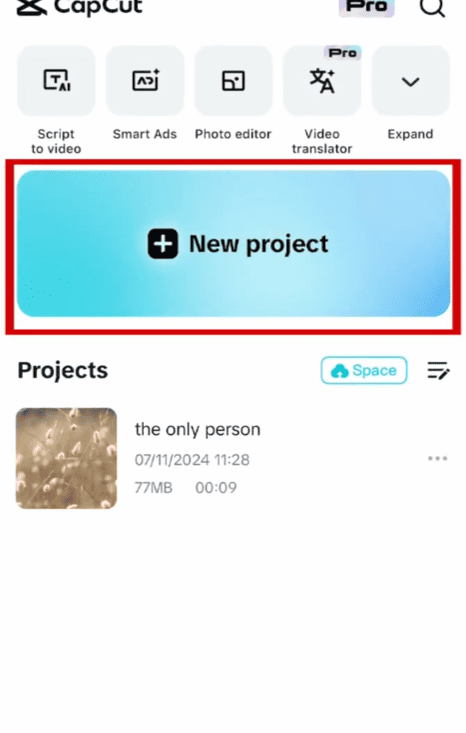
- Open CapCut and create a new project.
- Import the video you want to improve.
- Select the video clip on the timeline.
- Find the AI enhancement or quality improvement option.
- Apply the feature and preview the result.
- Adjust the intensity if needed.
This method is suitable for videos that are slightly blurry or lack detail. It can quickly improve the overall look of a video without requiring manual editing.
Increase Video Resolution Before Exporting
Export settings directly affect video clarity. Even if the video you edit in CapCut looks good, using a lower export resolution will reduce the final video quality. When creating a capcut video, choosing the right resolution, frame rate, and bitrate during export helps keep details sharp and prevents the footage from looking blurry after saving or uploading.
When exporting a video, choose a higher resolution option:
- 1080p: Suitable for most social media platforms.
- 2K: Provides more detail and works well for larger screens.
- 4K: Offers the highest level of detail when the original video supports it.
To change export resolution:
- Tap the export button in the top-right corner.
- Select the resolution option.
- Choose a higher resolution.
- Check the frame rate and bitrate settings.
- Export the video.
A higher resolution helps keep more details visible, especially when viewers watch the video on larger displays.
Adjust Sharpness Settings in CapCut
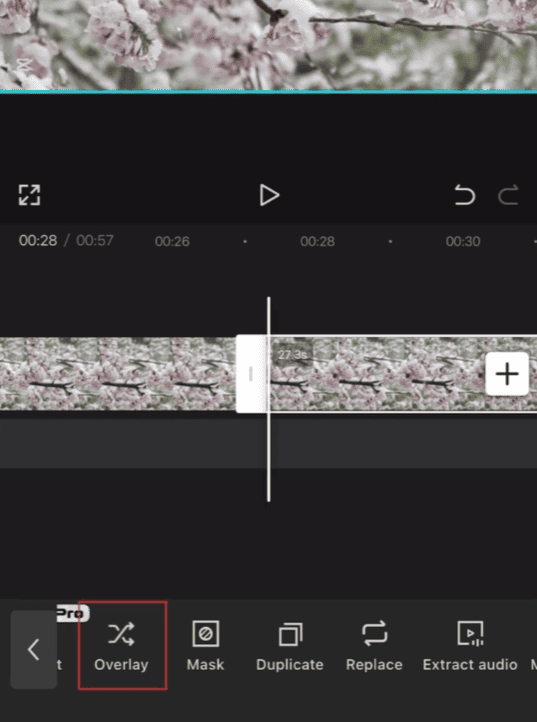
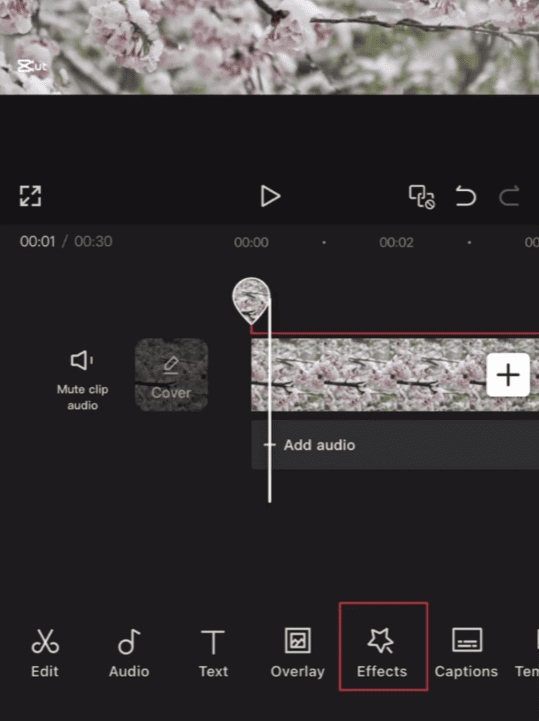
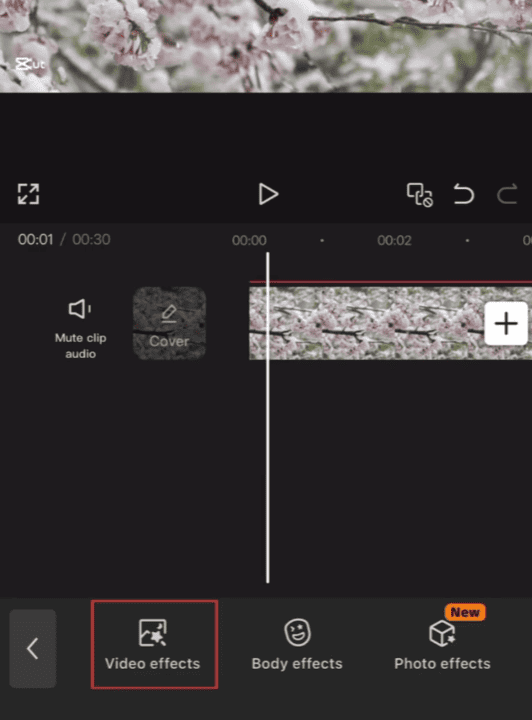
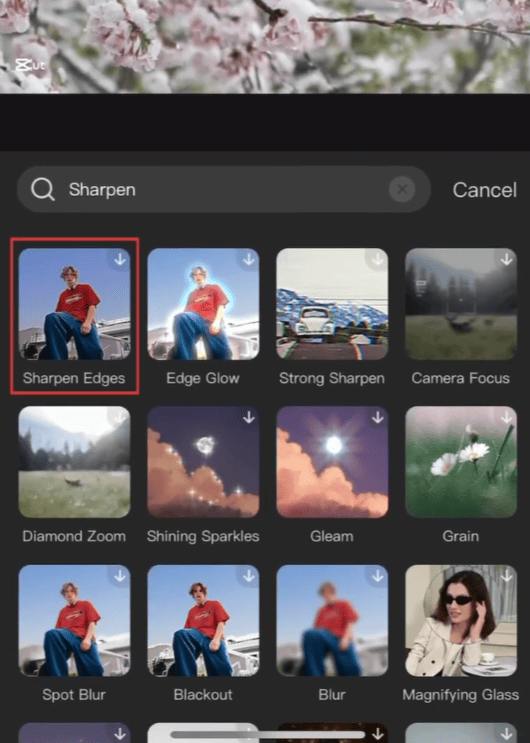
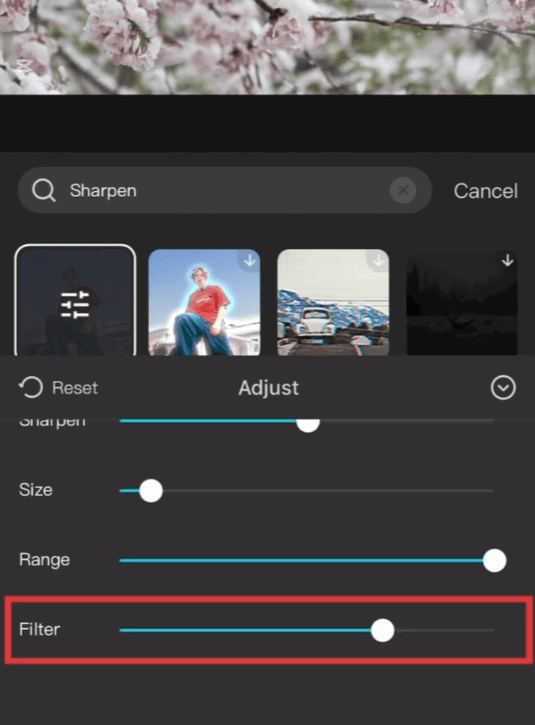
Adjusting the sharpness is one of the simplest ways to make a video clearer. It can increase the contrast between edges, making objects appear sharper.
Steps to adjust sharpness:
- Add your video to the timeline.
- Select the clip.
- Tap Adjust.
- Find the Sharpen
- Move the slider until the video looks clearer.
The key is finding a balanced level. Too little sharpness may not improve the video, while too much can make the footage look unnatural.
Use CapCut Filters Carefully
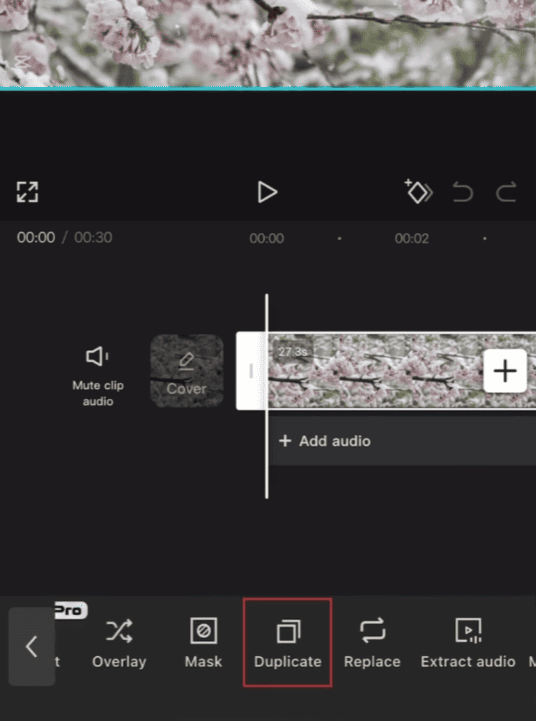
CapCut offers a variety of filters that can change the style of your videos. Some filters can make images clearer and sharper, while others may add effects that reduce detail.
A good filter should enhance video quality while preserving important details.
Remove Blur with Better Lighting Adjustments
Light has a significant impact on video clarity. Videos shot in low light conditions may be noisy or blurry.
CapCut adjustments can help improve these situations:
- Increase brightness slightly for dark scenes.
- Adjust shadows to reveal hidden details.
- Reduce excessive highlights in bright areas.
- Balance colors with temperature and tint settings.
These changes can make the video easier to watch and improve the overall visual quality.
Use High-Quality Original Videos
Editing tools can improve video quality, but the original footage remains crucial. Using high-quality video footage allows CapCut to handle more details, while features like a capcut template can help enhance the overall style and structure of your content without replacing the need for clear source material.
For better source videos:
- Record with a higher camera resolution.
- Keep the camera steady while filming.
- Use enough light during recording.
- Avoid sending videos through platforms that compress files before editing.
A clear original video usually needs fewer adjustments and produces better results.
Export Videos with the Right Settings
Many users experience a decline in video quality due to improper export settings. Before saving the final video, please check the following options:
Resolution
Choose the highest resolution that matches your original footage.
Frame Rate
A higher frame rate can make motion look smoother. Common choices include:
- 30 FPS for normal videos.
- 60 FPS for action scenes or fast movements.
Bitrate
Bit rate controls the amount of data used to store video details. Generally, a higher bitrate can better maintain video quality during export.
Choosing balanced export settings helps maintain video clarity after editing.
How to Make Videos Clearer in CapCut on PC
CapCut for PC provides more screen space and detailed controls for video editing. The steps are similar:
- Import your video into CapCut desktop.
- Drag the clip to the timeline.
- Open the adjustment panel.
- Modify sharpness, contrast, brightness, and other settings.
- Use AI enhancement features if available.
- Export with suitable quality settings.
The larger workspace makes it easier to compare changes and fine-tune details.
Tips for Making Specific Types of Videos Clearer
Different videos may need different adjustments.
For Face Videos
When editing talking-head videos or vlogs:
- Improve brightness to make the face clearer.
- Use moderate sharpening.
- Keep skin colors natural.
- Avoid strong filters.
For Gaming Videos
Gaming clips often contain fast movements. Better settings include:
- Higher frame rate.
- Clear contrast.
- Balanced sharpness.
- Higher export quality.
For Old Videos
Older videos may benefit from:
- AI enhancement.
- Sharpening adjustments.
- Brightness correction.
- Color improvement.
Common Mistakes That Reduce Video Clarity
Some editing habits can lower video quality:
1. Exporting at a Lower Resolution
A high-quality project can become blurry if exported in a smaller resolution.
2. Overusing Sharpening
Too much sharpening creates rough edges and makes videos look unnatural.
3. Adding Too Many Effects
Heavy effects can cover details and reduce the original quality.
4. Editing Compressed Videos
Repeated compression can remove important details from the footage.
Frequently Asked Questions
1. Can CapCut make a blurry video clear?
CapCut can improve the image quality of blurry videos by using tools such as sharpening, AI enhancement, and adjustment settings. With a proper capcut video edit workflow, users can refine details, increase clarity, and make videos look cleaner. However, the final result still depends on the quality of the original video, as severely blurred footage may have limited improvement potential.
2. What is the best CapCut setting for clear videos?
A combination of high export resolution, appropriate bitrate, balanced clarity, and good lighting adjustments can usually produce a clearer video.
3. Does CapCut support 4K video export?
CapCut supports high-resolution export, including exporting to 4K resolution on supported devices and projects.
4. Why does my CapCut video lose quality after export?
Quality loss usually happens because of low export settings, compression, or using a lower-quality source video.
Final Thoughts
Improving video clarity using CapCut doesn’t require complex editing skills. You can significantly improve video quality by using AI enhancements, adjusting sharpness, increasing brightness and contrast, and selecting appropriate export settings.
The most important step is to select a high-quality original video clip and make minor adjustments, rather than adding too many special effects. With the right settings, CapCut can help you create clearer, more professional videos for different platforms.