

Whether you’re editing a vlog, social media reel, or personal project, unwanted audio in a video clip can ruin your final product—background noise, distorted sound, or irrelevant audio can distract from your visual content. That’s why knowing how to mute a clip in CapCut is an essential skill for every CapCut user. CapCut, one of the most popular free video editors, makes it easy to mute clip in CapCut, and the process works seamlessly across devices—including the regular PC version, capcut mod pc version, and mobile apps. In this guide, we’ll walk you through step-by-step instructions to CapCut mute clip on different platforms, plus share useful tips to enhance your audio editing workflow.
Why You Might Need to Mute a Clip in CapCut
Before diving into the steps, let’s cover why you’d want to mute clip in CapCut in the first place. There are countless scenarios where muting a clip improves your video:
- Eliminate unwanted background noise that distracts from your main message.
- Replace the original audio with background music, voiceovers, or sound effects to set the right mood.
- Avoid copyright issues by muting clips that contain unlicensed music or audio.
- Focus on visual elements without audio distractions.
- Fix distorted or low-quality audio that can’t be improved with CapCut’s noise reduction tools.
Using CapCut mute clip tools improves both audio clarity and storytelling quality.
How to Mute a Clip in CapCut (Mobile Version: Android/iOS)
If you edit on your phone, how to mute a clip in CapCut is just as easy. The mobile app uses a similar interface to the desktop version, so you’ll feel right at home:
- Open the CapCut app on your Android or iOS device and open your project.
- Import the clip you want to mute.
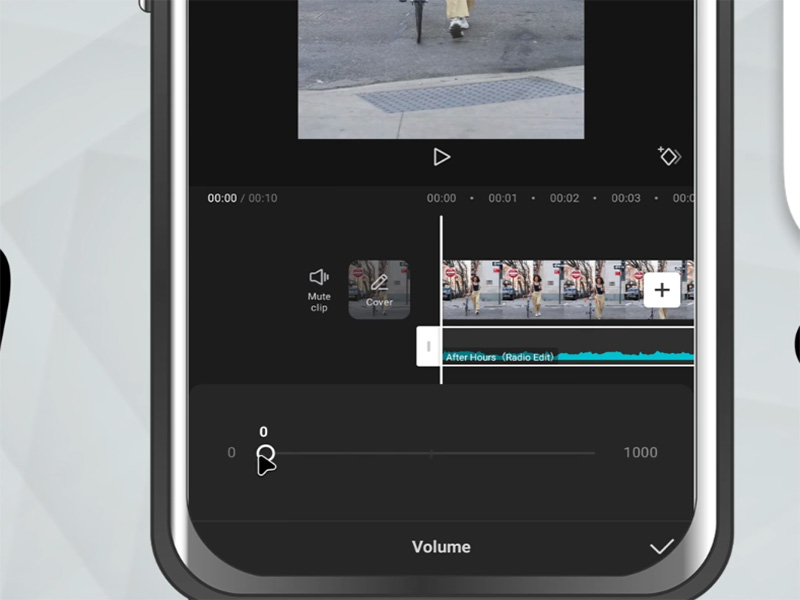
- Tap the clip in the timeline to select it—this will bring up a toolbar at the bottom of the screen.
- Tap the “Volume”option in the bottom toolbar. A slider will appear.
- Drag the slider all the way to the left (to 0%) to mute clip in CapCut.
- Tap the back arrow to return to the timeline—your clip is now muted. You can preview it by tapping the play button.
How to Mute a Clip in CapCut (Regular PC & Windows Version)
CapCut’s desktop version (for Windows and Mac) offers two easy methods to CapCut mute clip. Both methods work for individual clips, so you can mute specific parts of your video without silencing the entire project. Here’s how:
Method 1: Use the Volume Slider
- Launch the CapCut desktop app on your Windows PC and open an existing project or create a new one.
- Import the video clip you want to mute by clicking the “Import”button or dragging and dropping the file into the editor.
- Drag the clip from the media library to the timeline at the bottom of the screen.
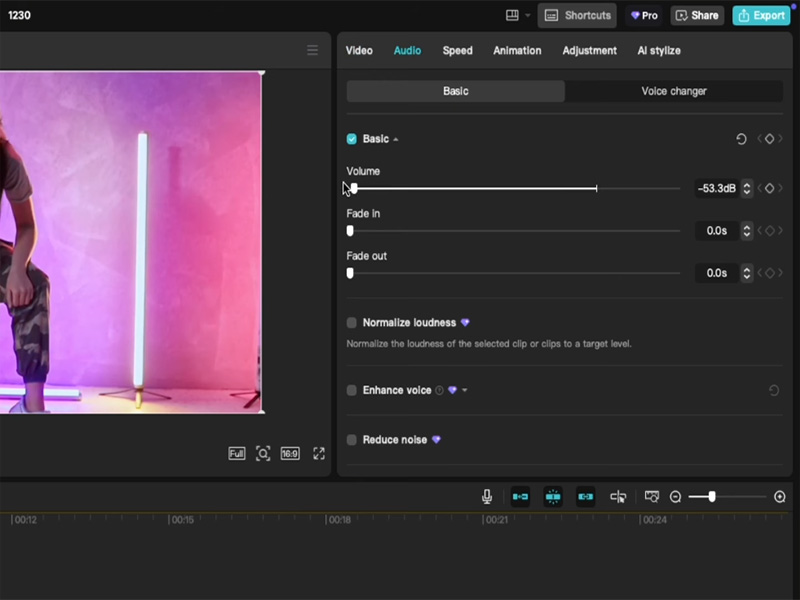
- Select the clip in the timeline. A toolbar or editing panel will appear on the right side of the screen.
- Look for the “Volume”option in the editing panel. You’ll see a slider that controls the clip’s volume.
- Drag the volume slider all the way to the left (to 0%). This will instantly mute clip in CapCut.
- Preview the clip to confirm it’s muted, then continue editing or export your project.
Method 2: Use the Speaker Icon
If you want a faster way to CapCut mute clip on PC, use the built-in speaker icon:
- Follow steps 1–3 above (open your project, import the clip, and add it to the timeline).
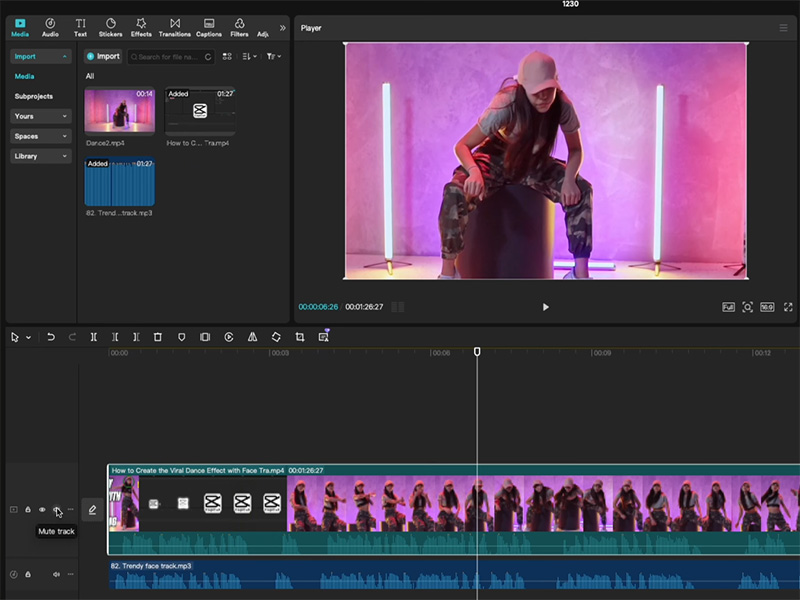
- Locate the small speaker icon next to the clip in the timeline.
- Click the speaker icon once. It will change to a muted speaker icon, and the clip will be instantly muted.
- To unmute the clip later, simply click the muted speaker icon again.
How to Mute a Clip in CapCut Mod PC Version
The capcut mod pc version is a modified version of CapCut’s desktop app that unlocks premium features for free—including ad-free editing, advanced audio tools, and simplified controls. The good news is that how to mute a clip in CapCut using the capcut mod pc version is nearly identical to the regular PC version, with a few extra perks:
- Install and launch the capcut mod pc version on your Windows PC.
- Open your project or import a new clip, then add it to the timeline.
- Select the clip and use either the volume slider (drag to 0%) or the speaker icon to mute clip in CapCut.
- Extra Perk: The capcut mod pc version lets you mute multiple clips at once! Hold the “Ctrl”key on your keyboard, select all the clips you want to mute, then click the speaker icon or adjust the volume slider—all selected clips will be muted instantly.
Another benefit of the capcut mod pc version is that it offers advanced audio editing tools to complement your muted clips, making it easier to replace the audio with voiceovers or background music.
Useful Tips for Muting Clips in CapCut
Now that you know how to mute a clip in CapCut, these tips will help you streamline your editing process and get better results:
- Unmute Anytime: Muting a clip is reversible! Just drag the volume slider back to the right or click the muted speaker icon to restore audio.
- Mute Only a Portion of a Clip: If you don’t want to mute the entire clip, split it first, then mute only the unwanted section.
- Combine Muting with Other Audio Tools: After muting a clip, use CapCut’s“Noise Reduction” tool to clean up any remaining background noise.
- Add New Audio After Muting: Once a clip is muted, you can add background music, voiceovers, or sound effects to enhance your video.
- Save Time with the CapCut Mod PC Version: The capcut mod pc version lets you save muted clip presets, so you can quickly apply the same settings to multiple projects.
Final Thoughts
Whether you’re using the regular PC version,capcut mod pc version, or mobile app, how to mute a clip in CapCut is a simple, quick process that takes just a few clicks or taps. Muting unwanted audio is a key step in creating polished, professional videos—whether you’re removing background noise, avoiding copyright issues, or focusing on visual content.
Remember, mute clip in CapCut is reversible, so don’t be afraid to experiment. And if you want extra perks like batch muting or advanced audio tools, the capcut mod pc version is a great option.


