
Why Use CapCut Mod for Photo Editing
The CapCut editing app includes a variety of image enhancement tools that can transform ordinary photos into eye-catching visuals. Advantages of CapCut photo editing:
- The interface is easy to understand.
- Most tools work with simple sliders.
- AI-powered features save time.
- Editing can be done directly on a smartphone.
- Photos can be optimized for social media platforms.
- No extra apps needed.
The CapCut Mod version provides extra tools not available in the basic app, giving users more ways to edit.
How to edit photos on CapCut
CapCut makes photo editing fast and easy on both phones and computers.
- Mobile App: Open the CapCut app, find the Photo Editor button at the top of the Edit tab, and select an image from your device.
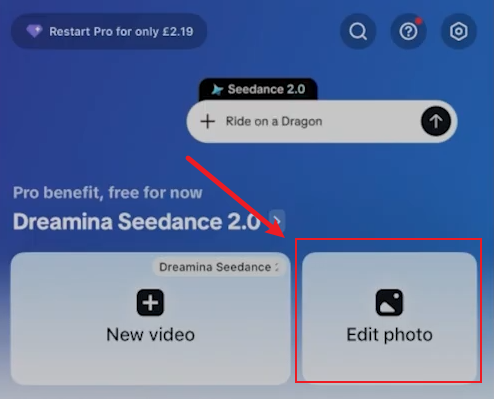
- CapCut PC/ Web: Open the program and select AI Design from the left-hand panel, then upload your image and specify your desired canvas dimensions.
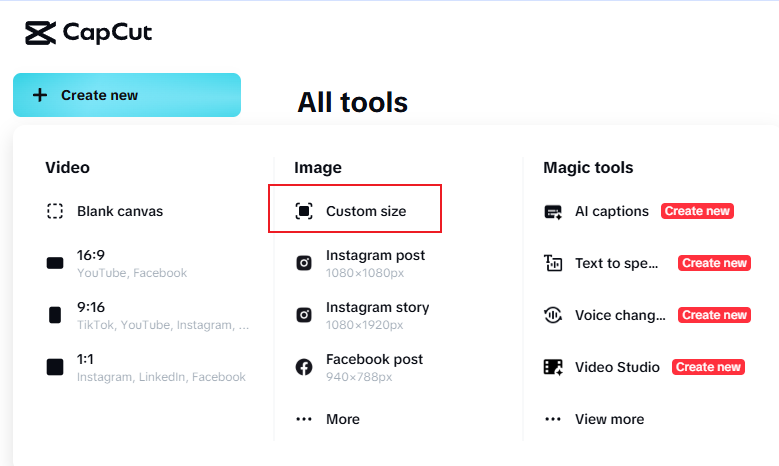
Upload your images here to start editing. CapCut photo editor also lets you edit multiple photos at once.
Why Does CapCut PC Export a Video Instead of a Photo
You might find that when you add photos to CapCut PC, they automatically turn into 5-second clips, making it hard to edit the images separately.
This is actually the default setting for CapCut PC, which automatically makes all imported images 5 seconds long.
If you want to edit images instead of videos on CapCut PC, you can:
- Shorten the video clip to the shortest length.
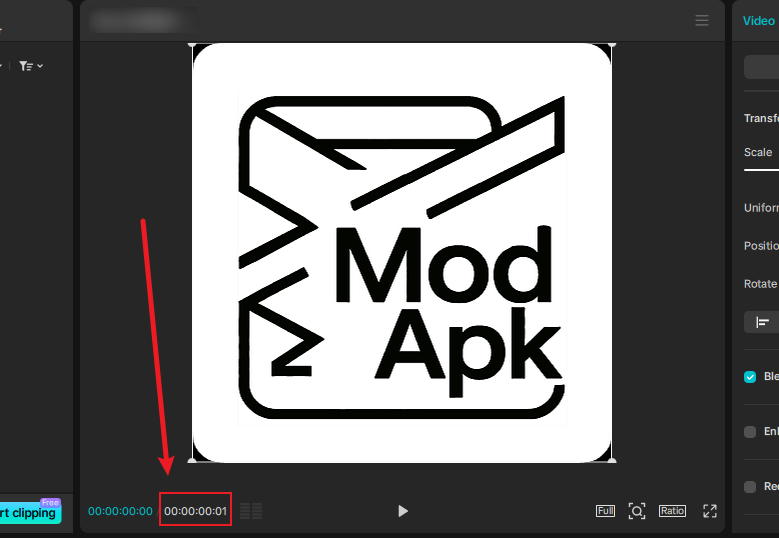
- Add effects or text, and edit like a normal image.
- Click the three horizontal lines icon at the top of the preview screen.
- Export still frames
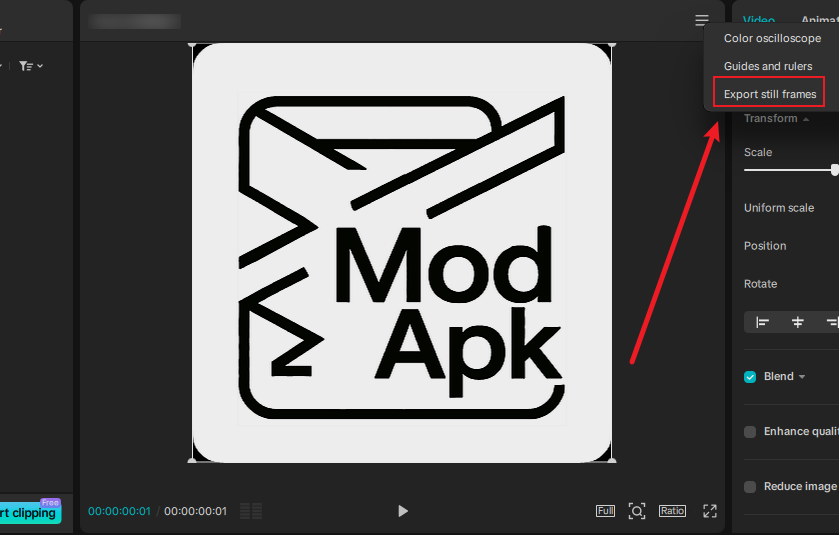
- Finish
For detailed instructions, please refer to “How Do I Export Just The Thumbnail In Capcut“.
Another way
If your images have already been exported as videos, you can use a converter to turn them back into pictures.
Free Video-to-Image Tools
- Video to JPG: This tool works directly in your browser, so your videos stay on your computer. It supports MP4, MOV, AVI, MKV, and WEBM formats, outputting JPG, PNG, or WebP files. The three-step process (upload →configure →download) is straightforward, and there are no watermarks on exports.
- FrameXtractor: A professional-grade extractor that works entirely in your browser with no uploads to servers. It maintains original quality (up to 4K/8K) and supports most common video formats.
- Photo from Video: Another privacy-first tool that processes videos locally in your browser. It lets you navigate frame-by-frame to capture exact moments, then download individual images or batches as ZIP files. The 1GB file size limit accommodates most needs.
- WildandFree Tools Video to Images: This versatile converter offers multiple extraction modes: every frame, specific intervals (like 1 per second), or custom patterns. You can choose between PNG (lossless) or JPG (compressed) output, and there’s no signup required.
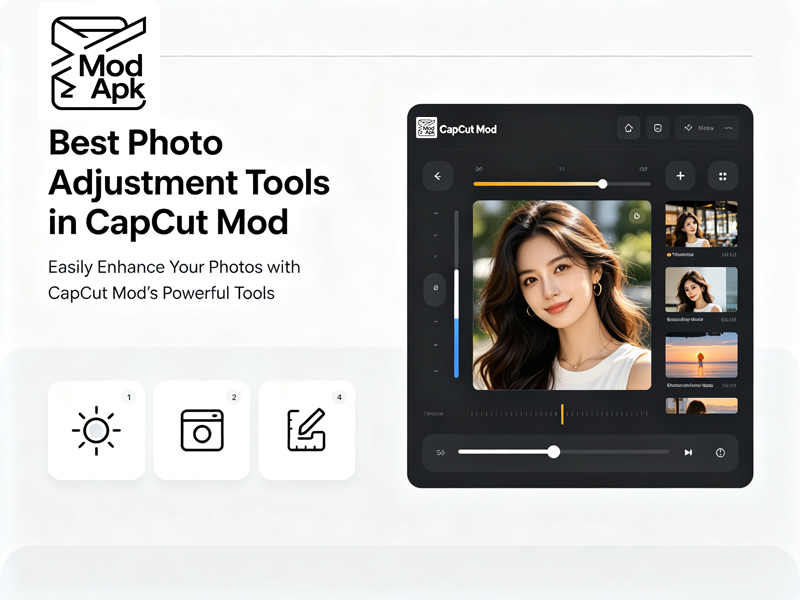
Core Photo Adjustment Tools in CapCut Mod
- Basic Adjustment Panel: Your Foundation
The Basic panel has the main tools for editing photos. You should start every edit here:
- Brightness: Controls overall lightness or darkness of your image. Unlike exposure, brightness affects all tones equally, making it ideal for quick overall adjustments.
- Contrast: Increases or decreases the difference between light and dark areas.
- Saturation: Adjusts color intensity.
- Temperature: Shifts your image between warm (orange/yellow) and cool (blue) tones. Perfect for correcting white balance or creating mood.
- Tint: Fine-tunes the green-magenta balance, fix color tints caused by artificial lights.
- Sharpness: Enhances edge definition.
- Exposure: Adjusts overall lightness.
- Curves Tool: Precision Color Grading
CapCut Mod is best known for its Curves tool. Unlike filters that use fixed settings, curves let you fully customize tones and specific color channels.
How it works: The curves tool maps your image’s brightness from dark shadows (bottom left) to bright highlights (top right). By moving points on the line, you can:
- Create an “S-curve” to boost contrast (darken shadows and brighten highlights)
- Change specific brightness levels without affecting the rest of the image
- Edit individual Red, Green, and Blue colors for detailed color work
Common uses:
- Cinematic effects: Adjust blue tones in highlights or shadows for a movie-like feel
- Fixing colors: Remove unwanted color tints by adjusting specific channels
- Custom styles: Design unique looks that standard filters cannot achieve
The secret to using curves is making small changes. Minor adjustments look natural, while large movements create bold, artistic effects.
- HSL Controls: Targeted Color Adjustment
HSL (Hue, Saturation, Luminance) controls allow you to adjust specific color ranges without affecting others. This is incredibly powerful for:
- Sky enhancement: Make blue skies more vibrant without oversaturating skin tones
- Foliage adjustment: Enhance green leaves without affecting clothing colors
- Selective desaturation: Create black-and-white images with specific colors retained
You can adjust the shade, saturation, and brightness of each color. This allows you to fix specific color issues or create a balanced look easily.
FQA about CapCut edit photo
Q: Can I edit RAW photos in CapCut?
A: No, CapCut doesn’t support RAW formats like CR2, NEF, or ARW. You’ll need to convert RAW files to JPG or PNG using dedicated photo software first.
Q: Which is better for photo editing: CapCut Mobile or PC?
A: For pure photo editing, the mobile app is more straightforward with its dedicated “Edit Photo” mode. However, the PC version offers more precise controls with mouse input and a larger workspace.
Q: Are these video-to-image tools really free with no hidden costs?
A: The tools recommended above are completely free with no registration requirements. They don’t add watermarks and process videos locally in your browser.
Q: Can I edit photos directly in CapCut Mobile?
A: Yes. The mobile version offers a dedicated and user-friendly photo editing experience with adjustment, filter, and AI enhancement tools.
Final Thoughts
If your goal is simply to edit photos, CapCut Mobile provides the most straightforward experience. Importing images is simple, editing tools are easy to access, and exporting is usually hassle-free. Older versions of CapCut PC included image editing tools, but they have been removed in the latest update.
The desktop version offers more control and a larger workspace, but its video-first design can sometimes be frustrating when you only want a JPG or PNG image.
The combination of CapCut photo editing tools and free video-to-image converters makes CapCut a surprisingly capable photo editor.