
TikTok makes video sharing easy and convenient, but sometimes you may notice small issues after posting. You may want to update the description, improve quality, or add effects. If you need to make changes, learning how to edit video on tiktok from gallery can help you adjust your content before reposting.
The answer depends on which part of the video you want to modify. TikTok allows some modifications after posting, such as editing video descriptions in certain situations, but you cannot directly replace the original video file with a new version. If you need to make significant changes, the best approach is usually to re-edit the video using tools like CapCut and then upload it as a new TikTok video.
In this guide, we’ll explain what you can edit after posting, how to edit TikTok videos before posting, and how to use CapCut to enhance your TikTok content.
Can You Edit TikTok Videos After Posting
Editing options are limited after a TikTok video is posted. TikTok does not offer the ability to open old posts and change video clips, music, transitions, or effects.
For example, if you want to:
- Cut out a part of the video
- Replace background music
- Add new filters
- Change text effects
- Adjust video timing
You need to edit the original video file again and upload a new version.
However, some details of TikTok posts can still be modified. Depending on your account and TikTok version, you may be able to edit the video description after posting. This will be very useful if you only need to modify the label, add information, or correct the text.
Before making any changes, it’s best to save the original video project. If you edit a video using CapCut, you can reopen the project, make adjustments, and then export a new version without having to start from scratch.
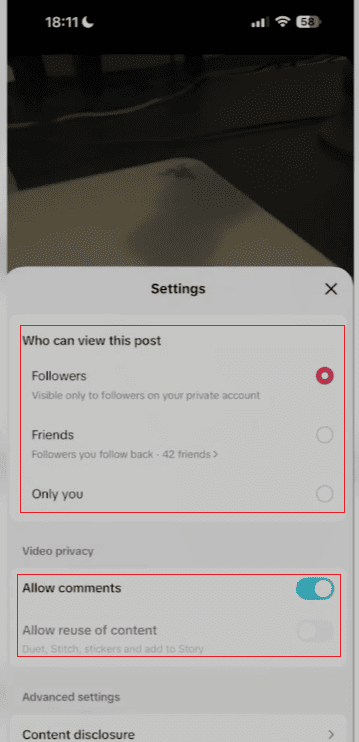
How to edit your TikTok videos description after posting
Video descriptions can help viewers understand the video content and also help people find your videos through searches. If you find any errors in the description after publishing, you can edit it directly.
Follow these steps:
Step 1: Open TikTok
Open the TikTok app and go to your profile page. Find the video whose description you want to modify.
Step 2: Open the video settings
Click on the video and select the menu button. Find options related to editing or managing posts.
Step 3: Update the description
If the edit option is available, you can change the text, add hashtags, or update the information. After making changes, save the new description.
Step 4: Check the updated post
Reopen the video to ensure the new description is displayed correctly.
If TikTok does not display post editing options, you may need to re-upload the video and add a new description. For creators who frequently update content, saving video files and project drafts can greatly simplify this process.
How to edit a TikTok video before posting
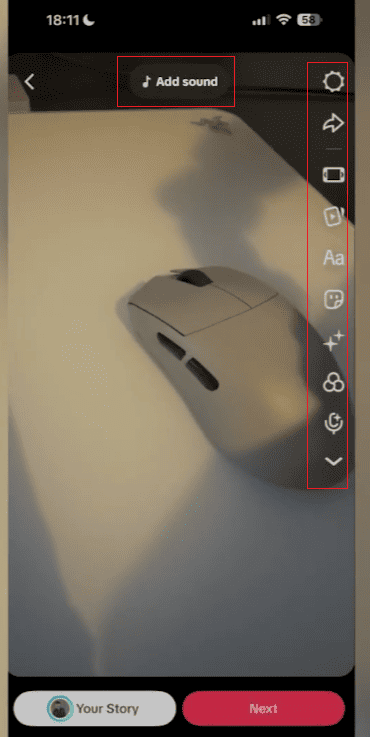
Editing your TikTok video before posting it gives you more control over the final result. You can adjust video clips, add effects, and improve audio to create a better viewing experience.
TikTok has some basic editing tools built in, but many creators prefer to use CapCut because it offers more features.
Here are some common steps for editing a TikTok video before publishing:
1. Trim and arrange video clips
Start by removing unwanted parts of your video. Short and clear clips usually work better on TikTok because viewers can quickly understand the content.
You can:
- Cut the beginning or ending
- Remove empty sections
- Change the order of clips
- Adjust clip length
A clean timeline helps your video feel smoother.
2. Add text and captions
Text can help viewers follow your video, especially when important information appears quickly.
When adding text:
- Keep sentences short
- Use readable fonts
- Match text timing with the video
- Avoid covering important areas
Many creators also use automatic captions to save editing time.
3. Adjust music and sound
Audio plays an important role in TikTok videos. You can add background music, adjust the volume, or mix vocals with the music.
A good balance between vocals and background noise makes videos easier to watch.
4. Apply effects and filters
Special effects can enhance the style of a video, but they should match the content. Simple transitions and lighting effects can often make a video look cleaner.
5. Preview before uploading
Before posting, watch the entire video from beginning to end. Check:
- Video timing
- Text position
- Audio quality
- Transition points
- Overall flow
Small adjustments before posting can improve the final result.
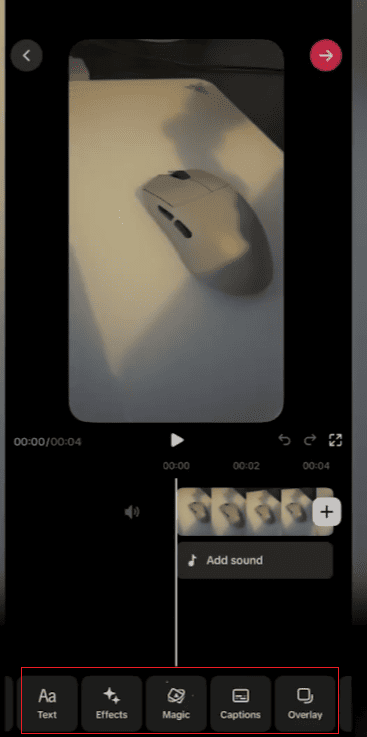
How to edit TikTok videos on CapCut
CapCut is one of the most popular video editing apps among TikTok creators. It provides tools for video editing, adding effects, creating subtitles, and improving video quality.
Using CapCut before uploading to TikTok provides more editing options compared to TikTok’s built-in editing tools.
Step 1: Import your TikTok video into CapCut
Open CapCut and create a new project. Select the video clips you want to edit.
After importing the video, you can see all the clips on the timeline. This allows you to control every part of the video.
Step 2: Cut and adjust video clips
Use the timeline tools to remove unwanted parts.
Common editing actions include:
- Split clips
- Delete sections
- Change clip speed
- Adjust video length
- Rearrange clips
A well-organized timeline makes the editing process faster.
Step 3: Add transitions between clips
Transition effects help to create smooth connections between different segments. CapCut offers a variety of transition styles that can be used to add transitions between two clips.
For TikTok videos, clean transitions are generally better because they help keep viewers focused on the main content.
Step 4: Add captions with CapCut
CapCut includes an automatic captioning tool that can generate captions based on your speech.
Subtitles can help viewers understand video content even without sound. After generating the subtitles, you can make the following adjustments:
- Text style
- Position
- Timing
- Animation effects
Always check the captions manually because automatic tools may not recognize every word correctly.
Step 5: Use CapCut effects and filters
CapCut provides many effects for different video styles. You can add:
- Visual effects
- Stickers
- Filters
- Animations
- Background adjustments
Choose effects that support your video instead of making the screen too busy.
Step 6: Export your video for TikTok
After finishing your edits, check the video settings before exporting.
Common settings for TikTok videos include:
- Vertical format (9:16)
- High video quality
- Smooth playback
Once exported, you can upload the finished video to TikTok with a new description and hashtags.
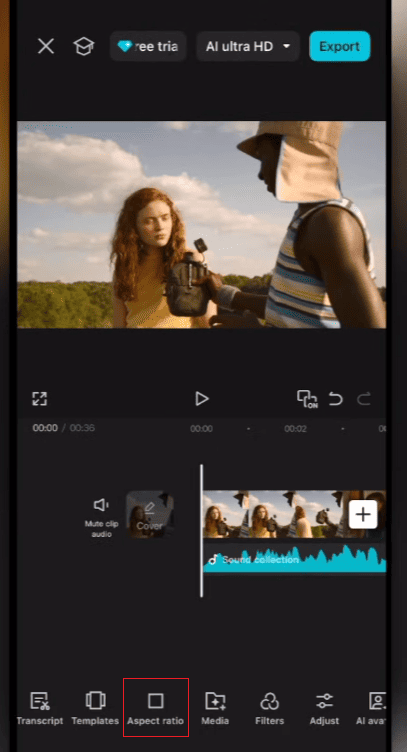
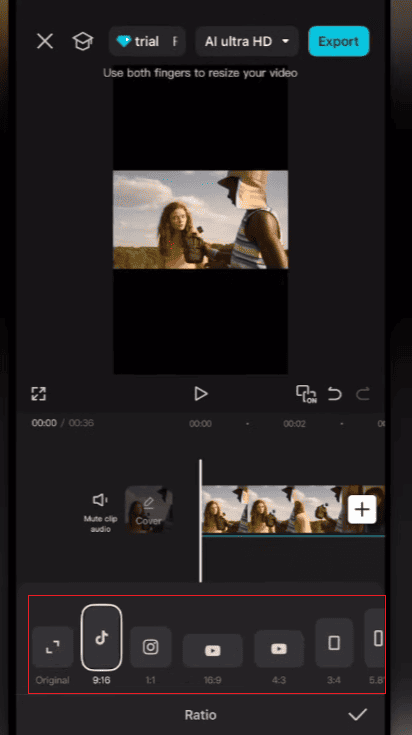
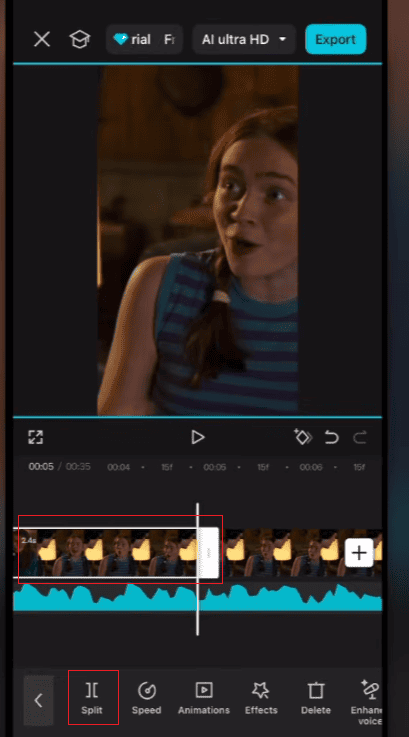
Why Use CapCut for TikTok Video Editing
Many TikTok creators use CapCut because it combines ease of use with advanced editing features. It is suitable for beginners and also provides enough tools for more complex projects.
Some useful CapCut features include:
| Feature | How It Helps TikTok Videos |
| Auto captions | Creates subtitles quickly |
| Templates | Helps make videos faster |
| Effects | Adds creative styles |
| Speed control | Creates slow-motion or fast videos |
| Background tools | Improves video appearance |
| Audio editing | Makes sound clearer |
These tools allow creators to improve their videos without the need for complex editing software.
Tips for Editing Better TikTok Videos with CapCut
1. Keep the first few seconds interesting
The beginning of a video determines whether viewers will continue watching. Try to present your main point at the beginning, rather than adding lengthy introductions.
2. Keep your editing style consistent
Using similar fonts, colors, and transition effects helps create an easily recognizable style.
3. Avoid adding too many effects
Too much animation or filters can distract the viewer. The focus should be on making the videos clear and easy to understand.
4. Save your CapCut projects
Preserving the original project allows you to quickly make subsequent updates. You can change the snippet, update the text, or create different versions for different platforms.
Can You Replace a TikTok Video After Posting
TikTok does not normally allow users to replace the video file inside an existing post. If you need major changes, the common method is:
- Open the original project in CapCut.
- Make the needed edits.
- Export the updated video.
- Upload it as a new TikTok post.
This method gives you full control over the final video.
Final Thoughts
So, can you edit a TikTok video after it’s published? The answer depends on what you want to change. You can update the video description, but to edit the video itself, you need to create a new version.
To achieve better results, it’s generally best to edit your TikTok video before posting. Tools like CapCut make it easier to edit clips, add subtitles, adjust audio, and create videos that match your personal style.
By preserving the original files and CapCut projects, you can update content faster and make improvements as needed.