

Many users enjoy editing videos on their computers using CapCut, as its interface is simple and its tools are practical, meeting both basic and advanced editing needs. However, some users have found that while the mobile version includes many professional features, the desktop version lacks these options, which can be confusing, especially for those expecting the same experience across devices after a capcut pro update, only to realize that certain tools are still limited or unavailable on PC.
In this article, we will look at why this happens and how you can fix it.
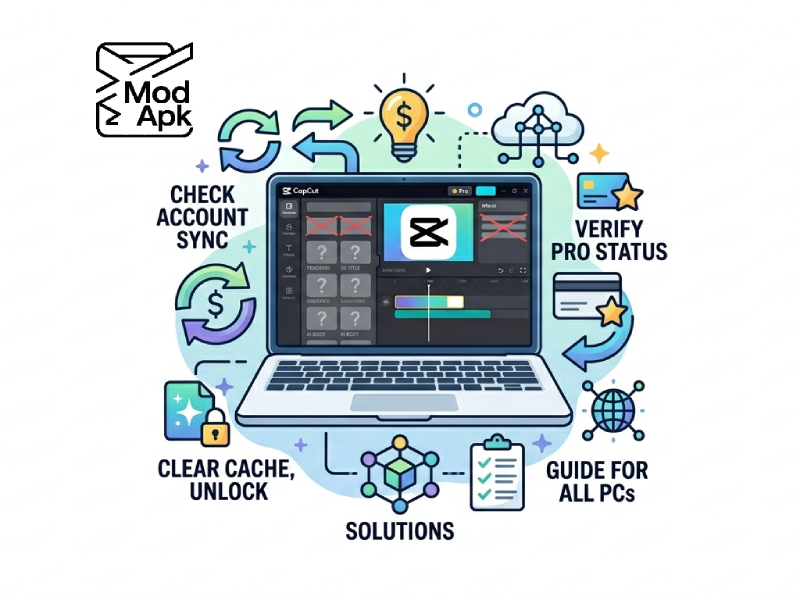
Why Pro Features May Not Appear
If the PC version of CapCut lacks the features of the professional version, it is usually not a single problem, but the result of multiple factors working together. Understanding these factors can help you pinpoint the problem more quickly, whether it’s related to software version differences, regional limitations, account status, or missing updates; in many cases, users who follow a capcut fast edit tutorial may also notice that certain tools demonstrated are unavailable on their desktop setup, which further highlights how device compatibility and feature rollouts can vary across platforms.
1. Different Versions Between Mobile and PC
CapCut does not always release new features simultaneously across all platforms. Mobile versions are usually the first to receive new tools, especially templates, filters, and AI features. The PC version may take longer to receive the same updates, so some professional version features may not yet be available on the desktop version.
2. Account Login or Sync Problems
The professional version features are linked to your account. These features will not be displayed if you are not logged in, or if you are using a different account than the Pro plan account. In some cases, even if you are logged in, the application may fail to sync properly, resulting in you being unable to access the professional version of the tools.
3. Outdated Desktop Version
Running older versions of CapCut may limit the functionality you see. Updates typically include new professional features, bug fixes, and better support for existing tools. If you skip the update, the application may not display the latest options.
4. Regional Rollout
Some features will be released in phases in different regions. This means that users in some countries may see the feature earlier than users in other countries. If a tool is not displayed, it may still be in the phased rollout phase in your region.
5. System and Hardware Limits
Some professional features, especially those that use artificial intelligence or special effects, require more powerful hardware configurations. If your computer has limited memory, an older CPU, or no dedicated graphics card, the application may hide or disable these features to maintain stable performance.
6. Internet and Resource Loading
Some specialized tools are not fully stored in the application and need to be loaded from the internet. If your network connection is slow or unstable, features such as templates, effects, or cloud tools may not display correctly.
7. Temporary Bugs or Glitches
Like all software, CapCut may have some minor issues. Sometimes, due to temporary issues, certain features may fail to load. These problems can usually be resolved by restarting the application or reinstalling it.
How to Fix the Problem
If the professional version features are not displayed on your computer, you can try the following simple steps. Most steps can be completed in just a few minutes and usually solve the problem.
Check your account status by opening CapCut and confirming that you are logged into the correct account. If you are using a professional plan, make sure it is still active and has not expired. Sometimes features may not appear due to account sync issues, so you can try logging out and then logging back in to refresh your account data. If the problem persists, some users also explore alternatives like capcut pc mod 2026, but it’s still recommended to verify your official account status first to avoid unnecessary issues.
Update to the latest version. Older versions may not support newer Pro tools. Please visit the CapCut official website or use the in-app update option. After updating, please restart the application to ensure the changes take effect.
Restart and clear temporary data. Completely close CapCut (don’t just minimize it), then reopen it. If the problem persists, clear the cache files in system settings. This can solve the loading problem.
If necessary, reinstall the application. Uninstall CapCut, download the latest version, and then reinstall it. This helps resolve issues related to lost or corrupted files.
Check your network connection. Some professional version features need to be loaded from an online server. Use a stable network and avoid frequently switching between Wi-Fi and mobile hotspots during use.
Ensure your system meets the basic requirements. Update your operating system and graphics card drivers. Insufficient memory or outdated drivers may prevent some tools from displaying.
Try switching regions or languages. In some cases, changing the application’s language or region settings can refresh the availability of features.
Compare with mobile devices. Open the same project on your phone. If this feature works correctly on your phone, then there is no problem with your account; the issue is likely with the PC version.
After trying these steps, most users can see the missing functionality appear. If it still doesn’t appear, the last resort is usually to wait for the next update, as the PC version adds new tools over time.
Differences Between Mobile and PC
It helps to understand that CapCut is still growing on PC. Some tools are designed first for mobile users. For example:
- Mobile may have more templates and effects
- PC may focus more on timeline editing and control
- Some Pro filters or AI tools may appear earlier on mobile
Over time, many of these features are added to the desktop version.
Tips for a Better Editing Experience
To fully utilize CapCut’s performance on a computer, it’s not just about its features. Developing some simple habits can make your editing process smoother and faster.
Keep the application updated. New versions typically improve speed, fix vulnerabilities, and add missing tools. Regularly checking for updates helps avoid common problems.
Use the same account on all devices. If you frequently switch between mobile devices and computers, this ensures your projects and settings stay in sync. This also helps the Pro version’s features display correctly.
Another useful tip is to organize media files before editing. Place video, image, and audio files in a well-organized folder. This can save you time in handling projects and reduce clutter.
When editing, you should also close other resource-intensive applications. Video editing consumes a lot of system resources. Focusing your computer on CapCut can improve performance and reduce lag.
If your project is large, try breaking it down into smaller pieces for editing. Process the short segments first, and then merge them. This simplifies the process and avoids delays.
Using simple effects first, and then adding more effects later, is also a good option. Adding too many effects at once can make the timeline difficult to manage. Save your project regularly. This can protect your work from application crashes or system slowdowns.
By following these simple steps, you can create a smoother workflow and enjoy a better editing experience on your computer.
Common Situations Users Often Miss
In many cases, the problem is not a big one, but a small detail that is easily overlooked. Often, users expect all the features of the Pro version to be unlocked immediately after installing the app, but in reality, some tools only appear after performing specific actions, such as logging in or opening a specific type of project, which is why issues like capcut pro not working on desktop are sometimes just a matter of missing a simple step rather than an actual software limitation.
Another area to check is whether the feature you’re looking for belongs to templates, effects, or AI tools. Some professional version options will only be displayed when you select the relevant segment or open the corresponding editing panel. These features may not be displayed if you stay on the main timeline.
In addition, it is worth checking whether your project settings meet the functional requirements. For example, some tools are only compatible with specific video formats, frame rates, or resolutions. If your project does not meet these criteria, the feature may remain hidden.
Some minor glitches can sometimes cause a function to disappear. Switching to another project, refreshing the application, or logging out and logging back in can usually restore it.


