

Have you ever wondered why some shots, when slowed down, are so smooth and natural, as if they haven’t been edited at all? When you try to imitate it, you’ll find that only by slowing down the movements during filming can the video be smooth. If you simply slow down the video, it will stutter and look like a stop-motion animation.
This is the magic of optical flow video editing; it can make your slowed-down videos smoother. How is this done? What is the basic concept? Can the optical flow feature on Mac, TikTok, and mobile apps create this same effect? Please see this guide.
What Is Optical Flow in Video Editing?
Optical flow in video editing is a technique that analyzes motion between frames and generates new intermediate frames to create smoother transitions—especially in slow motion.
These technical words may seem hard, but here is an easier way to understand them:
Videos are made of many still images. Having more images per minute makes moves look smoother, similar to stop-motion animation. Videos are made up of individual images called frames. A video looks smoother when it has more frames per minute. While most videos look fluid at normal speeds, slowing them down can make them look jumpy, as the individual frames become easier to see. Optical flow fixes this by generating new frames to fill the gaps, making the video appear smooth again.
If a ball moves from left to right, optical flow predicts where it should be in the in-between frames.
Why It Exists?
Cameras have limitations. If you shoot at 30fps and slow it down heavily, you simply don’t have enough frames. Optical flow tries to “fake” additional frames so the motion still looks natural.
The beauty of CapCut’s approach lies in its simplicity. You don’t need to understand complex algorithms or adjust technical parameters. The software handles the heavy lifting while providing you with intuitive controls. Whether you’re working on action sequences, dance videos, or cinematic transitions, CapCut’s optical flow helps maintain visual quality while manipulating playback speed.
How to Use Optical Flow in CapCut: Step-by-Step Guide
Using optical flow in CapCut is remarkably straightforward.
Step 1: Import Your Video
Begin by opening CapCut and importing the video clip you want to edit.
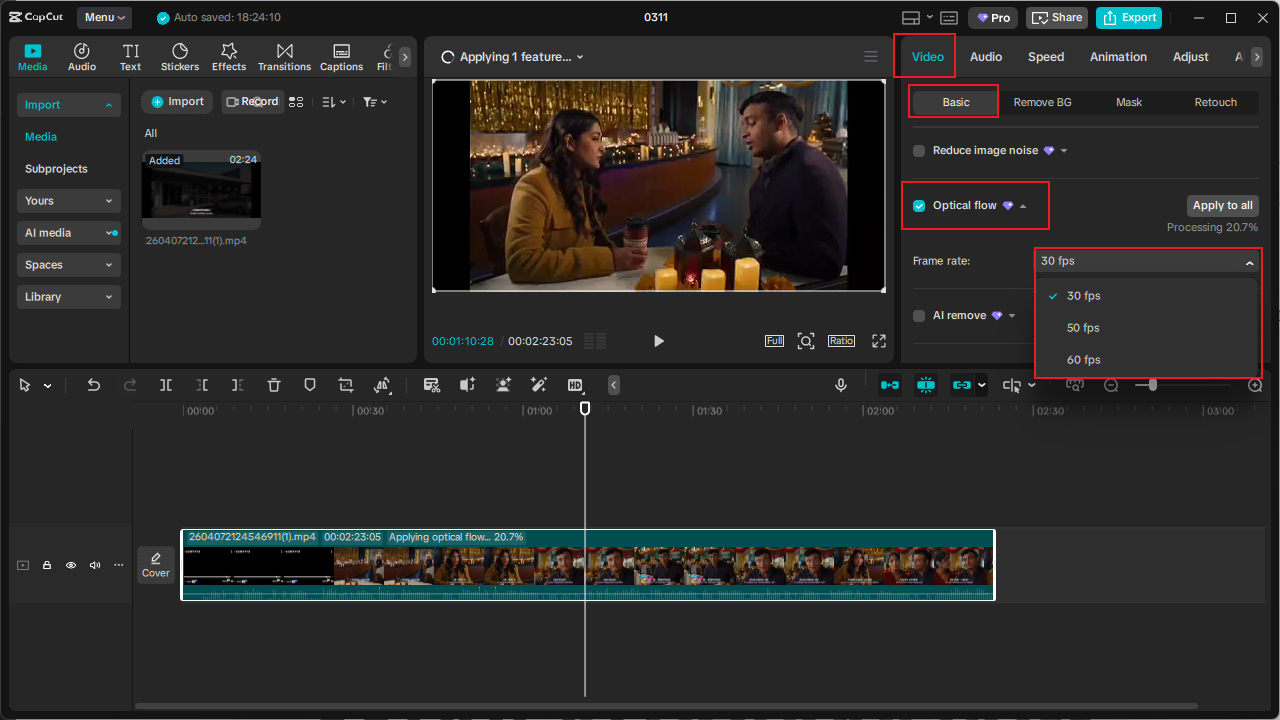
Step 2: Enable Optical Flow
Choose your video clip, then go to Video > Basic on the right and check the Optical flow box. Choose your desired frame rate from “Frame rate“—30, 50, or 60 fps, depending on your needs.
Step 3: Adjust Speed
If you’re creating slow-motion effects, adjust the playback speed of your clip. CapCut’s optical flow will automatically generate smoother motion between frames, preventing the choppy appearance that typically occurs when slowing down standard footage.
Step 4: Export Your Video
Check the slowed-down video. If you are satisfied with the video quality, export the video.
When Should You Use Optical Flow?
Optical flow can make your video look way more professional—but only in the right situations.
Best Use Cases
- Slow Motion Edits
This is the main reason optical flow exists. If you’re slowing footage below its native frame rate, it helps avoid choppiness.
- Smooth Cinematic Shots
Increasing a video’s frame rate with optical flow makes it look smooth and natural, similar to footage from professional cameras.
- Sports and Action Clips
In sports competitions, the most exciting moments are those few seconds, but slowing them down results in severe stuttering, significantly impacting the viewing experience. Therefore, Optical Flow can recreate the smoothness of a live performance.
- Social Media Content
The stuttering and unnatural feel during video transitions is a problem that many video creators have struggled with, but now optical flow can be used to fill in these stuttering issues.
When Optical Flow Can Ruin Your Video?
Optical flow is not without its flaws, especially since it is an algorithm, not a manual process for filling in gaps in the video.
Situations to Avoid
- Complex Motion
Hair, Water, Smoke. These elements move unpredictably. Optical flow struggles and creates weird warping effects.
- Fast Camera Movement
Fast videos with a low frame rate look blurry. This makes it difficult for technology to track movement and add extra frames. If the entire frame shifts quickly, the algorithm gets confused.
- Low-Quality Footage
Blurry or noisy video gives optical flow less data to work with, leading to artifacts.
- Crowded Scenes
Optical flow algorithms can struggle with scenes containing numerous independent moving elements.
Optical Flow vs Frame Blending: What’s the Difference?
Optical flow isn’t the only way to make slowed-down videos smooth; you can also use frame blending.
Optical Flow:
- Creates new frames
- Looks smoother
- Risk of distortion
Frame Blending:
- Blends existing frames together
- Less distortion
- Slight ghosting effect
Tips to Get the Best Results with Optical Flow
- Shoot at Higher Frame Rates
If possible, record at 60fps or higher. Optical flow performs better with more data.
- Keep Motion Simple
Clean, predictable movement = better results.
- Avoid Over-Slowing
Going from 1x to 0.1x is asking for trouble. Stay moderate when possible.
- Use Good Lighting
Clear footage helps the algorithm track motion accurately.
- Always Preview Before Export
What looks fine in timeline might look weird when rendered.
Common Questions About Optical Flow in CapCut
Q: Is the optical flow feature in CapCut free?
A: The optical flow feature in CapCut requires an upgrade to the Pro version to use and export. Alternatively, you can use CapCut Mod for PC Premium, which offers optical flow CapCut free.
Q: What’s the difference between optical flow and standard slow motion?
A: Standard slow motion simply repeats existing frames, which creates choppy, unnatural movement. Optical flow analyzes motion between frames and generates new, artificial frames that create smooth, natural-looking slow motion.
Q: How does CapCut’s optical flow compare to professional software?
A: For a free tool, CapCut’s optical flow implementation is surprisingly capable. While it may not match the absolute precision of high-end professional software like DaVinci Resolve Studio or Adobe Premiere Pro, it delivers excellent results for social media content, personal projects, and even semi-professional work.
Q: Why does the video look strange after using optical flow?
A: Because the algorithm is guessing motion and got it wrong—usually due to complex movement or low-quality footage. Avoid using very high frame rates, as they can look unnatural when paired with low-frame-rate videos.
Q: How to remove optical flow in CapCut?
A: The optical flow cannot be removed from a video that has undergone optical flow adjustment. You can try reducing the frame rate to restore the video.
Q: Is the optical flow feature the same on Mac, TikTok, and the mobile CapCut?
A: The general rule is the same, but in some professional applications, you will need to manually add frame rates.


