

You painstakingly cut out your cat or pet from a picture following an online tutorial, added a green screen, and are now ready to place them in a different background. However, you find that the green color hasn’t been removed.
To actually change the background in CapCut, you not only need to remove the old one, but you also need to use the Chroma Key CapCut.
If you’ve ever wondered how to remove green screen in CapCut, this guide will walk you through every step — including how to do it without paying for Pro features.
What Is Green Screen Editing?
Green screen editing, also known as chroma key editing, removes a solid-colored background from a video so you can replace it with another image or clip.
Most creators use green because it contrasts well with skin tones and clothing. Once the green background is removed, the subject appears in front of a completely different environment.
The feature responsible for this in CapCut is called chroma key.
How to Remove Green Screen in CapCut Without Pro?
Step 1: Open CapCut
- Open the CapCut app
- Tap “New Project”
- Import your background video or image
This background will replace the green screen later.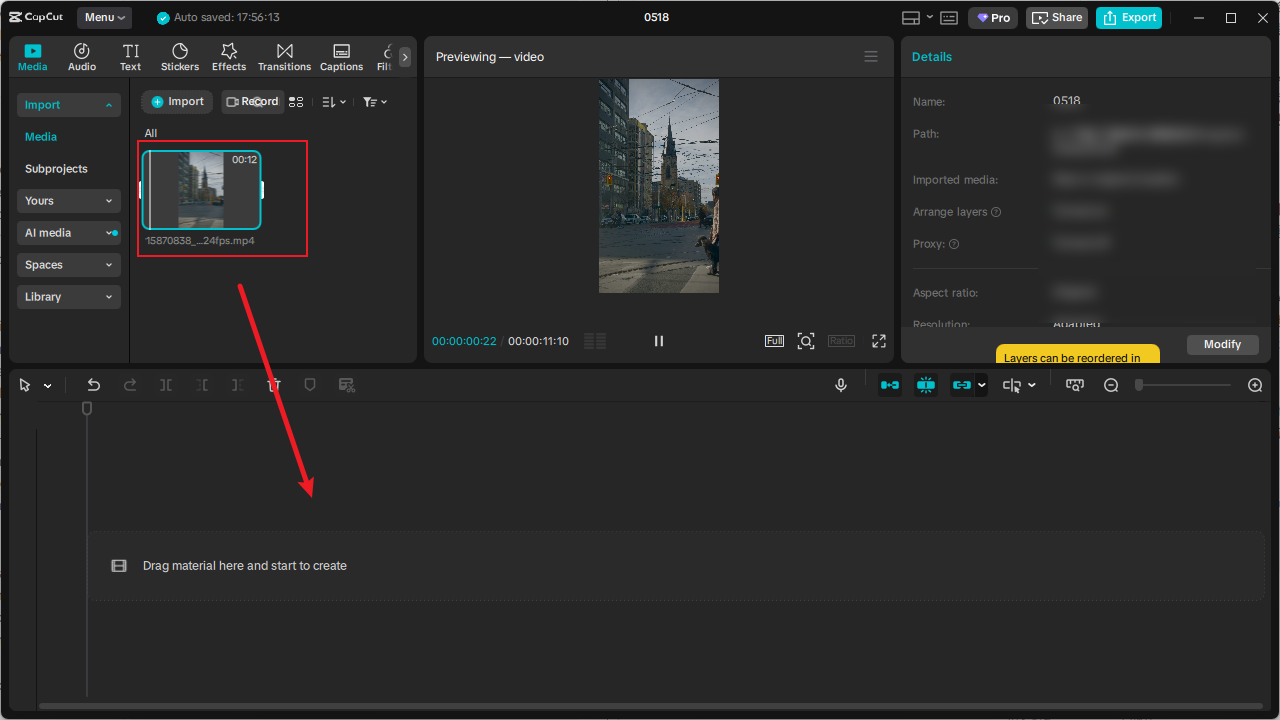
Step 2: Add the Green Screen Clip as Overlay
This is one of the most important parts of how to remove green screen in the CapCut overlay.
- Tap “Overlay”
- Select “Add Overlay”
- Choose your green screen video
- Place it above the background layer
Now your timeline should contain: the main background layer and the green screen overlay layer.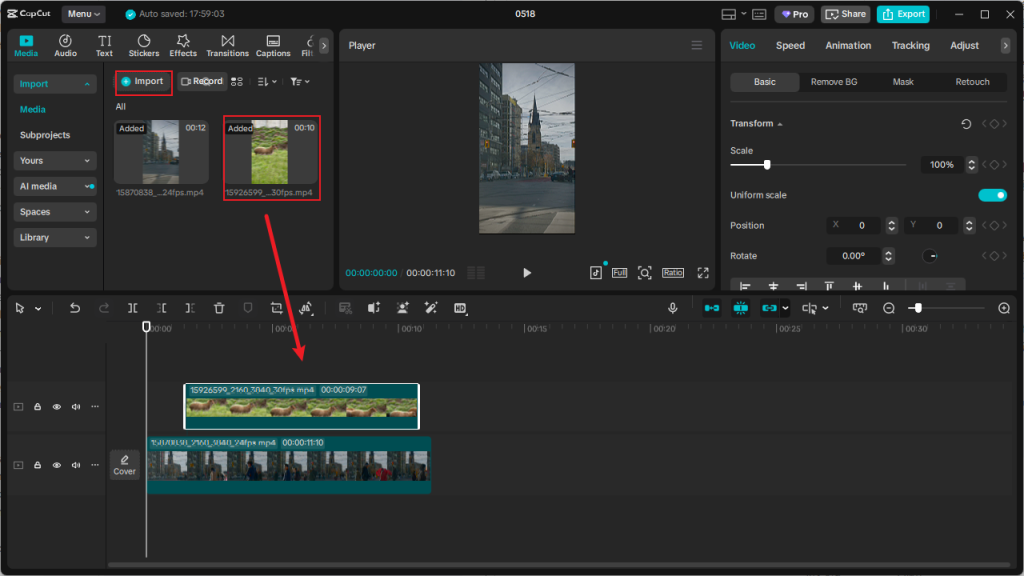
Step 3: Use Chroma Key
Now it’s time to activate chroma key CapCut tools.
- Tap the overlay clip
- Scroll through the bottom menu
- Select “Chroma Key”
- Use the color picker
- Tap on the green background
CapCut will begin removing the green automatically.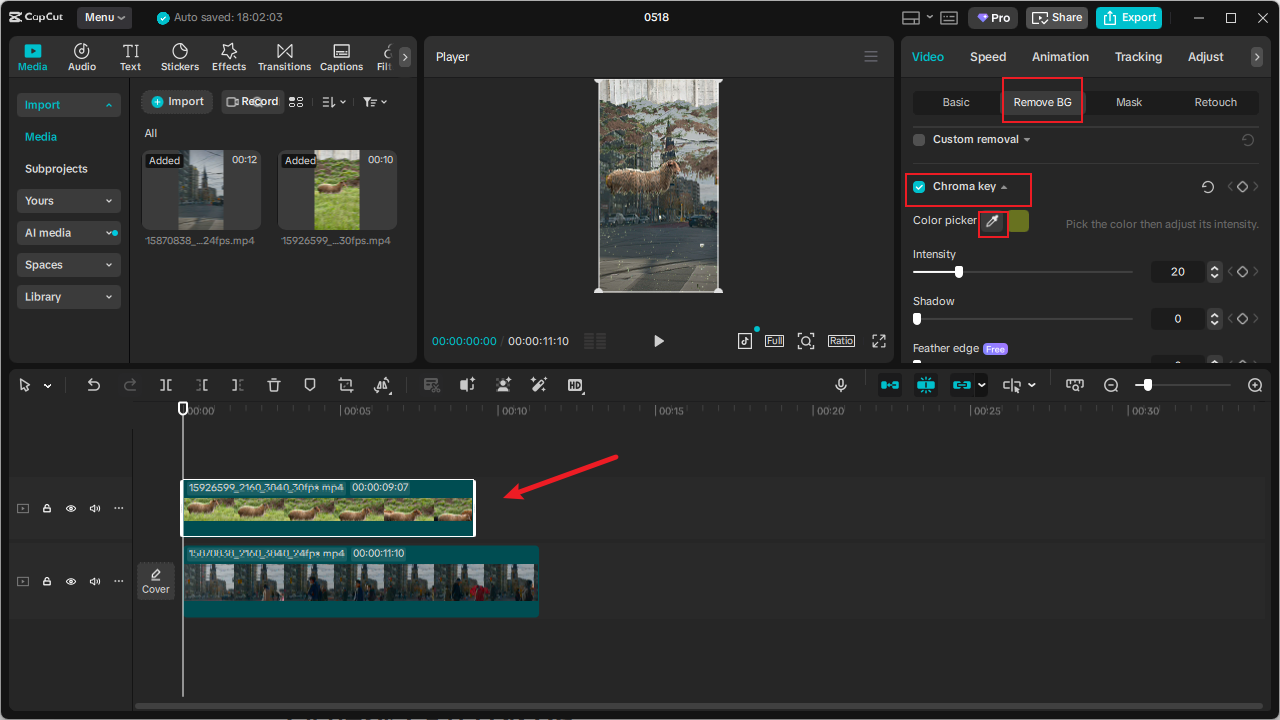
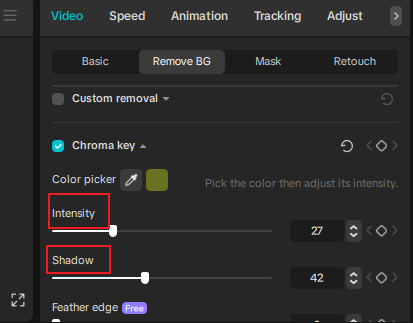
Step 4: Adjust Intensity and Shadow
After selecting the green color, adjust Intensity, which controls how aggressively the green gets removed.
If too low, green remains visible; If too high, parts of the subject disappear
Shadow: Helps soften edges and improve blending. This helps blend your subject with the new background more naturally.
Alternative Approaches for Different Scenarios
While chroma key is the standard method, CapCut offers additional tools that might work better depending on your specific footage:
Auto Removal (Pro Feature): This AI tool removes backgrounds automatically without you needing to pick a color. It works best when the subject and camera stay still. The main limitation is that this feature requires a CapCut Pro subscription.
Custom Removal (Pro Feature): You can manually remove backgrounds with brush tools for more precision. CapCut Pro users can also use the Quick Brush to quickly select and erase background objects. This method is ideal for complex backgrounds that aren’t a solid color.
If you want to use these two features first, but don’t want to subscribe to CapCut Pro, you can consider using the CapCut Mod APK. CapCut download Mod APK provides all the features of the Pro version for free, including CapCut’s background removal tool.
Why Your Green Screen Is Not Working Properly?
Sometimes remove green screen CapCut edits look messy. Common problems include:
Uneven Lighting
If the green background has shadows or wrinkles, CapCut struggles to remove it cleanly.
Solution: Use better lighting and smooth out the background
Subject Wearing Green
If clothing matches the green screen, those parts disappear too.
Solution: Use a blue screen instead
Spill Suppression
A green spill (when green light reflects onto your subject) can create halos or unnatural edges.
Solution: Use the “Spill” settings in the advanced chroma key options to remove unwanted color reflections.
Fine Hair and Transparency
Wispy hair, smoke, glass, or other semi-transparent elements can be particularly challenging.
Solution: lower the intensity and use the edge refinement tools. New features like “Clean up edge” and “Feather edge” can greatly improve difficult image blends.
Motion Blur and Fast Movement
When your subject moves quickly, motion blur can incorporate background colors into the blurry edges.
Solution: To get clear action shots, use a faster shutter speed to prevent blur or fix specific frames using CapCut’s editing tools.
How can I get better green screen results in CapCut?
The quality of your final composite depends heavily on how you shoot your original footage. Here are professional tips for better results:
- Lighting is Everything: Ensure your green screen is evenly lit without shadows or wrinkles. Bad lighting causes color changes that make it hard to remove backgrounds cleanly.
- Maintain Distance: Position your subject at least 6 feet away from the green backdrop to minimize shadows and color spill onto your subject.
- Avoid Matching Colors: Don’t wear clothing that matches your green screen. Opt for colors that contrast strongly with the background.
- High Resolution Matters: Capture footage in the highest resolution possible (1080p or 4K) for cleaner keying with more detail.
- Use Quality Equipment: While professional green screens are ideal, even a well-lit, wrinkle-free green fabric or wall can work surprisingly well.
Even free tools like CapCut can look surprisingly professional when these elements are handled correctly.
Common Questions About Green Screen in CapCut
Q: Is chroma key free in CapCut?
A: Yes, the standard chroma key CapCut feature is typically free.
Q: How to remove green screen in the CapCut mobile app?
A: The steps are the same as for CapCut PC. For more detailed instructions, please refer to this guide: “How To Use Green Screen On Capcut“.
Q: Can CapCut remove blue screens too?
A: Yes. Chroma key works with other solid colors as well.
Q: How does CapCut compare to other video editors for green screen work?
A: Compared to Adobe Premiere and Final Cut Pro, CapCut doesn’t offer more advanced controls and keying algorithms, but it allows even those with no prior editing experience to learn and easily edit videos.


