

Spending hours editing videos in CapCut PC only to find the project files missing, or opening CapCut on your computer only to discover that drafts are lost or exported videos have disappeared.
These situations occur because of CapCut’s unique file management system—projects aren’t saved as single files you can easily locate, like documents or photos.
This guide will help you understand the CapCut default export location pc and successfully locate your CapCut drafts folder location.
CapCut Project File Quick Preview
CapCut project storage location is:
C:\Users\YourUsername\AppData\Local\CapCut\User Data\Projects
CapCut drafts folder location is:
C:\Users\YourUsername\AppData\Local\CapCut\User Data\Projects\Drafts
Default export location is:
C:\Users\[YourUsername]\Videos\CapCut
Or alternatively:
C:\Users\[YourUsername]\Documents\CapCut\Exports
Where Are CapCut Projects Stored on PC?
By default, CapCut stores project drafts inside your Windows user directory. Most CapCut drafts are saved in hidden AppData folders.
The most common CapCut project storage location is:
C:\Users\YourUsername\AppData\Local\CapCut\User Data\Projects
Another possible location is:
C:\Users\YourUsername\AppData\Local\CapCut\User Data\Drafts
This path can be more conveniently accessed using the Windows environment variable:
%LocalAppData%\CapCut\User Data\Projects\com.lveditor.draft
If you installed CapCut through the Microsoft Store (the UWP version), your projects might be located in:
%LocalAppData%\Packages\[CapCutPackageName]\LocalCache\…
The exact package name varies, but you can typically find it by navigating to the Packages folder and looking for names containing “CapCut” or “ByteDance”.
What’s Inside These Project Folders?
Inside these folders, you’ll usually find:
- Draft project data
- Auto-save files
- Timeline data files containing your edit decisions
- Preview thumbnails
- Effect and transition settings
- Text and subtitle configurations
- Project metadata including creation dates and modification history
Each project gets its own folder, typically named with a combination of dates and random identifiers like “0512(1)” or similar patterns.
CapCut Drafts Folder Location Explained
Here’s how to locate it step-by-step on Windows:
Method 1: Using File Explorer
- Open File Explorer
- Press: Windows + R
- Type: %localappdata%
- Press Enter
- Open: CapCut
- Navigate to: User Data > Projects or User Data > Drafts
This is where most CapCut draft projects are stored.
Method 2: Using CapCut’s Built-in Path Display
- Open your project in CapCut
- Look at the right-side panel and find the “Details” section
- Locate the “Path” field—this shows the exact folder where your current project is saved
- You can click on this path (if it’s clickable) or copy it to navigate directly in File Explorer
Why Can’t I See the AppData Folder?
The AppData directory is hidden by default in Windows.
To reveal hidden folders:
- Open File Explorer
- Click “View”
- Enable: Hidden Items
Now AppData should become visible.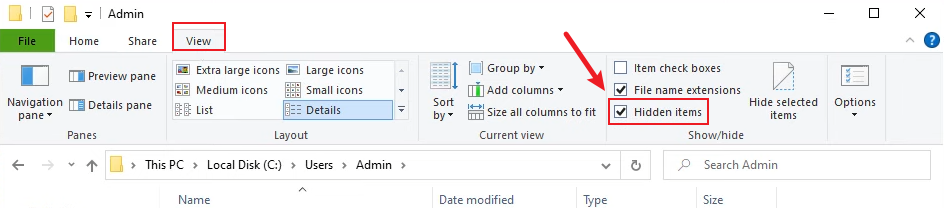
Where to Find CapCut Projects on PC?
If the default folder doesn’t contain your drafts, try these alternative locations.
Location 1
C:\Users\YourUsername\Documents\CapCut
Location 2
C:\Program Files\CapCut
Location 3
C:\Users\YourUsername\Videos\CapCut
Location 4
D:\CapCut Projects
Some users manually change the save directory during installation or in settings.
How to Open CapCut Drafts on PC?
Finding the files is only half the process. You also want to know how to open CapCut drafts on PC.
CapCut draft files are not standard video files. They usually contain project metadata, Timeline information, linked media references, Effect settings, and audio synchronization.
This means you cannot simply double-click the folder like an MP4 file.
Correct Way to Open Drafts
Method 1: Open Through CapCut
- Launch CapCut PC
- Go to: Menu > Projects
- Your drafts should appear automatically
If the draft folder exists but doesn’t appear in CapCut, the project database may be corrupted.
Method 2: Restore a Copied Draft
If you backed up a project:
- Copy the project folder
- Paste it into: User Data > Projects
- Restart CapCut
- The draft may reappear
CapCut Project File Download Guide
If you want a CapCut project file to transfer edits between devices. Unfortunately, CapCut PC does not use a universal editable project file format like Adobe Premiere Pro.
Instead, CapCut stores projects as internal folders containing JSON project data, Cached media, Local references, and render previews.
How to Back Up a CapCut Project
Step 1: Locate your project folder.
Step 2: Copy the entire project directory.
Step 3: Paste it to an external hard drive, USB flash drive, or Cloud storage
Step 4: Restore it later into the same CapCut projects directory.
This is currently the safest manual backup method.
FAQ
Q: Can I move my CapCut projects to another drive to save space?
A: Yes, You can move project folders to another drive, but you must update CapCut’s settings to look in the new location. A better approach is to change CapCut’s default project location before creating new projects. For existing projects: Move the folder, then in CapCut use “Import Project” to point to the new location
Q: Will uninstalling CapCut delete all my projects?
A: Typically, uninstalling CapCut does not automatically delete your project files if they’re stored in the default AppData location. However, some cleanup utilities might remove these files during uninstallation
Q: How do I share a CapCut project with someone else?
A: Use CapCut’s cloud sync feature if both parties have accounts. If not, you will need to compress the entire project source folder before sending it to others.


