

Creating YouTube Shorts videos typically requires filming fast-moving objects. Whether shooting people, pets, sports, vehicles, or products, keeping the subject in the center of the frame is no easy task. With the help of the CapCut AI editor, creators can automatically track moving subjects and maintain consistent framing throughout the video. If the subject moves out of the frame, the video will look less smooth and may even reduce the viewer’s viewing experience.
CapCut’s AI motion tracking feature can effectively solve this problem. Without the need to manually adjust each segment, AI can track selected objects and keep them in sharp focus throughout the entire video playback. This not only saves editing time but also makes vertical videos smoother.
We have talked about how to speed up a video on CapCut. In this guide, you will learn how to use CapCut’s AI motion tracking feature, when to use it, and how to create better YouTube Shorts videos.
What Is CapCut AI Movement Tracking
CapCut AI Motion Tracking is an editing feature that uses artificial intelligence to identify and track moving subjects in a video. For creators learning how to use CapCut AI tools, this feature makes the editing process much easier by automatically analyzing video clips and following selected objects. Without the need to manually adjust frames or create multiple keyframes, AI can accurately keep subjects in focus, helping users produce smoother and more professional-looking videos with less effort.
The object being tracked can be a person, pet, vehicle, product, or almost any clearly visible object. Once tracking is enabled, CapCut continuously monitors the subject’s position and movement between each frame. This information can be used to keep the subject centered, add text or stickers, create dynamic scaling effects, or improve the overall composition of the video.
This feature is especially useful for YouTube Shorts creators because portrait videos have less screen space than traditional landscape content. If the subject moves too far to one side, viewers may miss important details. AI motion tracking helps keep the focus on the most critical elements in a scene without the need for constant manual adjustments.
Whether you’re shooting travel videos, fitness content, product reviews, pet videos, or everyday vlogs, CapCut AI Motion Tracking helps you create smoother, more professional videos while keeping viewers focused on the most important movements.
Why Movement Tracking Matters for YouTube Shorts
YouTube Shorts are designed for quick viewing on mobile devices, where viewers typically decide whether to continue watching within seconds. Keeping the main content clearly visible and centered is crucial to enhancing the appeal of your video. This is precisely where motion tracking technology comes into play.
1. Keeps the Main Subject in View
When a person, pet, or object moves around the frame, viewers can easily lose track of what they should be watching. AI movement tracking follows the subject automatically, helping it remain visible throughout the clip.
2. Improves Viewer Retention
People are more likely to continue watching when the content of the image is easy to understand. If the subject frequently moves out of the frame, viewers may lose interest and swipe to watch the next short film. Consistent framing helps maintain the viewer’s attention from beginning to end.
3. Makes Vertical Videos Look Better
YouTube Shorts use a 9:16 aspect ratio, which means they have less horizontal space than traditional videos. Motion tracking features can help editors make the most of limited screen space and keep important content within the frame at all times.
4. Creates a More Professional Appearance
Smooth tracking gives videos a polished and modern look. Instead of appearing shaky or poorly framed, the footage feels intentional and well-edited, even when the subject moves quickly.
5. Reduces Manual Editing Work
Without tracking functionality, editors typically need to add multiple keyframes to adjust the cropping position in the video. AI tracking can automate most of this work, allowing creators to focus on other aspects of editing.
6. Enhances Storytelling
Each video has a focal point. Whether you’re showcasing a product, demonstrating a skill, or recording an event, motion tracking can help guide the audience’s attention to the most crucial part of the scene.
7. Works Well with Other Effects
Motion tracking can be combined with text, stickers, zoom effects, and graphics. These elements can automatically follow the subject being filmed, thus creating more dynamic and visually appealing short films.
How to Use AI Movement Tracking in CapCut
The specific interface may vary slightly depending on the device and CapCut version, but the overall process is similar.
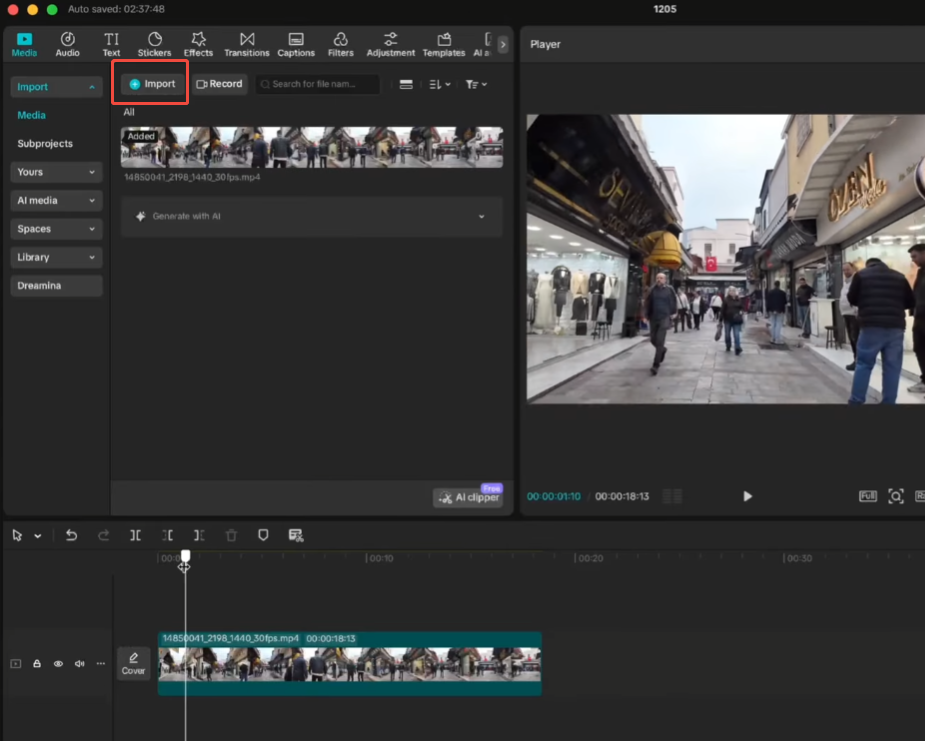
Step 1: Import Your Video
Open CapCut and create a new project.
Import the footage you want to edit for YouTube Shorts.
Make sure the clip contains a clear subject that can be recognized by the AI.
Step 2: Select the Video Clip
Tap or click on the clip in the timeline.
This allows CapCut to access editing tools related to that specific video.
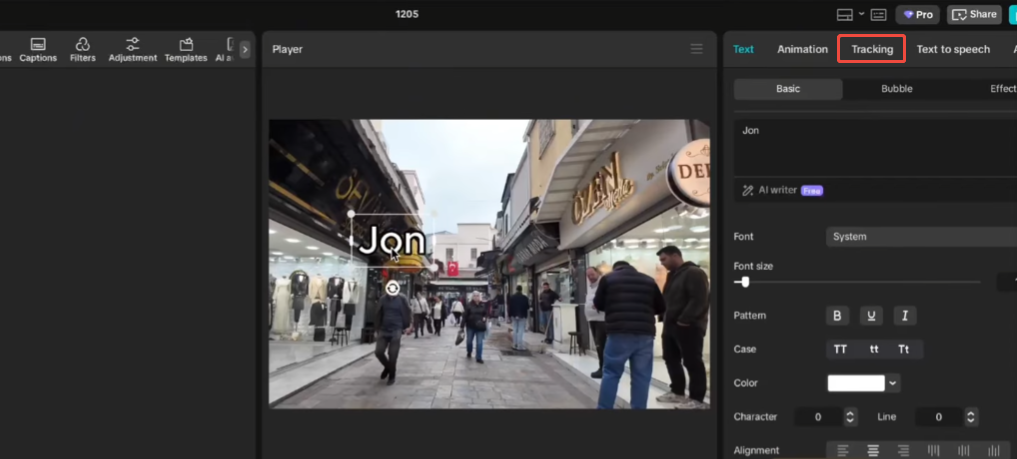
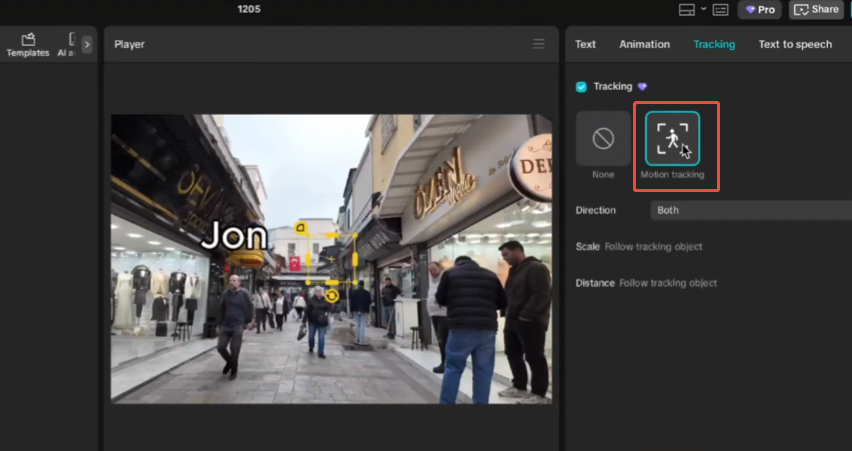
Step 3: Find the Tracking Feature
Navigate to the tracking tools within the editing menu.
Depending on the version, you may see options such as:
- Motion Tracking
- AI Tracking
- Movement Tracking
- Auto Tracking
Select the tracking option.
Step 4: Mark the Subject
Draw a box around the object or person you want the AI to follow.
Try to include the entire subject while avoiding unnecessary background elements.
For example:
- Select the full body of a person
- Select the entire product
- Select the vehicle rather than the road around it
Step 5: Start Tracking
Tap the tracking button.
CapCut will analyze the video and generate movement data.
The processing time depends on:
- Video length
- Resolution
- Device performance
- Complexity of movement
After processing, CapCut creates a tracking path for the selected subject.
Step 6: Apply Framing Adjustments
Once tracking is complete, you can use the tracking information to improve framing.
Many creators combine tracking with:
- Auto zoom
- Dynamic crop
- Stickers
- Text labels
- Effects
- Focus highlights
The tracked subject remains connected to these elements even when it moves.
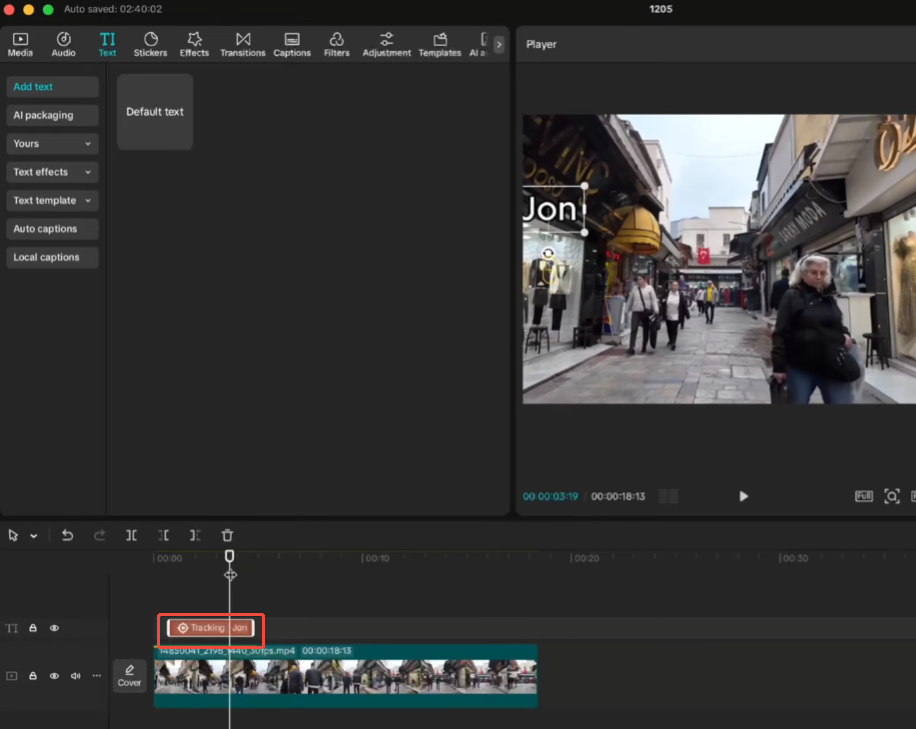
Best Videos for AI Movement Tracking
Not every clip benefits equally from tracking.
The feature works especially well with:
Walking Videos
AI can usually easily track people moving around in streets, parks, or indoor spaces.
Product Demonstrations
Tracking keeps products centered while they are being rotated or displayed.
Fitness Content
Fitness videos typically involve continuous exercise. The tracking feature helps keep you focused on the coach.
Sports Clips
Activities such as running, cycling, and skateboarding work well as long as the subject remains visible.
Pet Videos
Dogs, cats, and other animals can be followed automatically, making clips more enjoyable to watch.
Tips for Better Tracking Accuracy
CapCut’s AI tracking system can produce impressive results, but the final quality of the tracking largely depends on the material you provide. Users who get their editor through a trusted CapCut APK Download source should still focus on preparing clear footage with good lighting and minimal motion blur, as these factors help the AI recognize subjects more accurately. Making minor adjustments before and after editing can significantly improve tracking stability, maintain smoother object movement, and reduce the need for manual correction.
Use Good Lighting
Sufficient light helps artificial intelligence identify targets more accurately. When there is sufficient light, the shape, color, and edges of a person or object are more easily identified. Dim lighting, heavy shadows, or strong backlighting can reduce the reliability of tracking because the target may blend into the background.
Shoot in bright natural light whenever possible, or use auxiliary lighting indoors to make the subject stand out more.
Avoid Extreme Motion Blur
Motion blur occurs when a fast-moving object appears blurred across multiple frames. While moderate blur may look natural, excessive blur can make it difficult for artificial intelligence to continuously identify the subject.
If you are shooting sports, pets, or fast-paced action scenes, try using camera settings that produce sharper images. A clear image can provide more information for the tracking system.
Keep the Subject Visible
AI tracking works best when the selected object remains visible throughout the entire video clip. If a person or object moves behind a wall, furniture, crowd, or other obstacle, the tracking path may become unstable.
When taking photos, try to keep your line of sight clear and avoid situations where the subject disappears for an extended period of time.
Create Contrast Between Subject and Background
Tracking accuracy is usually improved when the target is clearly distinguishable from the background. For example, a person wearing dark clothing may be harder to track in front of a dark wall than a person wearing light clothing.
Strong visual contrast helps artificial intelligence distinguish targets from surrounding objects and maintain a more stable lock.
Start with High-Quality Footage
Higher resolution video can typically provide more detailed information for tracking systems. Videos recorded at 1080p or higher resolution tend to produce smoother tracking compared to highly compressed or low-resolution videos.
Clear image quality is especially important when tracking small objects or things that are moving fast on a screen.
Common Creative Uses for YouTube Shorts
Many creators use movement tracking for more than basic framing.
Following Text
Text can move with the subject instead of staying fixed on the screen.
This creates a more dynamic appearance.
Product Highlights
Arrows, circles, and labels can stay attached to products during demonstrations.
Zoom Effects
Editors can create automatic zoom-ins that follow movement naturally.
Educational Videos
Tracking can highlight specific objects, tools, or examples being discussed.
Storytelling Content
Movement tracking helps maintain focus on the main character during action scenes.
Final Thoughts
CapCut AI motion tracking is incredibly useful for YouTube Shorts creators who want to keep moving subjects in place within the frame, eliminating the need to spend hours manually adjusting. Whether you are editing footage of people, products, pets, or other objects, the AI can automatically follow movement and maintain focus, making videos look smoother and more professional. Many creators who use tools such as CapCut Unlocked APK rely on this feature to create clearer, more engaging vertical content while saving time during the editing process.
Combined with automatic composition, zoom effects, text overlay, and other editing tools, motion tracking can significantly enhance the viewing experience. With a little practice, you can easily create smooth, focused, and professional-looking Shorts videos.


