

Creating videos for anonymous YouTube channels can be very time-consuming. You need to write the script, find materials, record narration, add subtitles, and then edit it. For many creators, these steps often become the biggest obstacle to consistently releasing videos. With tools such as CapCut Mod latest version 2026, however, some parts of the workflow can be streamlined through AI-powered features, helping creators spend less time on production and focus more on content planning and channel growth.
CapCut PC offers an AI script-to-video feature that can automate most of the process. You don’t need to create videos from scratch; simply paste the script into CapCut, and AI will automatically generate scenes, narration, subtitles, and visual assets.
This guide will show you how anonymous YouTube creators can use CapCut PC to create videos faster and build a simple, automated workflow.
What Is CapCut’s AI Script-to-Video Feature
We have discussed how to make viral videos with CapCut 2026. CapCut’s AI script-to-video feature is designed to transform text into complete videos with minimal manual editing. Creators don’t need to build a project from scratch; they can simply paste the script into CapCut, and the AI will analyze the content, segment it into scenes, and automatically generate the video structure. Many users exploring advanced editing options, including those searching for CapCut Mod Free Download, are interested in this feature because it can quickly turn written ideas into engaging videos while reducing the time spent on manual scene arrangement and content organization.
For anonymous YouTube creators, this feature can significantly reduce production time. AI can not only process text, but also recommend relevant materials, images, transitions, and visual elements based on the script theme. This saves you the trouble of spending hours searching for clips and arranging them on a timeline.
Another useful feature is the built-in AI voice generation. After analyzing the script, CapCut can generate natural and fluent narration using multiple voices and languages. This allows creators to make videos without recording their own voices, which is especially useful for those who wish to remain anonymous or do not have professional recording equipment.
This feature also includes automatic caption generation. Synchronized subtitles and narration help viewers better understand the video content and improve the video’s usability. Since many YouTube users turn off the sound while watching videos, subtitles can also extend viewing time and increase audience engagement.
CapCut’s AI script-to-video feature doesn’t replace human creativity, but rather helps simplify repetitive editing tasks. For creators learning how to use CapCut Mod effectively, this feature can save significant time by turning written scripts into videos with minimal manual work. As a result, creators can devote more time to topic research, writing better scripts, and channel development, while AI handles most of the technical production process.
Why Faceless YouTube Channels Benefit Most
Faceless YouTube channels are a growing trend, and CapCut’s AI Script-to-Video feature is particularly helpful for this type of content. Here’s why:
- No Need for On-Camera Presence
Many creators feel shy, uncomfortable, or simply prefer to protect their privacy. Anonymous channels allow you to create professional content without showing your face. AI tools like CapCut can handle narration, visual effects, and editing without requiring the user to show their face or reveal their identity. - Faster Production Workflow
Traditional video production includes shooting, dubbing, and manual editing. For anonymous channels, CapCut can automate almost all of these steps. From generating AI voiceovers to matching footage clips with scripts, it can reduce what would otherwise take hours to just a few minutes. This pace is ideal for creators who want to consistently publish content without overworking themselves. - Lower Equipment Costs
You don’t need cameras, lighting equipment, or expensive microphones. A regular computer with CapCut installed is sufficient. Artificial intelligence can handle professional effects such as voice-over, subtitles, and scene transitions, allowing even beginners to easily create high-quality videos. - Scalable Content Creation
Because AI can process scripts quickly, you can create multiple videos in a single session. This is a huge advantage for anonymous channels that rely on sheer volume to expand their audience, such as top ten lists, tutorials, news summaries, or animated instructional videos. - Creative Flexibility
CapCut allows anonymous creators to experiment with different video styles, visual effects, and voiceovers. You can try animation, videos from the stock library, or text-based narratives; the AI will adjust accordingly based on your script. This flexibility helps your channel create a unique style without revealing its identity. - Appeals to Global Audiences
With the help of AI voice-over and multilingual support, faceless channels can reach audiences in different languages without the need to hire voice actors. This can both expand the potential audience and simplify the production process, enabling automation.
Anonymous YouTube channels are ideal for creators who value privacy, efficiency, and scalability. CapCut’s AI script-to-video feature perfectly embodies this concept, allowing you to easily complete the entire workflow from script to final video.
Step 1: Prepare Your Script
Before you can open CapCut, you need a clear script. Think about what you want to express in the video. Keep it as simple as possible and divide it into several parts:
- Introduction: Hook your viewers and explain what the video is about.
- Main content: Break your content into short points or paragraphs.
- Conclusion: Summarize and include a call-to-action.
The more structured your script is, the better CapCut can match visuals to your words.
Step 2: Open CapCut PC and Start a New Project
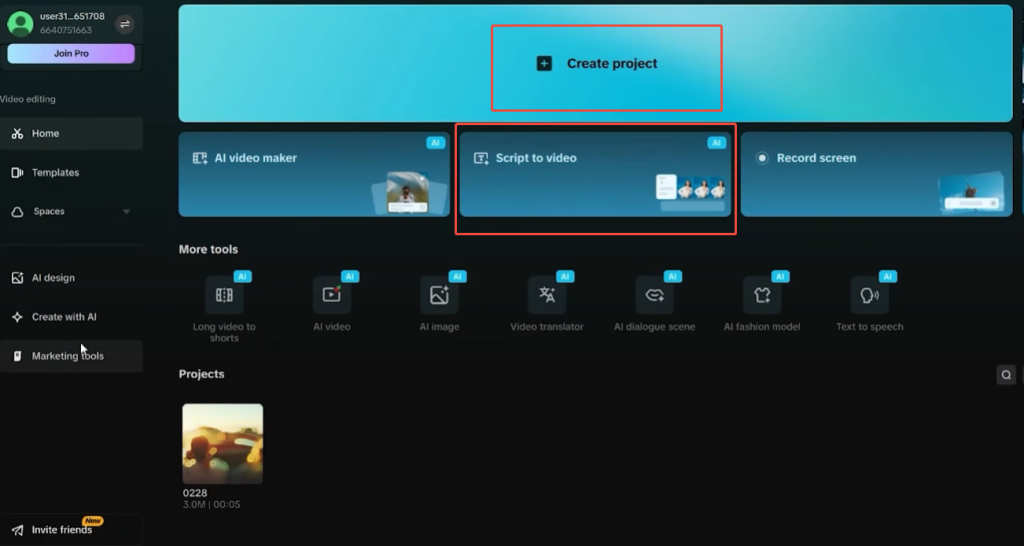
- Launch CapCut PC on your computer.
- Click New Project.
- Choose AI Script-to-Video from the options. This will open a panel where you can paste your script.
Step 3: Input Your Script
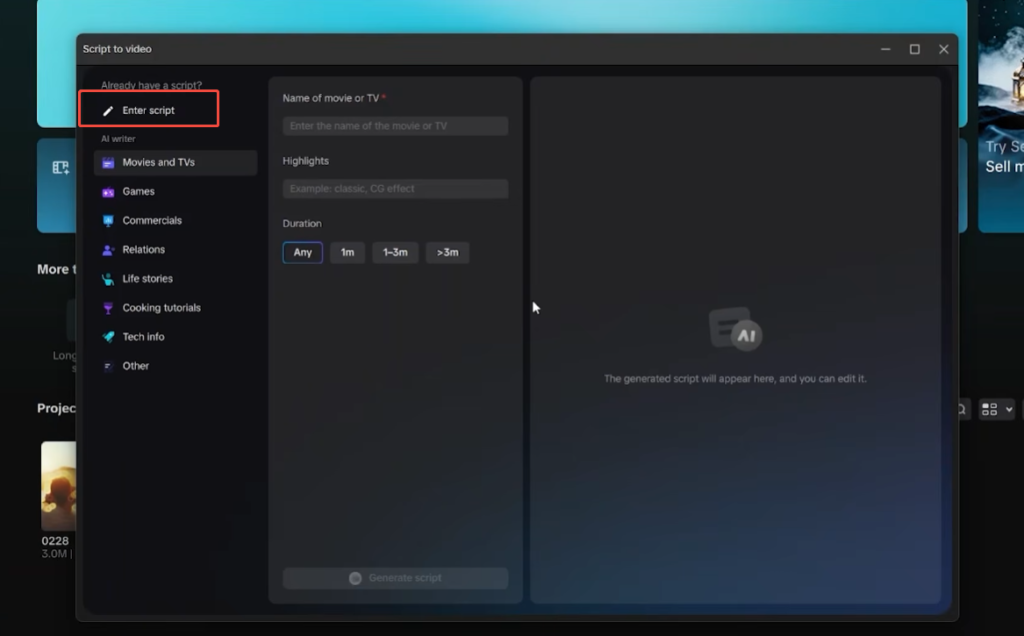
- Copy your script from your text editor.
- Paste it into the Script Input box in CapCut.
- CapCut will analyze the text to understand the flow and key points of your video.
At this stage, you can also choose the video style, such as animation, clips, or a minimalist background. This is very important for anonymous channels because it determines the overall look and feel of the videos.
Step 4: Choose AI Voice and Language
CapCut can generate voiceovers automatically. For faceless YouTube channels, this is essential.
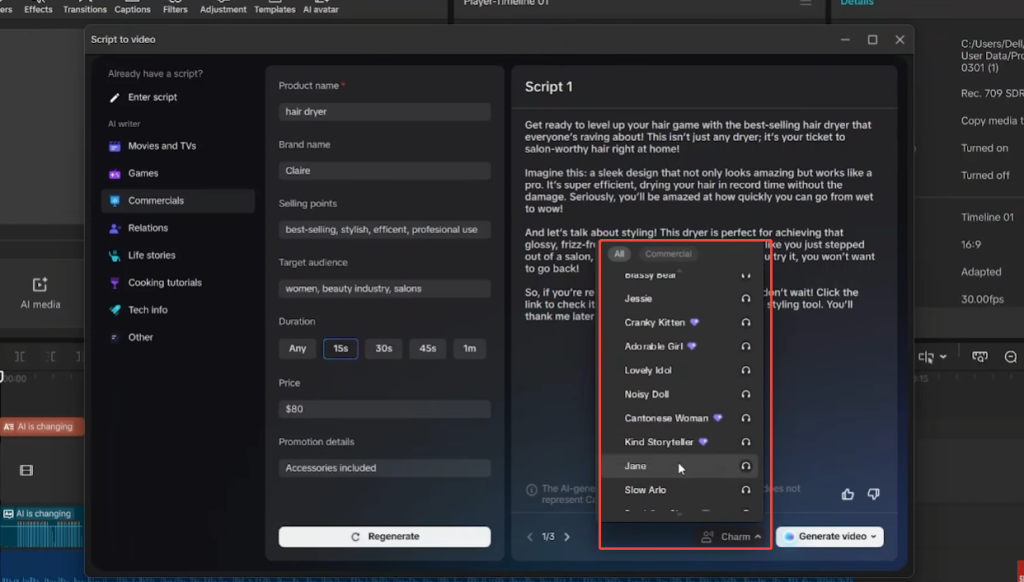
- Select AI Voice in the settings panel.
- Choose a voice that fits your channel’s tone: friendly, professional, or casual.
- Pick the language for your audience. CapCut supports multiple languages and accents.
This ensures your video has narration without you needing to record audio.
Step 5: Automatic Media Matching
One of the best features of Script-to-Video is auto media matching:
- CapCut scans your script and automatically finds clips, images, and animations that match your text.
- You can preview the suggested clips and swap them if needed.
- For channels without faces, you can choose to display clips of objects, landscapes, or text graphics instead of people.
This step saves hours of manual editing and searching for visuals.
Step 6: Generate Subtitles
Subtitles are important for engagement. CapCut can create them automatically:
- Turn on the Auto Subtitles
- CapCut will sync subtitles with the AI voiceover.
- You can edit the text or adjust timing if necessary.
This is especially useful for faceless channels, as viewers rely on visuals and text more than on seeing a host.
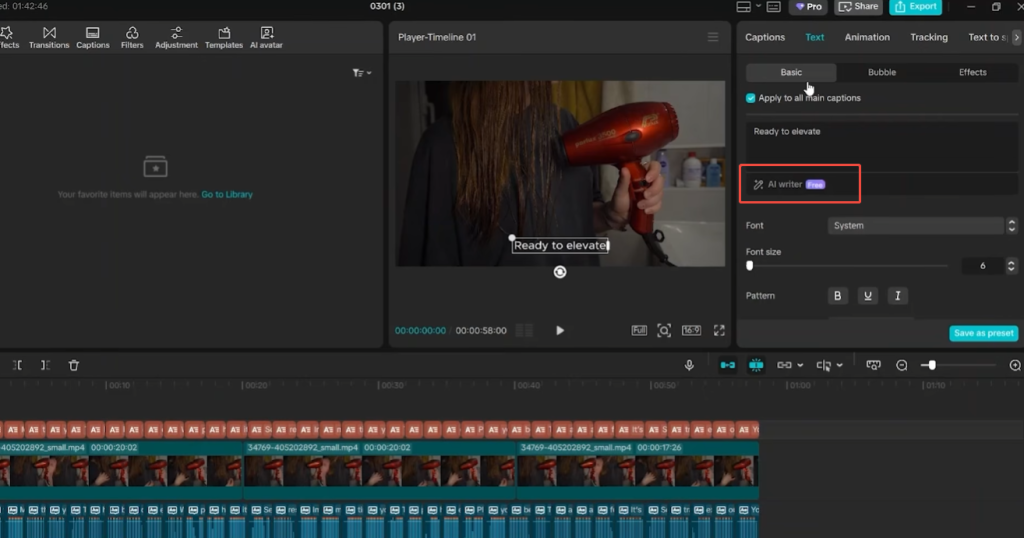
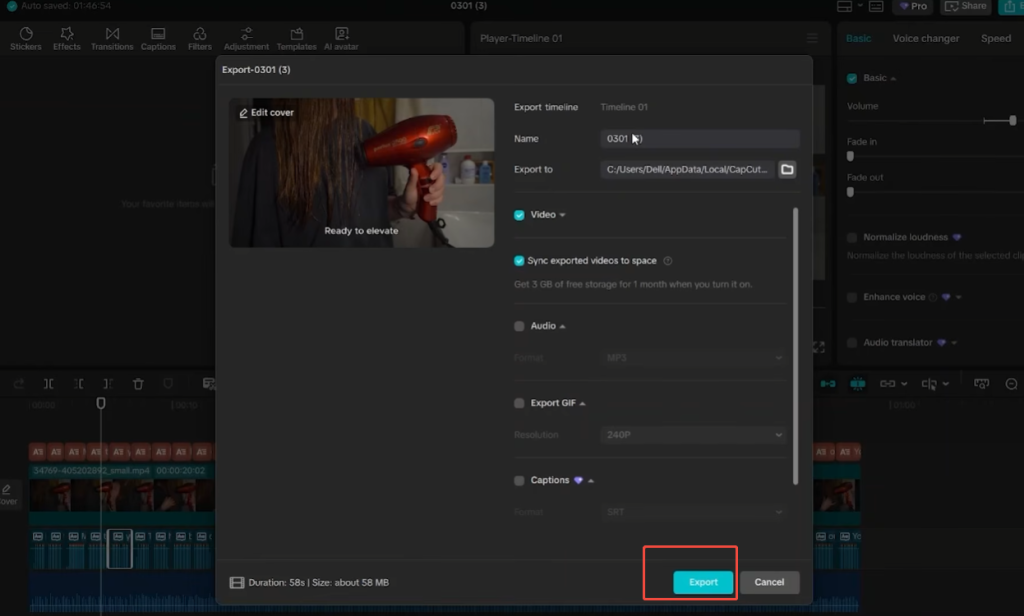
Step 7: Fine-Tune and Export
After CapCut generates the video:
- Watch the full preview.
- Adjust any clips that don’t fit perfectly.
- Change subtitle font, size, or color if needed.
- Add background music or sound effects from CapCut’s library.
Once you’re happy, click Export and choose your video resolution and format. Your faceless YouTube video is ready to upload.
Tips for Better AI-Generated Videos
Creating AI-generated videos is easy, but there are ways to make your YouTube channel’s videos more engaging and professional:
- Keep Scripts Clear and Concise
Artificial intelligence is best suited for processing short and concise sentences. Avoid lengthy and complex paragraphs. Break down ideas into key points or numbered lists. This makes it easier for CapCut to match the screen and generate accurate subtitles. - Be Specific with Visual Cues
While CapCut can automatically select footage clips, providing some hints in the script would be more helpful. For example, instead of writing “Talk about efficiency,” it’s better to write “Show a person typing on a laptop” or “Show a clean table and a notebook.” Specific prompts can improve the relevance of the matched images. - Choose Consistent Video Style
Define a style for your channel, such as minimalist animation, stock footage videos, or motion graphics, and stick to it. Maintaining consistency helps establish channel recognition, allowing viewers to immediately recognize your videos even without the host appearing on screen. - Experiment with AI Voices
Choosing the right voiceover will affect the tone and style of the channel. Try different voices and speaking speeds. Some voices sound warm and friendly, while others sound more professional. You can even use different voice-overs for different types of videos to keep the content fresh. - Use Background Music Wisely
Music can enhance the atmosphere, but avoid using tracks that overpower the narration. CapCut allows you to adjust the volume to ensure the AI narration is clearly audible. For channels that don’t feature live actors, music can help maintain viewer attention when there are no live actors on screen. - Edit Subtitles and Timing
While automatically generated subtitles are convenient, proofreading them is crucial. Make sure the subtitles match the narration perfectly, and adjust the duration of the subtitles according to the speaking speed. Appropriate subtitles can extend viewing time and improve the viewing experience.
Common Mistakes to Avoid
Using Poor Scripts
AI cannot fix weak content.
A strong script remains the most important part of the process.
Ignoring Subtitle Errors
Incorrect captions reduce viewer trust.
Overusing Stock Footage
Try mixing stock videos with screenshots, graphics, and custom visuals.
Choosing an Unnatural Voice
Always preview AI narration before exporting.
A robotic voice can reduce audience retention.
Final Thoughts
CapCut PC’s AI script-to-video feature provides an easy way for unknown YouTube creators to automate their video production process. With CapCut AI script to video, creators can turn written ideas into editable videos quickly. The tool combines script analysis, automatic material matching, AI voice generation, and subtitle creation, allowing users to convert written scripts into videos that can be directly edited in minutes while reducing the time spent on manual video production.
While AI cannot completely replace human editing, it can handle many repetitive tasks that slow down creators. When combined with excellent scripts and rapid human review, CapCut’s AI workflow can help obscure YouTube channels publish content faster, maintain content update frequency, and scale production more efficiently.


