
Fade in and fade out effects are non-negotiable for polished video editing—they soften abrupt scene changes, blend audio seamlessly, and add a professional flair to everything from TikTok reels to YouTube shorts. Yet one of the most common frustrations for CapCut users is staring at the screen thinking, “I can’t find fade in CapCut.” To make matters worse, many encounter capcut fade out not working errors, whether using the official ad-free app, capcut mod premium, or Alvee Mods builds. In this 2026 guide, we’ll show you exactly where to locate fade in/fade out effects for video, audio, and text on both mobile and PC, troubleshoot common glitches, address alvee mods capcut update compatibility, and highlight why the official capcut no ads experience is the most reliable way to avoid fade-related headaches.
What Is the Fade Effect in CapCut?
Fade effects control how video or audio transitions smoothly in or out.
Common fade types include:
- Fade in–gradual appearance
- CapCut video fade out–smooth disappearance
- Audio fade in/out–volume transition
These effects improve pacing, reduce harsh cuts, and create cinematic flow.
Why Can’t I Find Fade in CapCut?
If you can’t locate fade controls, the most common reasons are:
- Interface layout changes after updates
- Selecting the wrong layer (audio vs video)
- Using outdated or modified app versions
- Temporary software glitches
Even in capcut no ads official versions, fade tools may move between panels depending on updates.
Where to Find Fade In/Fade Out in CapCut Mobile
CapCut mobile is the go-to for most creators, and fade effects are tucked into four easy-to-access menus—one for each type of content you might want to fade. We’ll break down the most common use cases first, so you can quickly find the fade tool you need.
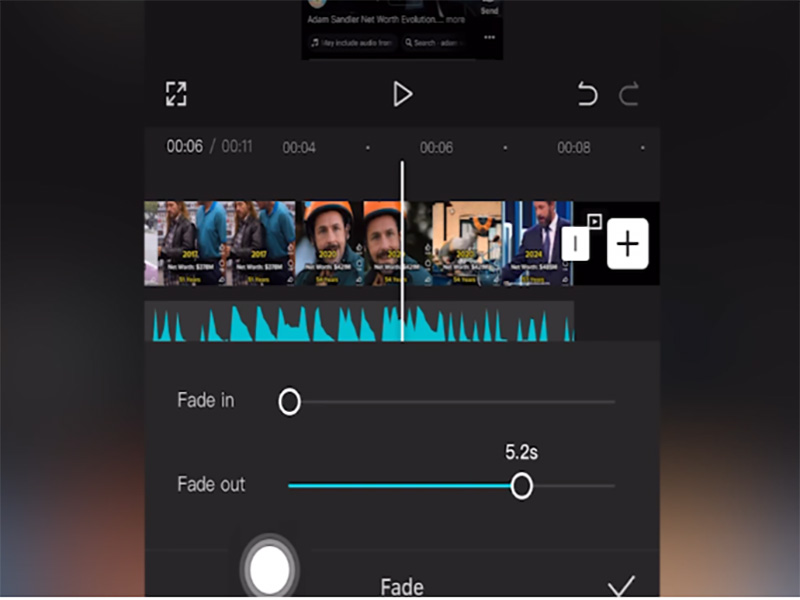
1. Video Fade In/Fade Out (Individual Clips)
This is the fade effect most creators search for: fading a single video clip in from black (or white) or fading out to black. Here’s how to find it:
- Open CapCut and load your project.
- On the timeline, tap the video clip you want to fade—it will highlight in blue to confirm selection.
- At the bottom of the screen, tap the Adjust tab.
- Scroll down the Adjust menu until you see Fade.
- Two sliders will appear: Fade In and Fade Out. Drag the slider to the right to increase the fade duration.
- Tap the checkmark to apply. Preview your clip—you’ll see a smooth fade in or out.
2. Fade Transitions Between Video Clips
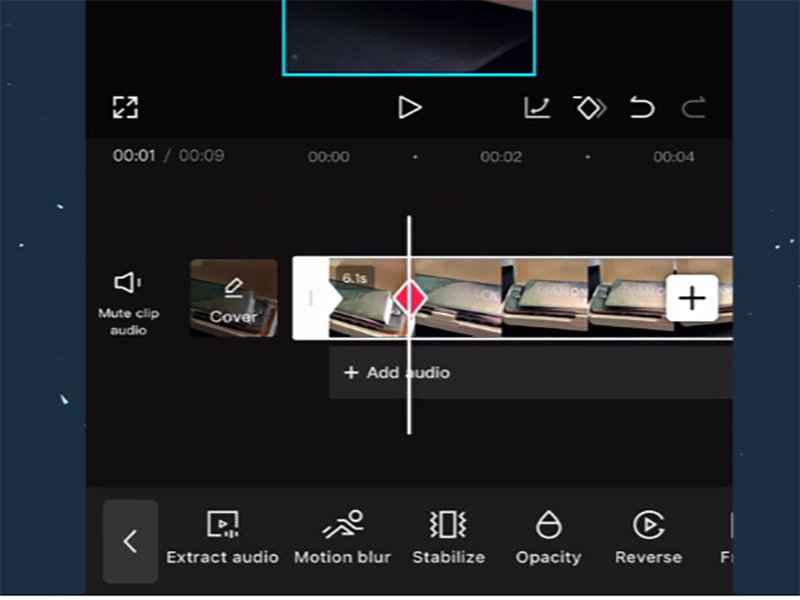
If you want a soft fade between two clips, you’ll use CapCut’s Transitions menu—not the Adjust tab:
- On the timeline, tap the white square gap between two video clips.
- The Transitions menu will open. Tap the Basic tab.
- The first effect in the Basic pack is Fade.
- Adjust the transition durationand tap the checkmark. This creates a cross-fade: one clip fades out as the next fades in.
3. Audio Fade In/Fade Out
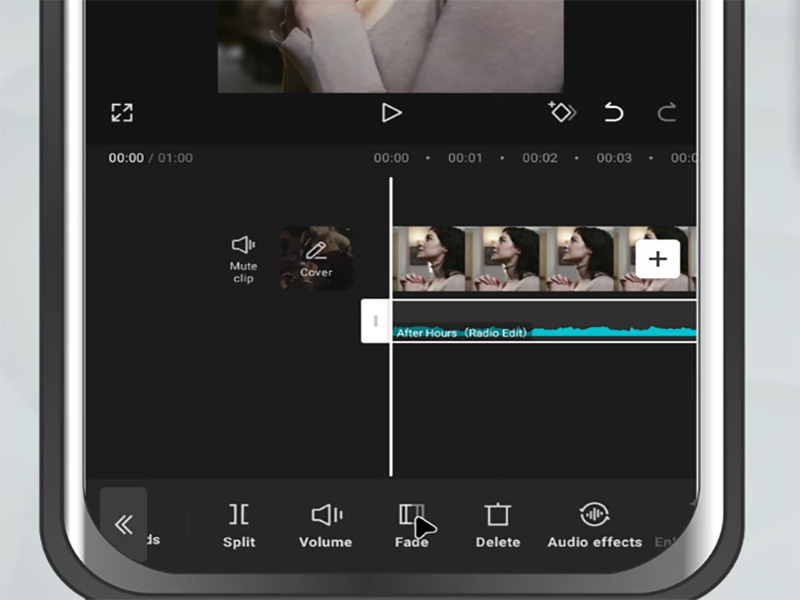
Harsh audio jumps ruin great videos—here’s how to fade background music, voiceovers, or sound effects:
- On the timeline, select the audio track.
- Tap the Volume tab at the bottom.
- Tap Fade In or Fade Out and drag the slider to set the duration.
- For custom fades, use the Volume Envelope tool to add fade points.
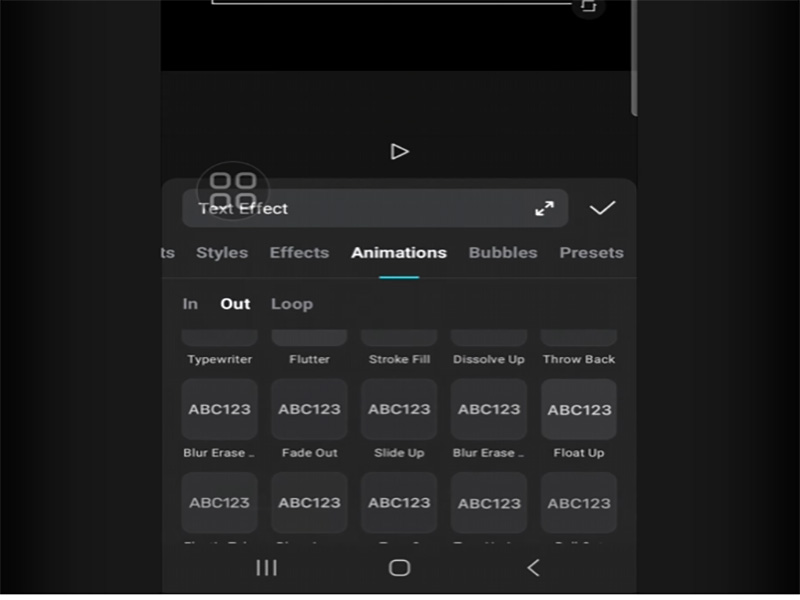
4. Text/Sticker Fade In/Fade Out
Fade text or stickers in for subtle reveals, or out for clean exits:
- Add text/sticker to your project and select it on the timeline.
- Tap the Animation tab at the bottom.
- Under the In tab (fade in) or Out tab (fade out), select the Fade animation.
- Adjust the animation duration and tap apply—your text/sticker will fade smoothly.
Where to Find Fade In/Fade Out in CapCut PC
CapCut PC’s desktop interface is more streamlined, but fade effects are in the same core menus as mobile—just with a few layout differences. The official PC version is also capcut no ads and requires no capcut mod premium to access fade tools.
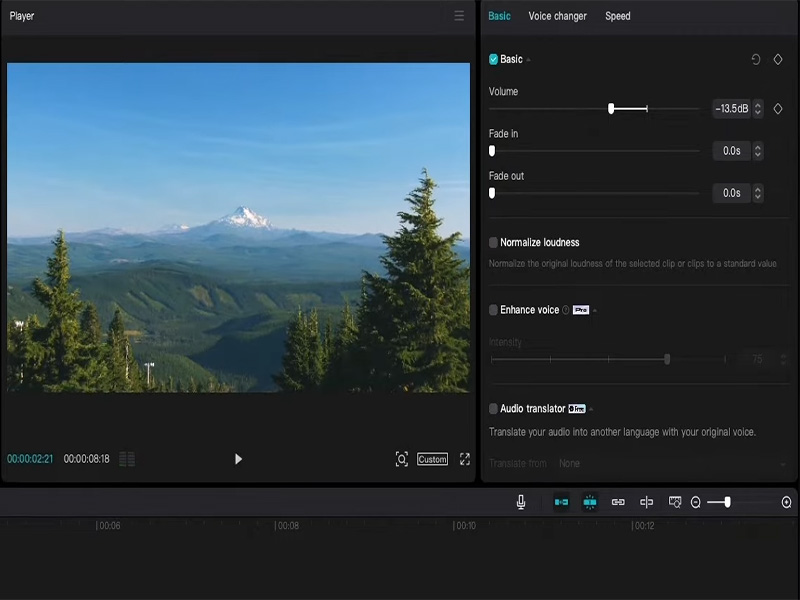
1. Individual Video Clip Fade
- Open CapCut PC and load your project. Select the video clip on the timeline.
- The editing panel will open on the right side of the screen. Click the Adjust tab.
- Scroll down to find the Fade option.
- Use the Fade In and Fade Out sliders to set the duration, then click the checkmark.
2. Fade Transitions Between Clips (PC)
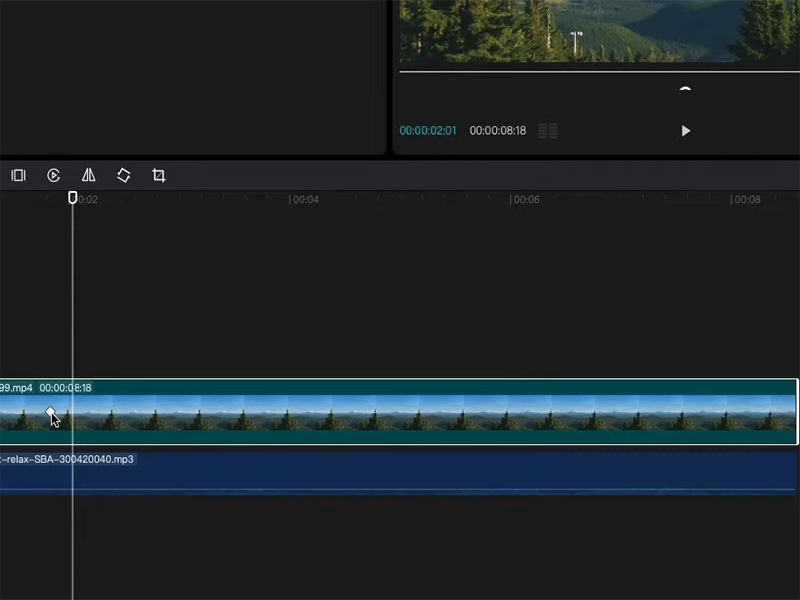
- Click the white transition gap between two video clips on the timeline.
- The Transitions panel will open on the right. Navigate to the Basic pack.
- Select the Fade effect and adjust the duration in the top-right corner.
- Click Apply (for the selected gap) or Apply to All (for all clip gaps).
3. Audio & Text/Sticker Fades (PC)
Audio fades: Select the audio track, click the Volume tab in the right panel, and use the Fade In/Fade Out sliders.
Text/sticker fades: Select the element, open the Animation tab on the right, and choose Fade under the In/Out tabs.
Fix CapCut Fade Out Not Working
If you’ve found the fade tool but capcut fade out not working, don’t panic—this issue is easy to fix, whether you’re using the official app or modified versions like capcut mod premium or Alvee Mods. Below are the most common fixes for all devices.
Fix 1: Update to the Latest Official CapCut Version
Outdated CapCut versions often have broken fade effect code—updating to the 2026 official build fixes 90% of capcut fade out not working errors. Best of all, the official app is capcut no ads.
Fix 2: Resolve Mod-Related Fade Issues
If you’re using capcut mod premium or Alvee Mods, fade out not working is almost always due to an outdated mod build. The solution is to install the latest alvee mods capcut update:
- Uninstall the old mod
- Download the 2026 alvee mods capcut update
- Reimport your project
Fix 3: Fix Corrupted Project Files
Corrupted drafts often cause fade effects to fail. Fix this in 2 steps:
- Duplicate your project: Tap/click the three dots on your draft and select Duplicate—this creates a fresh, uncorrupted copy.
- Reapply fade effects: In the duplicated project, add the fade in/fade out again—they’ll work seamlessly.
CapCut Mod Premium & Alvee Mods CapCut Update: Key Notes for Fade Effects
Many creators usecapcut mod premium or Alvee Mods for unlocked features, but it’s critical to understand how these builds affect fade tools:
- Alvee Mods CapCut Update 2026: The latest alvee mods capcut update fully resolves fade in/fade out glitches from older mod versions. It includes capcut no ads, unlocks all premium features, and ensures native fade effects work as intended.
- CapCut Mod Premium: Legitimate 2026 capcut mod premium builds do not remove or break fade effects—only outdated, low-quality mods cause issues.
- Official vs. Mod: The official CapCut app is the most reliable choice for fade effects. It’s free, capcut no ads, and never has mod-related glitches. You don’t needcapcut mod premium to access fade tools.
Pro Tips for Perfect Fade In/Fade Out in CapCut
Now that you’ve found and fixed fade effects, these tips will make your fades look professional:
- Keep durations subtle: 0.5–2 seconds for video fades; 1–3 seconds for audio fades. Longer fades can make your video feel slow.
- Sync audio and video fades: Fade music out at the same time as your video fades to black for a cohesive finish.
- Use cross-fades for storytelling: The default Fade transition is perfect for soft scene changes in vlogs or short films.
- Save fade presets: Copy edits from a faded clip and paste them to other clips for consistent fades across your project.
Conclusion
With this guide, you’ll never again waste time searching for fade tools. Whether you’re fading a video clip, audio track, or text, CapCut’s fade effects are easy to access and customize—no technical expertise required. Now go add those smooth, professional fades to elevate your content!



