
Slow motion is one of the most cinematic effects in video editing, turning ordinary moments into dramatic, memorable scenes. Whether you’re highlighting travel details, emphasizing emotional beats, or adding polish to social media clips, smooth slow motion instantly elevates your content. CapCut makes this effect accessible to every creator. You can either build slow motion manually with precise speed controls, or skip the setup entirely with a ready-made capcut template slow motion preset.
In this complete guide, we break down both methods: step-by-step manual techniques for fully customized slow motion, and the fastest way to get professional results using a slow motion capcut template. We also cover the viral smooth slow motion capcut template new trend taking over TikTok and Reels, plus the wildly popular healing thailand capcut template slow motion style that dominates travel content. By the end, you’ll know exactly how to achieve buttery-smooth slow motion in CapCut for any project.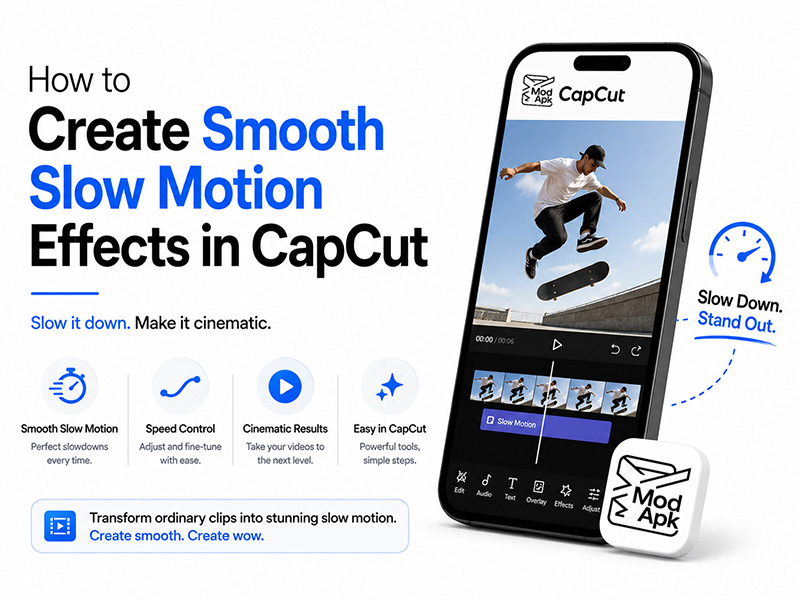
Method 1: Build Custom Smooth Slow Motion Manually
For full creative control over timing and pacing, manual speed adjustment is the best approach. CapCut includes multiple tools to fine-tune slow motion, from simple constant speed to advanced frame interpolation.
1. Basic Constant Slow Motion
This is the simplest way to slow down an entire clip evenly, perfect for beginners.
- Import your video into the CapCut timeline and select the clip.
- Open the Speed menu from the toolbar and choose Standard.
- Drag the slider left to reduce playback speed. You can go as low as 0.1x for extreme slow motion.
- Preview the clip to check pacing, then confirm the settings.
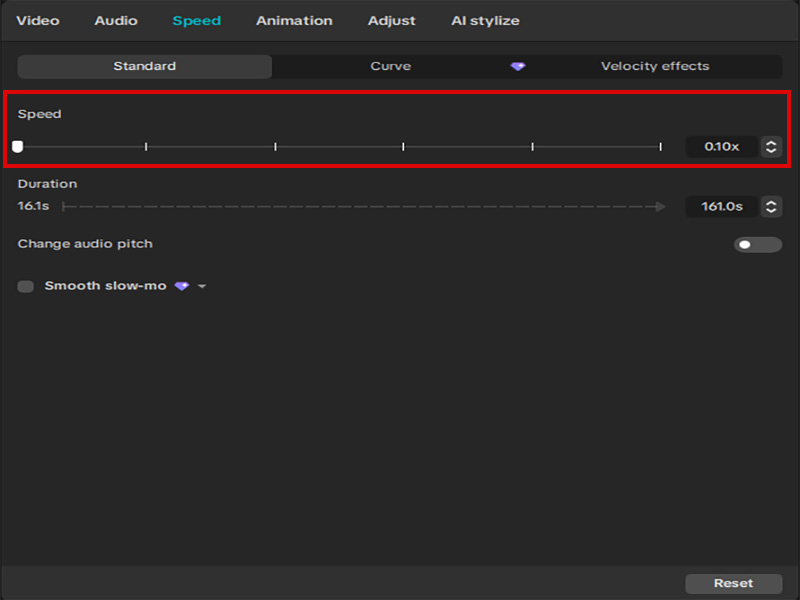
For the smoothest results, start with high-frame-rate source footage. Clips recorded at 60fps, 120fps or higher will slow down much more cleanly than 24fps or 30fps recordings.
2. Curve Speed Ramping for Natural Transitions
Abrupt speed changes look jarring. For professional, seamless slow motion, use the Curve speed tool to create gradual ramps between normal and slow playback.
- Select your clip, open Speed, and switch to the Curve tab.
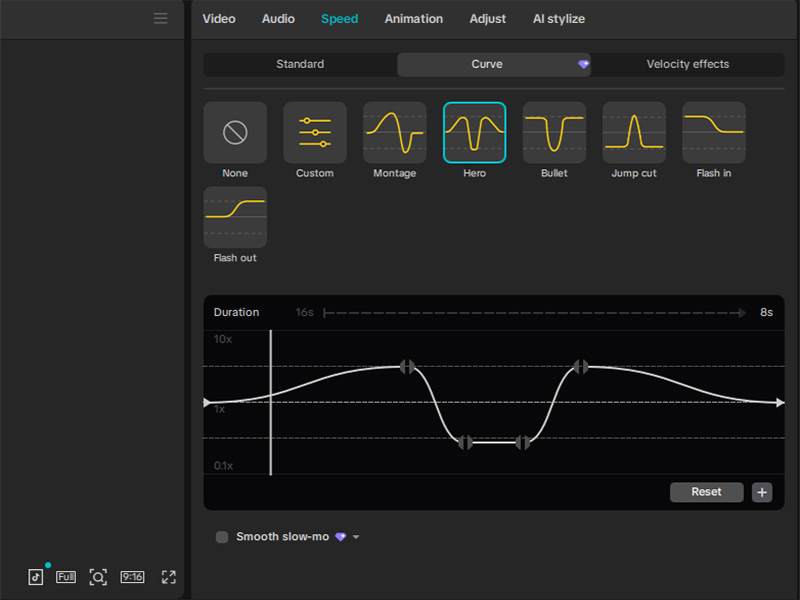
- Choose a preset curve like Hero or Montage as a starting point, or build your own custom graph.
- Add anchor points to the speed line: keep the start and end at 1x speed, then drag middle points downward to create slow-motion sections.
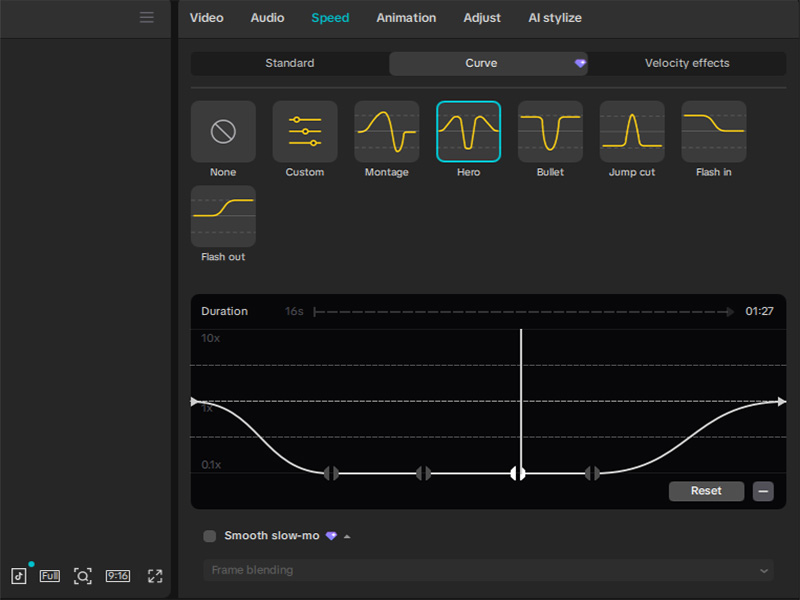
- Round out the curves between points to avoid sharp corners; gentle arcs create the most natural speed transitions.
This technique is ideal for highlighting a single key moment, like a jump, a smile, or a scenic reveal, without breaking the flow of the footage. If your moving subject drifts out of frame during slow-motion shots, use the AI tracking method covered in our guide How to Use CapCut AI Movement Tracking to Keep Objects Framed for YouTube Shorts to lock your target in view.
3. Enable Optical Flow to Fix Choppy Slow Motion
Even with careful speed adjustment, low-frame-rate footage can look stuttery when slowed down. CapCut’s Optical Flow feature solves this by generating new frames between existing ones for buttery-smooth motion.
- After setting your speed, look for the Smooth slow-mo or Optical flow option in the speed settings panel.
- Select Better quality mode for the cleanest results. CapCut’s AI engine will analyze motion and interpolate missing frames automatically.
- For maximum smoothness, set the output frame rate to 60fps before exporting.
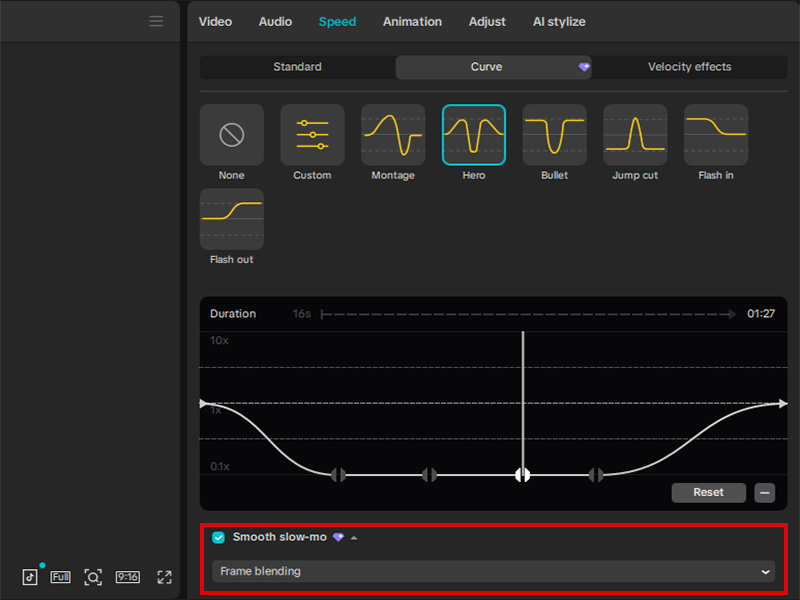
This single setting makes the biggest difference in how professional your slow motion looks, especially for footage recorded at standard 30fps.
Method 2: Get Instant Results With CapCut Slow Motion Templates
Manual editing gives you full control, but it takes time. For fast, trend-aligned content, a pre-built capcut template slow motion preset is the fastest path to professional results. These templates come pre-configured with speed curves, transitions, color grading, and even matching audio — just drop in your footage and export.
1. Why Use a Slow Motion CapCut Template
- Save hours of work: No need to manually build speed curves, add transitions, or match effects to music.
- Stay on trend: Viral template styles are updated constantly, so you can jump on new formats fast.
- Beginner-friendly: You don’t need any editing experience to produce polished slow-motion clips.
- Consistent quality: Templates deliver reliable, professional results every time, even for new creators.
2. Popular CapCut Template Slow Motion Styles
There are hundreds of slow motion templates in CapCut’s library, built for different content types:
- Cinematic slow-mo: Soft fades, subtle vignettes, and dramatic speed ramps for storytelling clips.
- Velocity edits: Fast-slow-fast rhythm shifts paired with beat-synced music for dance and lifestyle content.
- Aesthetic soft slowmo: Warm pastel grading and gentle motion blur for dreamy, moody footage.
- Action highlight: Crisp, sharp slow motion for sports, stunts, and dynamic moments.
- Simply search “slow motion” in the Templates tab to browse the full library and preview styles before applying.
3. Smooth Slow Motion CapCut Template New Trend: What‘s Viral in 2026
The smooth slow motion capcut template new trend dominating feeds right now focuses on ultra-fluid velocity changes paired with soft, modern visual effects. Unlike older choppy slow-mo styles, this new trend uses seamless speed ramps, motion blur, and subtle zoom effects to create an almost dreamlike feel.
Key features of this trending style:
- Gradual speed transitions with no hard cuts
- Soft, cinematic color grading
- Beat-aligned slow-motion peaks
- Subtle particle or light leak overlays
- Optimized for 9:16 vertical short-form video
Creators love this trend because it works for almost any niche — travel, fashion, food, lifestyle, and personal vlogs all benefit from the smooth, elevated look. To find it, search for “smooth slow motion new trend” in CapCut’s template library.
4. Healing Thailand CapCut Template Slow Motion: The Calming Travel Favorite
One of the most widely used slow-motion template styles is the healing thailand capcut template slow motion format, which exploded in popularity for travel and wellness content. This template pairs gentle slow-motion ramps with soft tropical color grading, lo-fi ambient music, and subtle floating particle effects to create a peaceful, relaxing vibe.
What makes this template stand out:
- Buttery-smooth slow motion timed to calm, meditative audio
- Warm, desaturated color palettes inspired by Thai sunset tones
- Soft blur transitions and gentle zoom effects
- Minimal, elegant text animation options
It works perfectly for beach clips, temple visits, forest walks, sunset scenes, and any footage meant to feel serene and immersive.
Pro Tips for Perfect Smooth Slow Motion
- Shoot at the highest frame rate possible: 60fps or 120fps source footage will always look smoother than 30fps clips when slowed down.
- Don’t overdo it: Dropping below 0.3x speed on standard footage will almost always look choppy, even with frame interpolation.
- Match slow motion to music beats: Align speed ramps with drops or melody shifts for a more satisfying viewing experience.
- Use curves instead of hard cuts: Gradual speed ramps always look more professional than sudden constant-speed jumps.
- Pair slow motion with subtle color grading: Soft contrast and warm tones enhance the cinematic feel of slowed footage.
Final Thoughts
Creating smooth slow motion in CapCut is easier than ever, whether you prefer building custom speed curves manually or using a ready-made slow motion capcut template for instant results. For full creative control, manual curve editing plus Optical Flow interpolation delivers studio-quality motion. For fast, trend-ready content, the smooth slow motion capcut template new trend styles let you produce viral-worthy clips in minutes.